

Use ByDesign with Gemini
Connect your ByDesign workspace to Gemini, then ask about your schedule, create tasks, reschedule your week or pull up a note, all without opening ByDesign. It works on gemini.google.com, through ByDesign’s MCP server, which comes with every plan.
Updated November 6, 2026.
What is MCP?
MCP (Model Context Protocol) is a standard that lets AI assistants connect to apps and work with your actual data.
Connecting ByDesign means Gemini can see your real tasks, events, habits and pages, and make changes for you. It isn’t a copy of your data sitting somewhere else: it reads and writes to your live workspace.
Everything stays behind your ByDesign login. You authorize the connection once, and you can disconnect it any time.
Everything Gemini can do in ByDesign
Once you’re connected, type @ByDesign in your prompt and ask in plain words. Here’s what Gemini can work with, and something to try for each.
Your schedule
- See what’s on for today, tomorrow or any date
- Look across a range of days, weeks or months
- Check what’s overdue
- Pull up the full details of any task, event or habit
Try“What’s overdue, and what’s due this week?”
Tasks
- Create one task or several at once
- Add tasks straight to your inbox
- Add subtasks
- Reschedule, update, complete or delete tasks
- Move tasks between pages, folders or the inbox
- Search across your whole workspace
- Find and merge duplicates
Try“Add “book flights” and “renew passport” to my inbox.”
Events
- Create events with guests, recurrence and reminders
- Reschedule or update any detail
- RSVP to invitations
- Delete events and cancel them for guests
Try“Set up a one-hour planning session with Alex next Tuesday at 10 am.”
Habits
- Create habits with recurrence
- Log them as done, skipped or undone
- Update the schedule or timing
- See which ones are on track
Try“Create a daily reading habit at 9 pm.”
Pages and notes
- Read any page in full, including its tasks
- Create new pages
- Add content or tasks to an existing page
- Update or delete pages
- Organise pages into folders
- Share a page with someone in your workspace
Try“Create a Kitchen renovation page and add the first five steps as tasks.”
Reminders
- Add reminders to any task, event or habit
- See which reminders are already set
- Remove them
Try“Add a reminder to my gym session 30 minutes before.”
Calendars
- See which calendars are connected
- Read events from Google, Apple or Outlook
- Push a ByDesign event, task or habit to a connected calendar
Try“What’s on my Outlook calendar tomorrow?”
Workspace overview
- Get a health check across your whole workspace
- See every project and page with its current state
- Check your scheduling preferences and timezone
Try“Which of my projects need attention this week?”
ByDesign and your other Gemini apps
If Gemini is also connected to your other tools, you can move information between them and ByDesign without copying anything by hand. For example:
From Gmail
“Find the email from the accountant about the filing deadline and add the steps as tasks with the right dates.”
Works well for deadlines buried in a paragraph, like renewals, invoices or bookings.
From Google Docs
“Open the Q4 roadmap doc and create a page in ByDesign with the milestones as tasks.”
Turns a brief or a spec into a schedule.
From Google Sheets
“Go through the launch checklist sheet and add each open item as a task for next week.”
Handy when a plan lives in a spreadsheet but the work belongs on your calendar.
Across your calendars
“Look at my calendar next week and tell me where I could fit three hours of focused work.”
Your connected calendars are already visible to ByDesign; one conversation can reason across both.
The other way round
“Check my overdue tasks and draft an email to the client explaining the new timeline.”
Your ByDesign plan can feed an email in Gmail or a note in Google Docs.
How to connect ByDesign to Gemini
You add ByDesign as a custom app on gemini.google.com, on your computer, signed in with your personal Google Account.
ByDesign MCP server URL
https://mcp.bydesign.io/mcpOn gemini.google.com
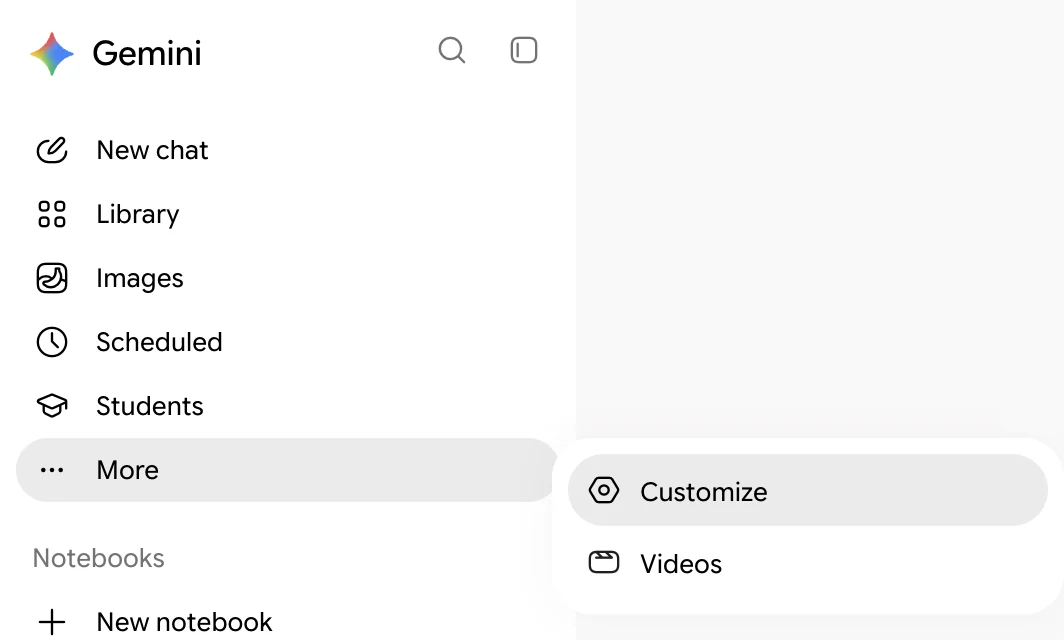
Step 1: Open Customize
On your computer, go to gemini.google.com and sign in with your personal Google Account. In the sidebar, click More, then Customize.
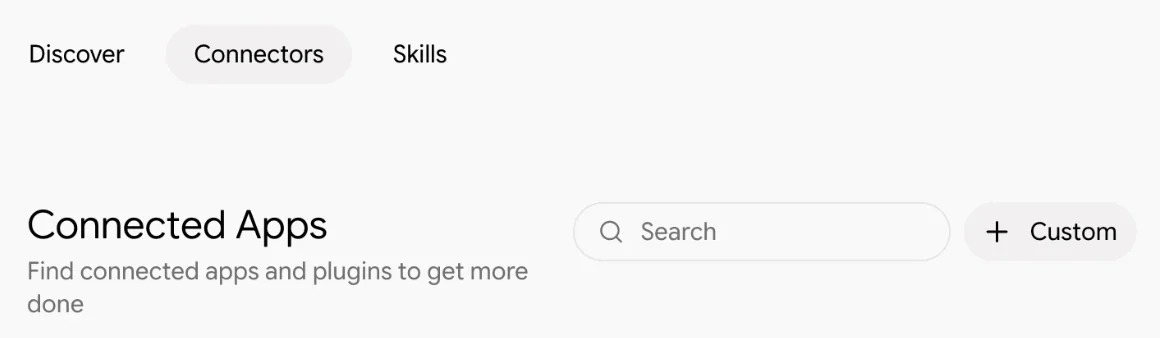
Step 2: Add a custom app
Open the Connectors tab, then click + Custom.
Step 3: Enter the ByDesign server URL
In the Connect to an MCP server window, paste the server URL. Leave Additional settings as they are and click Next.
https://mcp.bydesign.io/mcp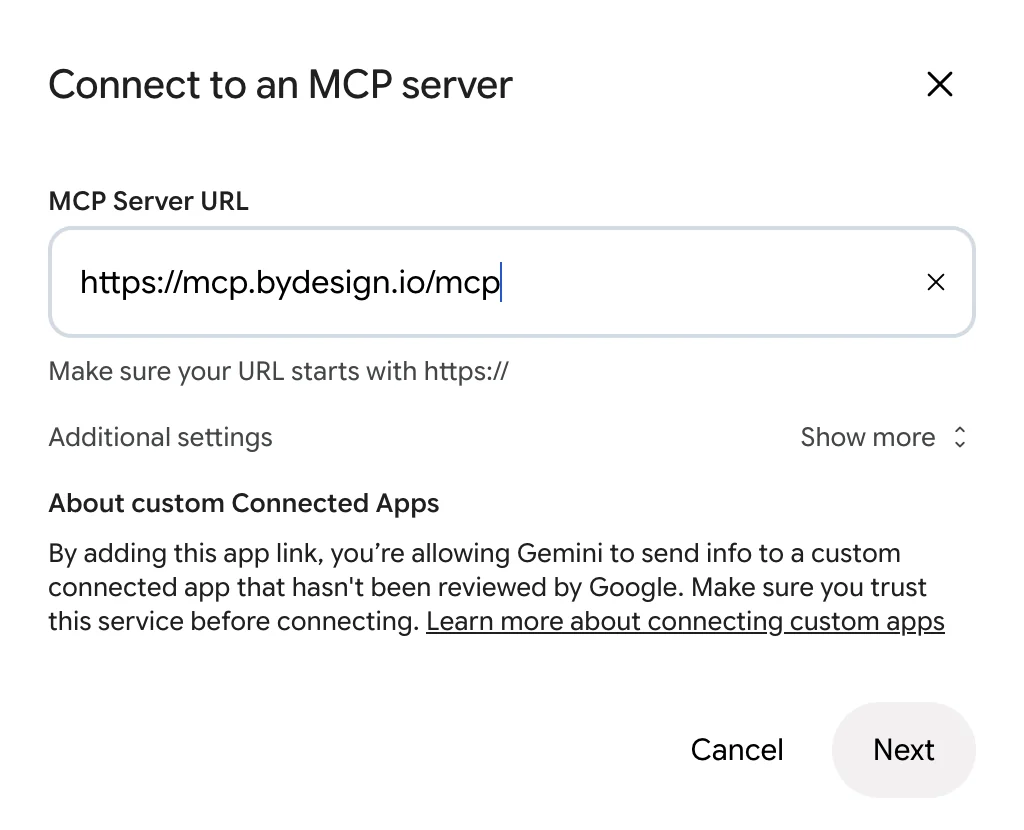
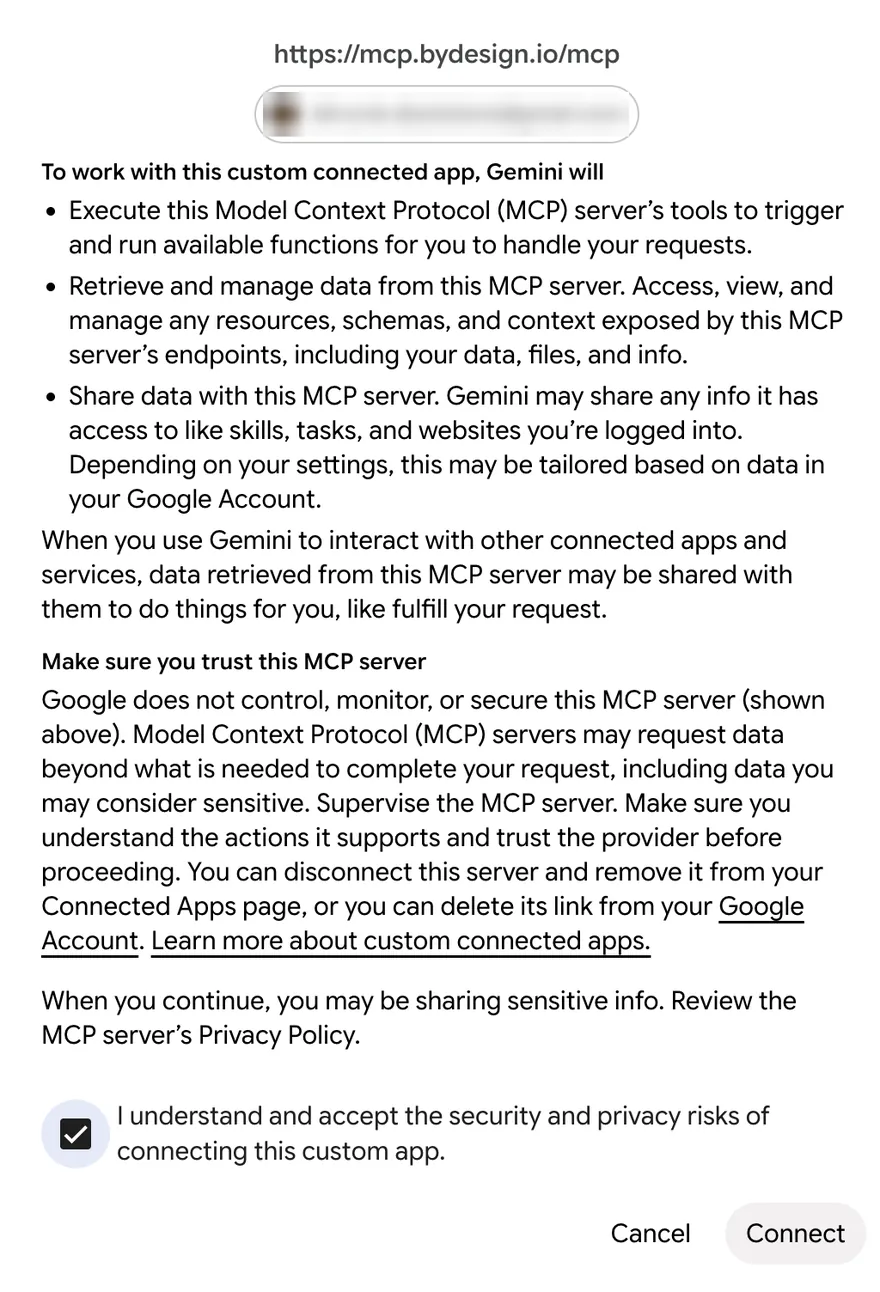
Step 4: Accept and connect
Gemini lists what it will be able to do with ByDesign’s server. Tick I understand and accept the security and privacy risks of connecting this custom app, then click Connect.
Step 5: Link your accounts
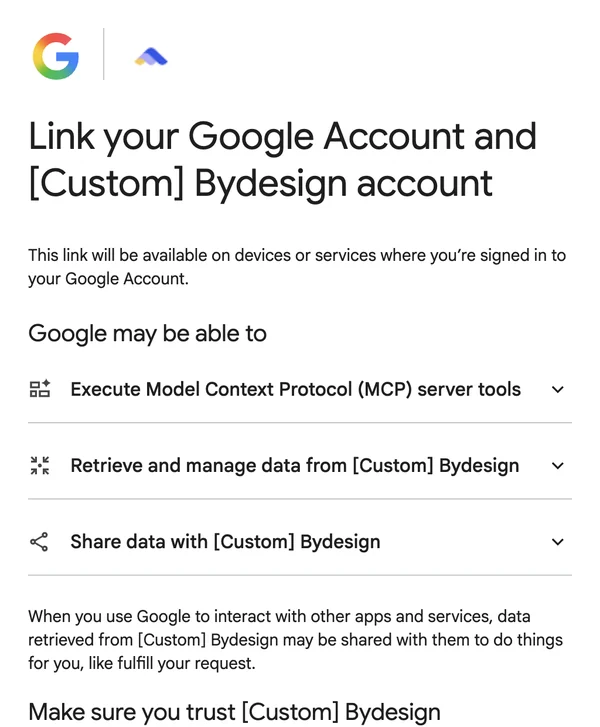
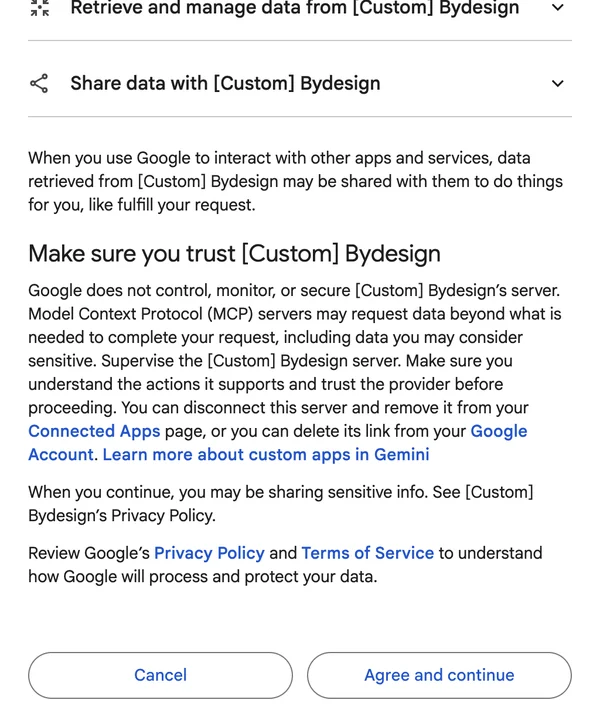
Google asks you to link your Google Account and your ByDesign account. Scroll down and click Agree and continue.
Step 6: Authorize in ByDesign
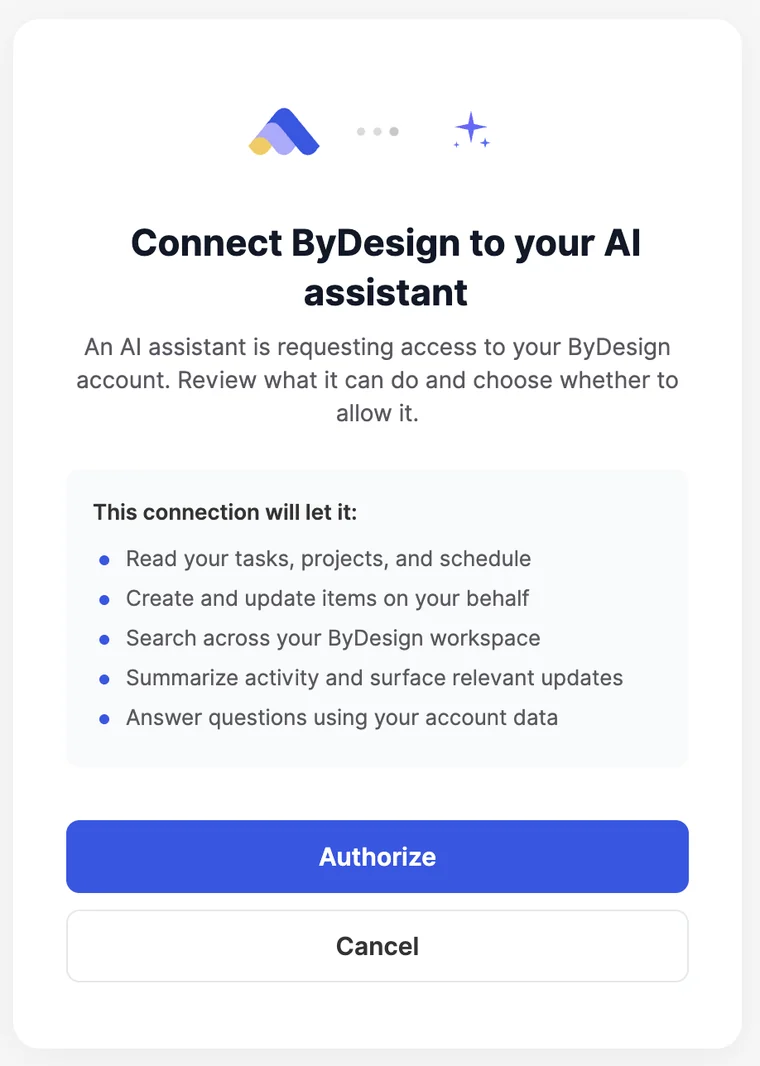
ByDesign’s page opens. Sign in if you’re asked, check what the connection will let Gemini do, and click Authorize.
Step 7: Save it as ByDesign
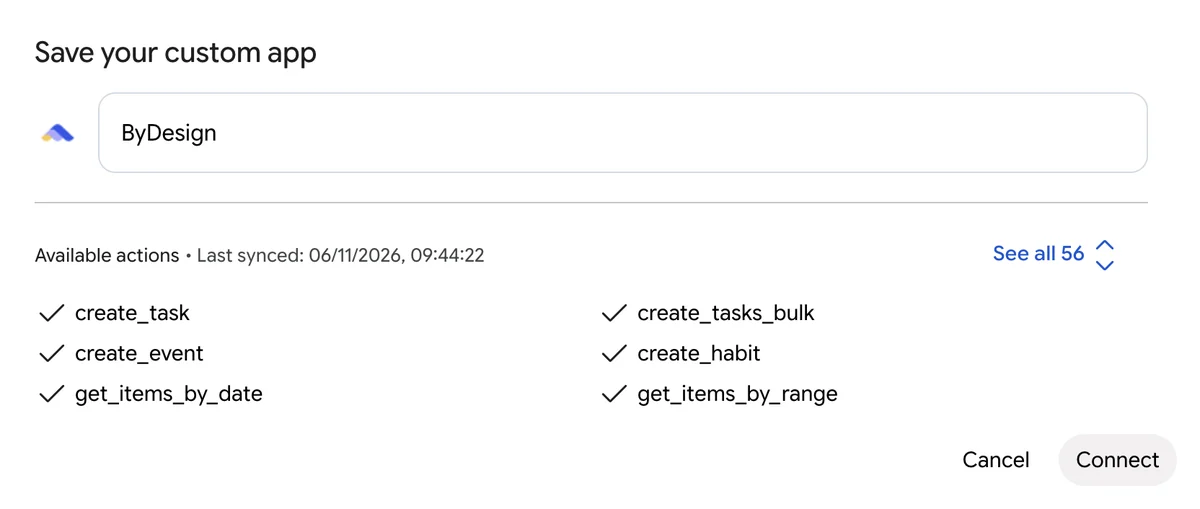
Back in Gemini, the Save your custom app window lists the actions ByDesign offers. Set the name to ByDesign and click Connect.
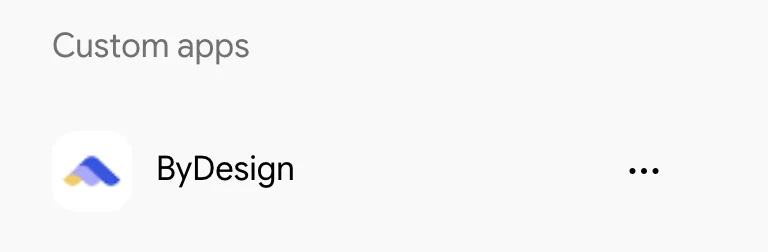
Step 8: Check it’s installed
ByDesign now shows under Custom apps on the Connectors tab.
Step 9: Use it in a chat
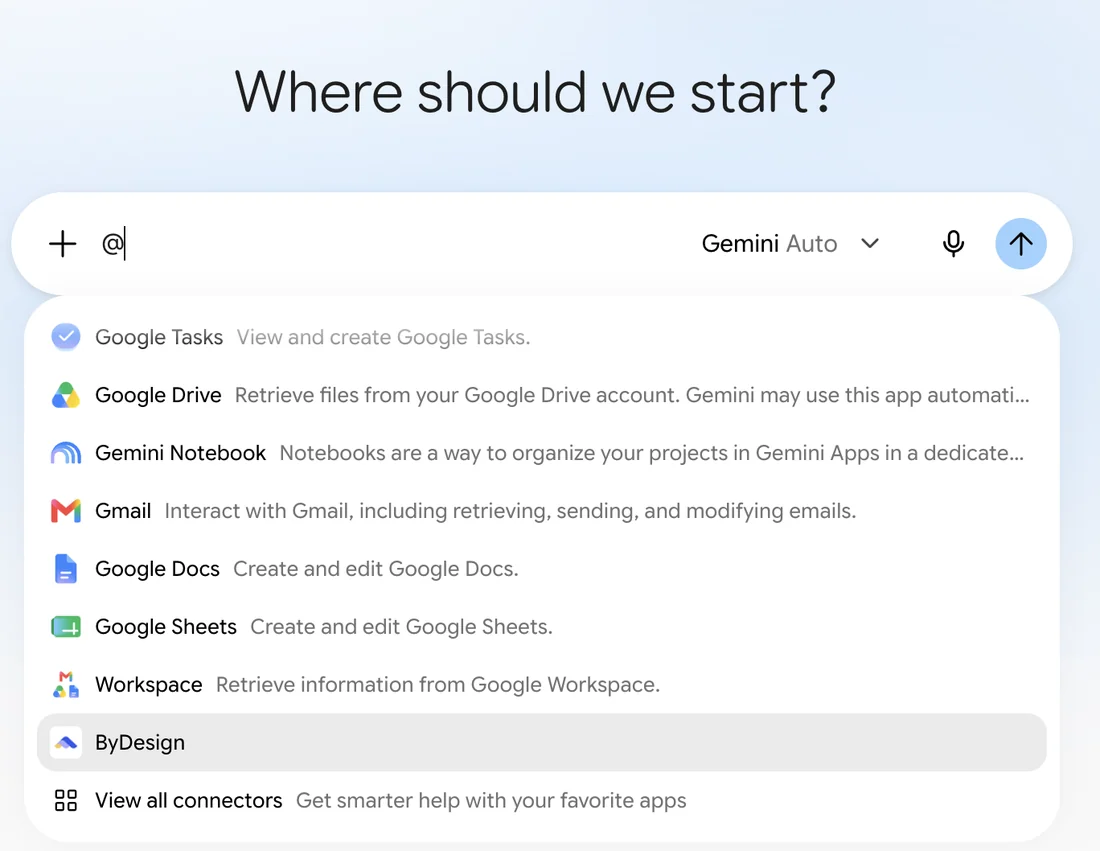
Start a new chat, type @ and choose ByDesign, then ask away, for example “What’s overdue, and what’s due this week?”
Good to know
- It reads and writes. Gemini can make real changes to your workspace, not just read it. Deleting a page or an event is permanent, so be clear about what you’re asking for.
- It uses your real settings. Your work hours, calendar blocks and scheduling preferences all apply: if you’ve told ByDesign not to schedule before 9 am, that’s respected here too.
- Your connected calendars are included. If you’ve synced Google, Apple or Outlook, those events are visible when it works out your availability.
- Everything stays behind your ByDesign login. You authorize the connection once, in your browser, and you can disconnect any time by removing ByDesign from Gemini.
- MCP comes with every ByDesign plan, from Pro at $8 a month. Each plan includes a monthly allowance of MCP requests, counted separately from ByDesign’s AI credits, and every plan starts with a 7-day free trial with no credit card.
- To use ByDesign in a chat, type @ in your prompt and choose ByDesign, then say what you need.
- Before you connect, Gemini lists what it will be able to do with ByDesign’s server, including sharing info it has access to, and you accept the risks of connecting a custom app. Later, you can remove ByDesign from your Connected Apps page in Gemini or delete its link from your Google Account.
Gemini or ByDesign’s own AI?
ByDesign also has a built-in AI assistant. The two work side by side: connect Gemini on any plan, and add ByDesign’s own AI planning if you want it.
Gemini, connected through MCP
- Works on every ByDesign plan, including Pro at $8 a month, which has no built-in AI.
- Use the assistant you already use, alongside the other tools you’ve connected to Gemini.
- Reads and updates your tasks, events, habits, pages and reminders, and reads your synced calendars.
ByDesign’s own AI (AI plan)
- Comes with the AI plan, $15 a month or $119 a year, with 500 AI credits a month.
- Turns a goal into tasks, subtasks, courses and deadlines on your calendar.
- Schedules around your hours and shows every change on the calendar before it’s saved; includes the year-to-day planning canvas and voice control.
Troubleshooting
- Gemini doesn’t use ByDesign
- Type @ in your prompt, choose ByDesign, then ask again.
- ByDesign isn’t in the @ list
- Check that it shows under Custom apps on the Connectors tab (More → Customize in the sidebar). If it doesn’t, add it again with + Custom.
- The authorization page didn’t open
- Check that pop-ups aren’t blocked in your browser, then try adding ByDesign again.
- It can’t find something you know exists
- Name it more specifically: “my Portugal trip page” works better than “that trip thing”.
- Still stuck?
- Reach out through the chat inside ByDesign and the team will help you sort it.
Use another AI assistant?
ByDesign’s MCP server also works with ChatGPT, and with Claude on claude.ai, in the Claude desktop app and in Claude Code.
Gemini and ByDesign questions
Does ByDesign work with Gemini?
Yes. You add ByDesign’s MCP server, at https://mcp.bydesign.io/mcp, to Gemini as a custom app on gemini.google.com. Once connected, you can ask about your schedule, create tasks, reschedule your week or pull up a note without opening ByDesign.
What is MCP?
MCP (Model Context Protocol) is a standard that lets AI assistants connect to apps and work with your actual data. ByDesign has its own MCP server, so Gemini can work with your real tasks, events, habits and pages.
Where do I add ByDesign in Gemini?
On gemini.google.com, click More in the sidebar, then Customize. Open the Connectors tab, click + Custom and paste ByDesign’s server URL. Click Next, tick the box to accept the risks and click Connect, then click Agree and continue on Google’s linking page and Authorize on ByDesign’s. Back in Gemini, name it ByDesign and click Connect.
How do I use ByDesign in a Gemini chat?
Type @ in your prompt and choose ByDesign, then ask, for example “What’s overdue, and what’s due this week?”
Which ByDesign plan do I need?
Any of them. MCP comes with Pro, AI and AI Plus, from $8 a month, and every plan starts with a 7-day free trial with no credit card.
Do I need ByDesign’s AI plan to use Gemini with it?
No. The MCP connection comes with every plan, including Pro, which has no built-in AI. The AI plan adds ByDesign’s own assistant, which turns goals into scheduled plans and previews every change.
Can Gemini change or delete things in ByDesign?
Yes, it reads and writes. When you ask, it can create, update, complete or delete tasks, create, update or delete events and pages, and create and log habits. Deleting a page or an event is permanent, so be clear about what you’re asking for.
Does it work with my live data?
Yes. It reads and writes to your live ByDesign workspace, not a copy of your data sitting somewhere else, and everything stays behind your ByDesign login.
Can Gemini see my Google, Apple or Outlook calendar?
It sees the calendars you’ve connected to ByDesign and can read their events, which count when it works out your availability. It can also push a ByDesign event, task or habit to one of them.
How do I disconnect ByDesign from Gemini?
Remove ByDesign from your Connected Apps page in Gemini, on the Connectors tab under More → Customize. You can also delete its link from your Google Account.
Plan with Gemini, keep it all in ByDesign
Tasks, calendar, habits and notes in one app, with AI planning built in. Free for 7 days, no credit card.
Try ByDesign free