

AI scheduling: plan your week, approve it first
Ask ByDesign to plan your day or week in plain words. It drafts the changes on a preview of your calendar, around your hours and the events you already have. Your calendar doesn’t change until you accept.
In the AI and AI Plus plans · Updated November 6, 2026.
What is AI scheduling in ByDesign?
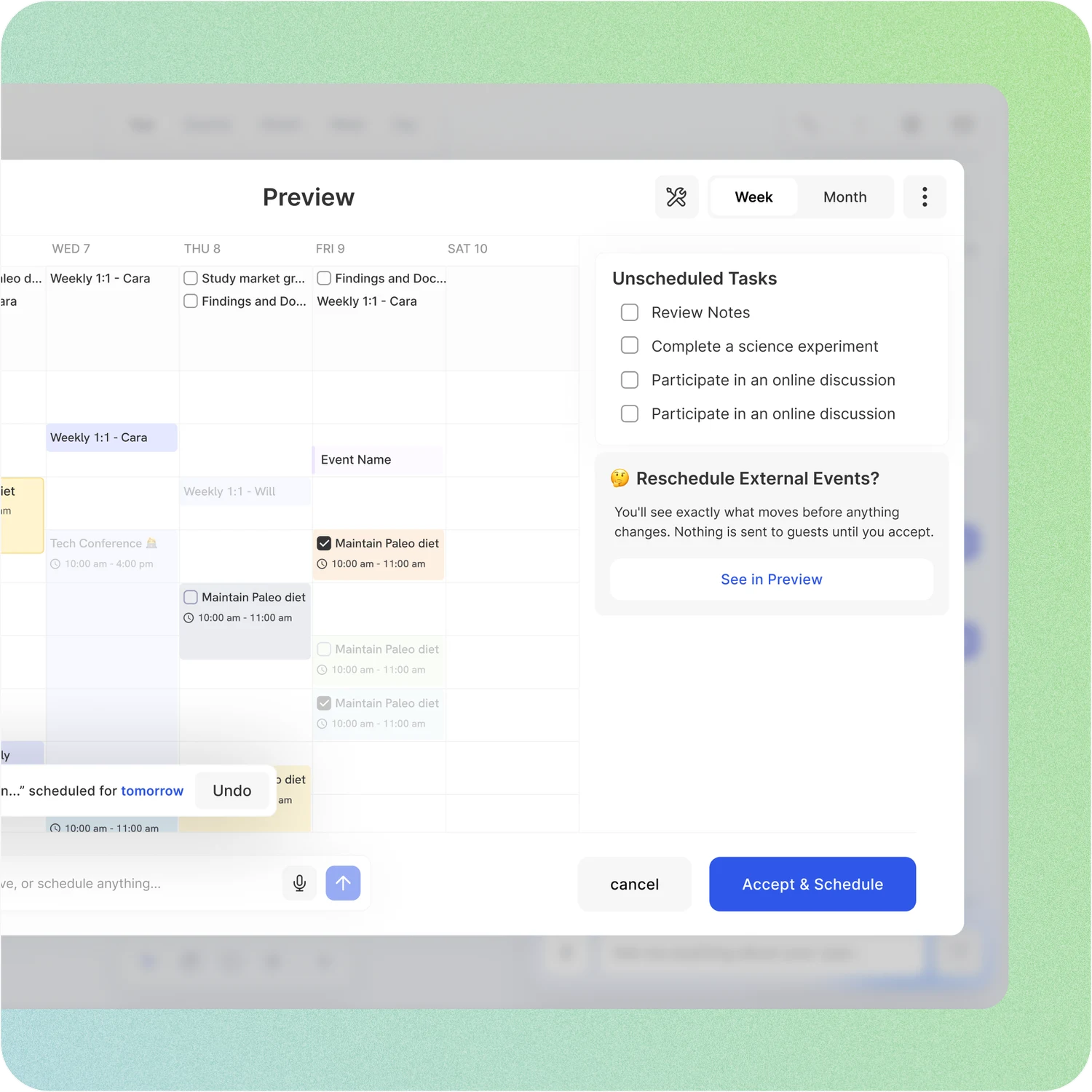
AI scheduling in ByDesign plans your day, week or month for you. You ask in plain words, like “plan my week”, and ByDesign lays the changes out on a preview of your calendar. Your calendar doesn’t change until you click Accept & Schedule.
It works around what’s already there: the work and personal hours you set, the events from your connected calendars and the tasks you’ve locked. Anything it can’t fit goes to an Unscheduled list with suggested times, instead of being squeezed in.
Works onByDesign on the web and the Mac and Windows apps. The iPhone and Android apps don’t have the schedule preview.
How AI scheduling works
Four steps, and you have the final say on every change.
Step 1: Ask for a plan
Ask ByDesign’s assistant to “plan my week” or “plan my Monday”, press Plan this week, or open Preview Schedule from the Task Panel.
Step 2: See the draft on a preview
ByDesign lays the changes out on a preview of your calendar, by day, week or month. Tasks it couldn’t fit sit in an Unscheduled list beside it, with suggestions.
Step 3: Adjust it
Keep asking by typing or by voice, such as “move my review to Friday at 3 pm”, or drag things yourself. Undo goes back one step at a time.
Step 4: Accept or cancel
Click Accept & Schedule to save the changes to your calendar, or Cancel to throw the draft away.
What you can set and do
Plan a day, a week or a month
Ask for today, your week or particular dates. One preview covers up to 31 days.
Keeps to your hours
Planning keeps to the work and personal hours and days you set. Turn that off to plan any day, 6 AM to midnight.
Choose how full your days get
Relaxed spreads things out with breathing room, Balanced mixes focus and flexibility, and Packed uses every available slot.
Room between tasks
Set a buffer between tasks so your day isn’t back to back.
AI Blocks for the right work
Create named blocks and tell the AI what kind of tasks belong in each one.
What’s set stays put
Events, habits and anything that already has a time stay where they are unless you name them. Events from calendars like Google are protected by default.
Locked tasks don’t move
Lock a task and AI scheduling plans around it.
Conflicts sorted in one click
When things clash, the preview suggests a fix. Apply it to one conflict or to every conflict at once.
Things to ask
Type or say any of these in the preview.
- Try“Plan my week”
- Try“Plan next week”
- Try“Plan my Monday”
- Try“Move my review to Friday at 3 pm”
- Try“Move today’s unfinished tasks to tomorrow”
- Try“Clear my Tuesday”
Good to know
- Your calendar doesn’t change until you click Accept & Schedule, and Cancel throws the draft away. Two things save straight away: preferences you ask it to always follow, and locking or unlocking a task.
- Tasks that don’t fit go to the Unscheduled list with suggested times. You can schedule them all at once, widen your working hours for that window, or push them to the next open day.
- A preview covers up to 31 days. For a longer stretch, save the plan and start a new preview.
- Turn on Ask before acting and the assistant checks with you when a request could mean more than one thing. It always confirms before deleting anything.
- Requests to the AI use credits from your plan’s monthly allowance: 500 a month on AI and 1,500 on AI Plus. Dragging, undoing and cancelling don’t.
- The schedule preview is on the web and in the Mac and Windows apps, not in the iPhone and Android apps.
Which plan includes it?
AI scheduling comes with the AI ($15 a month or $119 a year) and AI Plus ($20 a month or $199 a year) plans. Pro doesn’t include it. Free for 7 days, no credit card, no commitment.
More ByDesign features
- AI goal planner
- Habit tracker
- Year planner
- Time blocking
- Calendar sync
- Reminders
- Quick capture
- Task views
- Widgets
- Dark mode
- See every feature →
Use ByDesign with your AI assistantUse ByDesign with ChatGPTUse ByDesign with ClaudeUse ByDesign with Gemini
AI scheduling questions
What is AI scheduling in ByDesign?
It’s ByDesign’s AI planner for your calendar. Ask in plain words, like “plan my week”, and it drafts the changes on a preview around your hours and existing events. Your calendar doesn’t change until you click Accept & Schedule.
Does it change my calendar straight away?
No. It drafts everything on a preview first. You can keep asking, drag things yourself or undo changes, and only Accept & Schedule saves them. Cancel leaves your calendar as it was.
Will it move my Google Calendar events?
Not unless you let it. With Protect external calendar events on, events from your connected calendars stay where they are and the AI plans around them. Turn it off and the assistant can reschedule them, and you still approve every change first.
Does it respect my working hours?
Yes. Planning keeps to the work and personal hours and days you set in ByDesign’s AI settings. You can also choose Relaxed, Balanced or Packed days and set a buffer between tasks.
What happens to tasks that don’t fit?
They go to the Unscheduled list beside the preview, with suggested times. Schedule them all at once, widen your working hours for that window, or push them to the next open day.
Can I use AI scheduling on my phone?
The schedule preview is in ByDesign on the web and in the Mac and Windows apps. The iPhone and Android apps don’t have it.
Which plan includes AI scheduling?
AI scheduling comes with the AI ($15 a month or $119 a year) and AI Plus ($20 a month or $199 a year) plans. Pro doesn’t include it. Free for 7 days, no credit card, no commitment.
Let ByDesign plan your week
Tasks, calendar, habits and notes in one app, with AI planning built in. Free for 7 days, no credit card.
Try ByDesign free