

Task views: daily, weekly, someday and Kanban
Look at your tasks the way you think about them: day by day, week by week, someday, all in one list, or on a Kanban board. Filter, sort, and drag a task to another day to reschedule it.
In every plan, from Pro · Updated November 6, 2026.
What are task views in ByDesign?
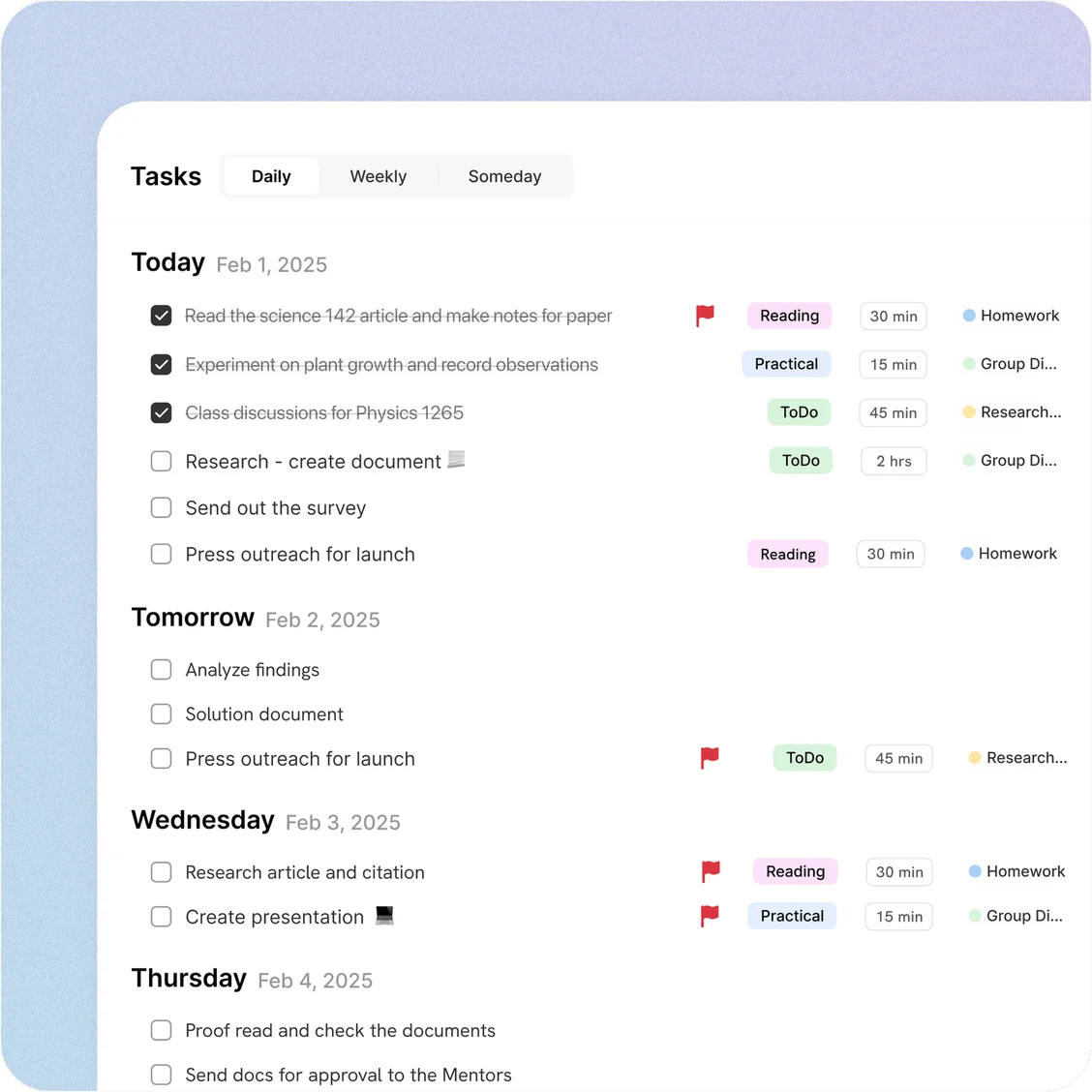
Task views in ByDesign show the same tasks in different ways. In the Timeline you switch between Daily, Weekly, Someday, All Tasks and Kanban, then filter and sort to see exactly what you need.
Daily covers the next 14 days, Weekly the next 10 weeks, and Someday holds tasks with no date yet. Drag a task to another day or week and its date changes.
Works onAll five views are in ByDesign on the web and in the Mac and Windows apps. The iPhone and Android apps have Daily and Someday.
How task views work
Pick a view, narrow it down, and move things where they belong.
Step 1: Open the Timeline
In your Workspace, open Timeline.
Step 2: Pick a view
Choose Daily, Weekly, Someday, All Tasks or Kanban.
Step 3: Filter and sort
Show only what you need, like scheduled tasks, tasks with deadlines or habits, and sort by priority, deadline, tag or page.
Step 4: Drag to reschedule
Drag a task to another day or week to change its date, or into Someday to clear it.
What each view does
Daily
The next 14 days, starting with Today and Tomorrow, each with its tasks.
Weekly
The next 10 weeks, starting on the day you choose for your week to begin.
Someday
Tasks with no date or repeat yet. Move one there and its date and repeat are cleared.
All Tasks
Every task in one list.
Kanban
Your tasks as cards on a board.
Overdue, kept in sight
Overdue tasks get their own section in Daily, Weekly and All Tasks.
Filters
Recurring, scheduled, with deadlines, someday, unscheduled, completed, habits or unassigned.
Sorting
Sort by creation date, priority, tag, page, schedule, deadline or assignees.
Good to know
- Someday is for tasks with no date and no repeat; moving a task there clears both.
- Unscheduled tasks, with no date, deadline or repeat and not in Someday, have their own filter.
- Completed tasks stay hidden until you turn on the Completed Tasks filter.
- All Tasks loads 100 tasks at a time as you scroll.
- The iPhone and Android apps have Daily and Someday; drag a task across the date headers to reschedule it.
Which plan includes it?
Task views comes with every plan: Pro ($8 a month or $69 a year), AI ($15 a month or $119 a year) and AI Plus ($20 a month or $199 a year). Free for 7 days, no credit card, no commitment.
More ByDesign features
- AI scheduling
- AI goal planner
- Habit tracker
- Year planner
- Time blocking
- Calendar sync
- Reminders
- Quick capture
- Widgets
- Dark mode
- See every feature →
Use ByDesign with your AI assistantUse ByDesign with ChatGPTUse ByDesign with ClaudeUse ByDesign with Gemini
Task view questions
What views does ByDesign have for tasks?
Daily, Weekly, Someday, All Tasks and Kanban, in the Timeline. You can filter and sort each one.
What is the Someday list?
It holds tasks with no date or repeat yet. Moving a task there clears its date and repeat, and you can drag it onto a day when you’re ready.
Does ByDesign have a Kanban board?
Yes. Kanban is one of the Timeline views, and it comes with every plan.
Can I reschedule by dragging?
Yes. Drag a task to another day or week in the Timeline and its date changes.
Are these views in the phone apps?
The iPhone and Android apps have Daily and Someday. Weekly, All Tasks and Kanban are on the web and in the Mac and Windows apps.
Which plan includes task views?
Task views comes with every plan: Pro ($8 a month or $69 a year), AI ($15 a month or $119 a year) and AI Plus ($20 a month or $199 a year). Free for 7 days, no credit card, no commitment.
See your tasks your way
Tasks, calendar, habits and notes in one app, with AI planning built in. Free for 7 days, no credit card.
Try ByDesign free