

Calendar sync: Google, Apple and Outlook in one place
Connect your calendars and see your events next to your tasks and habits. Google and Apple sync both ways, Outlook one way, and ByDesign can push your tasks, events and habits to the calendar you choose.
In every plan, from Pro · Updated November 6, 2026.
What is calendar sync in ByDesign?
Calendar sync in ByDesign connects your Google, Apple and Outlook calendars, so your events sit next to your tasks and habits in one planner. Google and Apple sync both ways: add, edit or delete on either side and everything stays updated. Outlook syncs one way.
ByDesign can also push your own tasks, events and habits to the calendar you choose, so they show up wherever you check your schedule.
Works onConnect calendars in ByDesign’s settings. Your synced events then show in ByDesign on the web, iPhone, iPad and Android, and in the Mac and Windows apps.
How calendar sync works
Connect once, and your calendars stay in step.
Step 1: Open Calendars and Integration
In ByDesign’s settings, open Calendars and Integration, where you manage and link your calendars.
Step 2: Add a calendar
Under Add Calendars, choose Google, Outlook or Apple and connect your account. To add another calendar from a link, use Subscribe.
Step 3: Choose where ByDesign pushes
Pick a calendar for Push my events/ tasks/ habits to this calendar, and your ByDesign items go there.
Step 4: Show or hide calendars
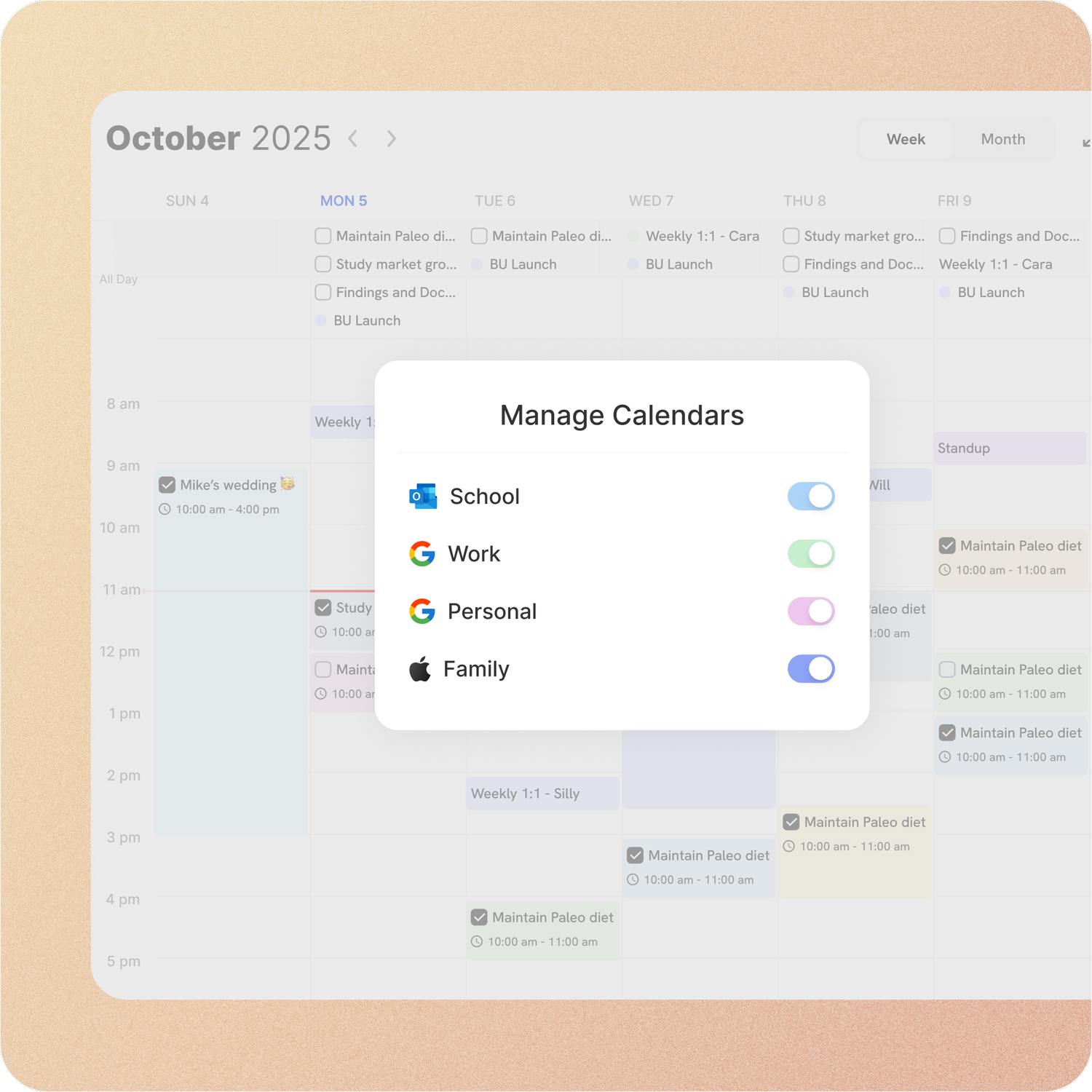
Use Manage Calendars to switch each calendar on or off in your ByDesign view.
What you can do with calendar sync
Google: full two-way sync
Add, edit or delete on either side, and everything stays updated.
Apple: two-way too
Apple Calendar syncs both ways as well.
Outlook: one way
See your Outlook events in ByDesign, and your ByDesign tasks and events in Outlook.
Subscribe to any calendar
Add a calendar from a subscription link, like a team or school calendar, with Subscribe.
Push tasks, events and habits
Send ByDesign items to the calendar you choose. A habit can also be pushed on its own, from its Calendar setting.
All-day items your way
Choose whether all-day tasks, events and habits created in ByDesign go to your external calendar.
Planned around your events
AI scheduling sees your synced events and plans around them. Protect external calendar events keeps them where they are.
Canvas for students
Integrate Canvas to bring your Canvas calendar and course materials into ByDesign.
Good to know
- Two-way sync with Google covers your primary Google calendar.
- Outlook is one-way: moving an Outlook event in ByDesign doesn’t change it in Outlook.
- All-day tasks, events and habits you create in ByDesign go to your external calendar only when you turn that on under Sync with external calendars.
- You can move Google and Apple events in ByDesign when you’re the organiser or there are no guests.
- Protect external calendar events is on by default, so AI scheduling plans around your synced events instead of moving them.
- Week start, time zone and 12- or 24-hour time are set under Customizations.
Which plan includes it?
Calendar sync comes with every plan: Pro ($8 a month or $69 a year), AI ($15 a month or $119 a year) and AI Plus ($20 a month or $199 a year). Free for 7 days, no credit card, no commitment.
More ByDesign features
- AI scheduling
- AI goal planner
- Habit tracker
- Year planner
- Time blocking
- Reminders
- Quick capture
- Task views
- Widgets
- Dark mode
- See every feature →
Use ByDesign with your AI assistantUse ByDesign with ChatGPTUse ByDesign with ClaudeUse ByDesign with Gemini
Calendar sync questions
Does ByDesign sync with Google Calendar?
Yes, both ways. Add, edit or delete on either side and everything stays updated. Two-way sync covers your primary Google calendar.
Does it work with Apple Calendar and Outlook?
Yes. Apple Calendar syncs both ways. Outlook syncs one way: you see your Outlook events in ByDesign, and your ByDesign tasks and events in Outlook.
Can my ByDesign tasks show in my calendar?
Yes. Choose a calendar under Push my events/ tasks/ habits to this calendar and your ByDesign items go there. All-day items go only if you turn that on.
Can I add a calendar that isn’t Google, Apple or Outlook?
Yes, if it has a subscription link: add it with Subscribe.
Will AI scheduling move my calendar events?
Not unless you let it. Protect external calendar events is on by default, so the AI plans around your synced events.
Can I connect Canvas for school?
Yes. Integrate Canvas to bring your Canvas calendar and course materials into ByDesign.
Which plan includes calendar sync?
Calendar sync comes with every plan: Pro ($8 a month or $69 a year), AI ($15 a month or $119 a year) and AI Plus ($20 a month or $199 a year). Free for 7 days, no credit card, no commitment.
Bring your calendars together
Tasks, calendar, habits and notes in one app, with AI planning built in. Free for 7 days, no credit card.
Try ByDesign free