

Year planner: your whole year on one canvas
See the whole year at a glance, then zoom into a quarter, a month, a week or a day. Drag plans around, add sticky notes and images, and ask the assistant for help, by typing or by voice.
In the AI and AI Plus plans · Updated November 6, 2026.
What is ByDesign’s year planner?
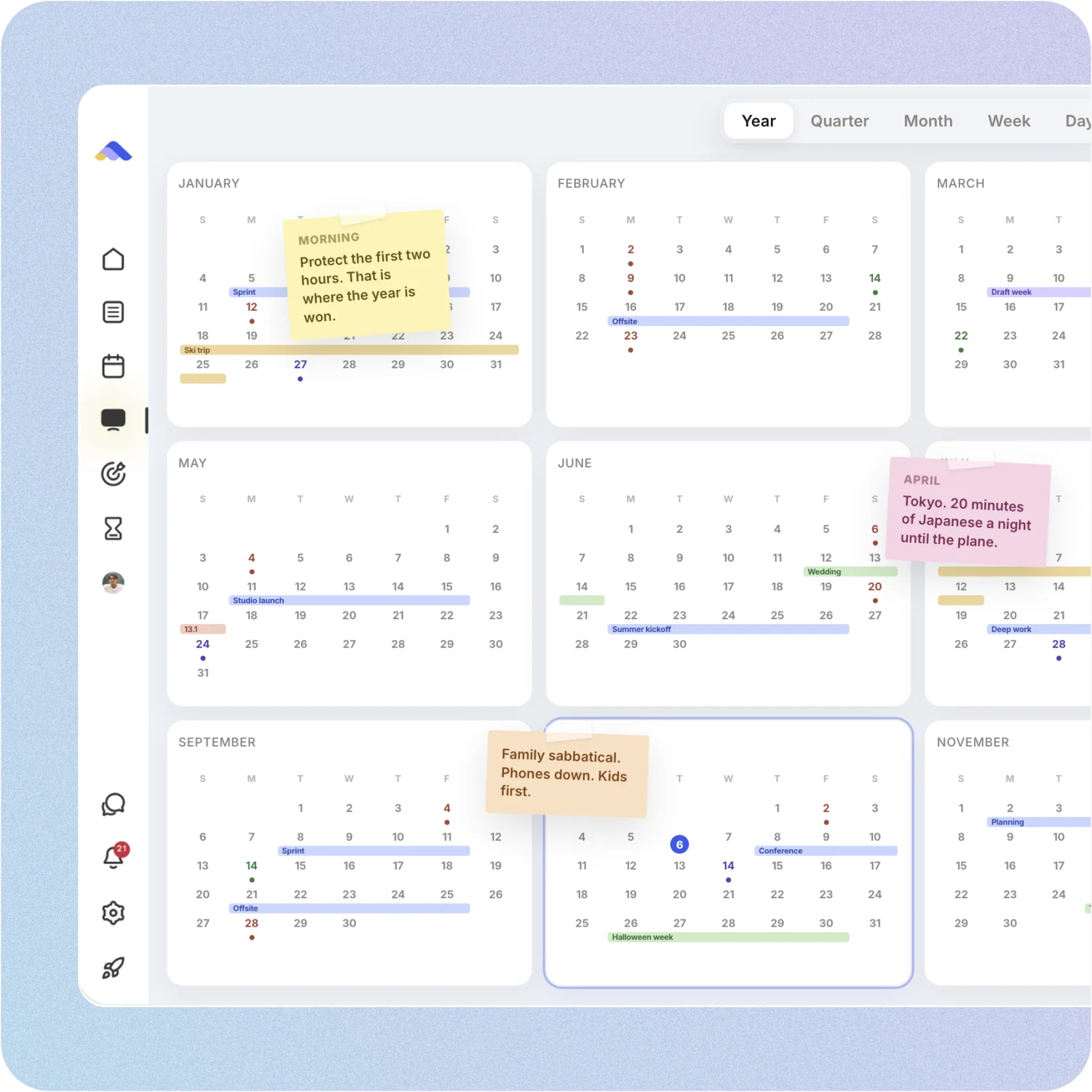
ByDesign’s year planner is the AI Canvas: one surface that shows your whole year as twelve month cards and zooms down to a quarter, a month, a week or a single day. Your tasks, events and habits are on it, and you can drag them between days.
Around your plans you can add sticky notes, images and pages, and an assistant on the canvas helps you move things, plan your week or find time, by typing or by voice.
Works onByDesign on the web and in the Mac and Windows apps. The iPhone and Android apps have Day, 3-Day, 5-Day, Week and Month calendars instead.
How the year planner works
Start from the year, then zoom in where you need detail.
Step 1: Open AI Canvas
Click AI Canvas in ByDesign’s menu and pick Year, Quarter, Month, Week or Day.
Step 2: Zoom in and out
Double-click a month to open it, or click a day to see it hour by hour. Pinch your trackpad, or hold ⌘ or Ctrl and scroll, to zoom from 12% to 300%.
Step 3: Move things around
Drag tasks, events and habits from one day to another. In Week and Day views, drag an edge to change how long something takes, or drag on an empty slot to add something new.
Step 4: Add notes and ask for help
Add sticky notes, images and pages around your plans, and ask the assistant to move things or plan your week, by typing or with the mic.
What you can do on the canvas
Year, quarter, month, week, day
Five views of the same plans, from twelve month cards down to a single day.
Zoom the way you like
Pinch, hold ⌘ or Ctrl and scroll, or use the zoom buttons and Fit to screen, from 12% to 300%.
Drag to reschedule
Move tasks, events and habits between days in any view. Events from Google or Apple Calendar move too when you’re the organiser or there are no guests.
Times in Week and Day views
Items snap to 15-minute slots. Drag an edge to resize, or drag on an empty slot to create something new.
Sticky notes
Add notes to the year, a month or a week. Each note stays with the view and the period you added it to.
Images and pages
Upload, drop or paste images, and pin pages next to your plans.
An assistant on the canvas
Ask it to move things, plan your week, find time with people or show what matters, or open a custom range like the next 10 days.
Voice built in
Tap the mic, or say “Hi ByDesign”, to talk to the assistant in Chrome, Edge or Safari.
Things to ask
Type them into “Ask me anything about your year…”, or tap the mic.
- Try“Plan my week”
- Try“Show me the next 10 days”
- Try“Move my dentist appointment to Thursday”
- Try“Find time with Sam next week”
- Try“Show me what matters this month”
- Try“Move today’s unfinished tasks to tomorrow”
Good to know
- The widest view is one calendar year.
- Goals have their own Goals page: the + menu’s Goal option opens it rather than placing a goal on the canvas. A goal’s tasks show on the canvas, and every goal page has a View on Canvas button.
- Sticky notes stay with the view and period you added them to, so a note on the Year view doesn’t appear in Week view.
- Pinned pages are kept in your browser, so they don’t follow you to another computer.
- The assistant uses AI credits from your plan’s monthly allowance: 500 on AI and 1,500 on AI Plus. Voice works in Chrome, Edge and Safari.
- Turning off the AI Feature setting hides the canvas.
Which plan includes it?
Year planner comes with the AI ($15 a month or $119 a year) and AI Plus ($20 a month or $199 a year) plans. Free for 7 days, no credit card, no commitment.
More ByDesign features
- AI scheduling
- AI goal planner
- Habit tracker
- Time blocking
- Calendar sync
- Reminders
- Quick capture
- Task views
- Widgets
- Dark mode
- See every feature →
Use ByDesign with your AI assistantUse ByDesign with ChatGPTUse ByDesign with ClaudeUse ByDesign with Gemini
Year planner questions
Does ByDesign have a year planner?
Yes. The AI Canvas shows your whole year as twelve month cards and zooms down to a quarter, a month, a week or a day, with your tasks, events and habits on it.
Can I drag plans between days?
Yes. Drag tasks, events and habits between days in any view. In Week and Day views they snap to 15-minute slots, and you can resize them by dragging an edge.
Can I add notes to my year?
Yes. Add sticky notes, images and pages around your plans. Each sticky note stays with the view and period you added it to.
Does the canvas have an AI assistant?
Yes. Ask it to move things, plan your week, find time with people or show a custom range like the next 10 days, by typing or by voice.
Can I plan more than one year ahead?
The canvas shows one calendar year at a time; that’s its widest view.
Does the year planner work on my phone?
The canvas is in ByDesign on the web and in the Mac and Windows apps. The iPhone and Android apps have Day, 3-Day, 5-Day, Week and Month calendars instead.
Which plan includes the year planner?
The AI Canvas comes with the AI ($15 a month or $119 a year) and AI Plus ($20 a month or $199 a year) plans. Free for 7 days, no credit card, no commitment.
See your whole year in one place
Tasks, calendar, habits and notes in one app, with AI planning built in. Free for 7 days, no credit card.
Try ByDesign free