

Quick capture: get tasks in fast, from anywhere
Press Ctrl+G or ⌘G and type a task with its date, time, duration, deadline or repeat in one line. Or forward an email, use a Siri Shortcut, or share from another app.
In every plan, from Pro · Updated November 6, 2026.
What is quick capture in ByDesign?
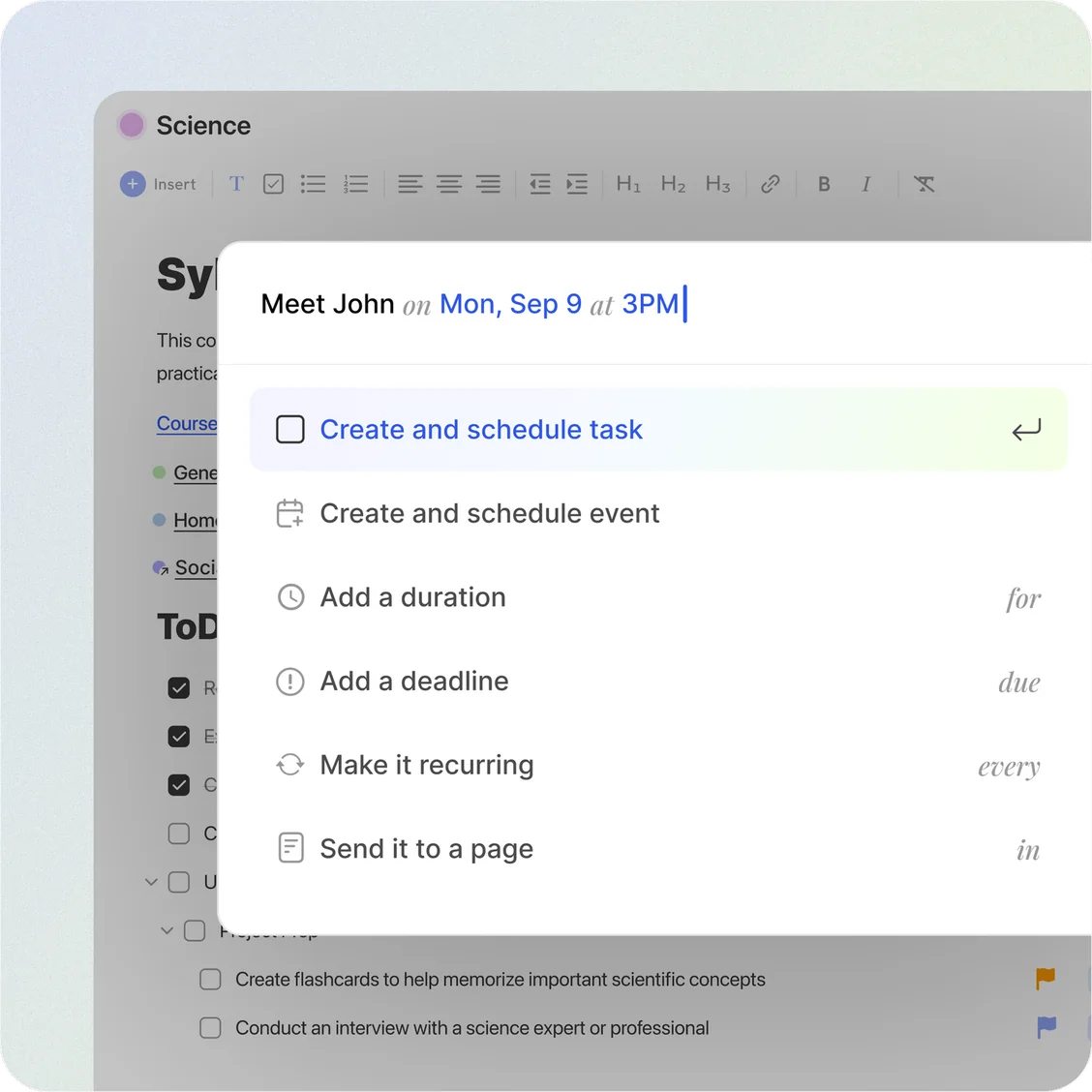
Quick capture in ByDesign is how you get a task in without breaking your flow. Quick Add opens with Ctrl+G or ⌘G: type the task, then command words like on, at, for, due, every and in to set its date, time, duration, deadline, repeat and page in the same line.
Away from your desk, forward an email to your ByDesign address, use the Siri Shortcuts on iPhone, or share from another app.
Works onQuick Add is in ByDesign on the web and in the Mac and Windows apps. On iPhone and Android, the + button’s task form understands the same command words, except in.
How Quick Add works
One line, and it’s on your list or your calendar.
Step 1: Open Quick Add
Press Ctrl+G, or ⌘G on a Mac, anywhere in ByDesign.
Step 2: Type the task
Write what it is, like “Meet John”.
Step 3: Add details with command words
Type on and a date, at and a time, for and a duration, due and a deadline, every and a repeat, or in and a page. A picker opens as you type; press Enter to choose.
Step 4: Create it
Choose a task or an event. With no date and no page, it goes to your Inbox.
What you can capture
Dates with on
“on Friday” or “on 12 March”, up to a year ahead.
Times with at
“at 3pm”. With no date, that’s today, or tomorrow if the time has passed.
Durations with for
“for 1h 30” blocks the time it needs.
Deadlines with due
“due Thursday” sets when it’s due, apart from when you’ll do it.
Repeats with every
“every day”, “every Monday”, or a monthly pattern like the 1st or the second Tuesday.
Pages with in
“in Thesis” sends the task straight to a page.
Email to your Inbox
Send or forward any email to your unique ByDesign address, and it becomes a task in your Inbox.
Siri Shortcuts and sharing
On iPhone, use the Quick Task and Inbox Task shortcuts, or share from another app to a ByDesign page.
Good to know
- Dates need on in front of them: “on Friday”, not just “Friday”.
- Quick Add makes tasks and events. Create habits from the Habit form.
- With a date, a new task lands on that day. With no date and no page, it goes to your Inbox.
- Priority and tags aren’t set from Quick Add: add them in the task afterwards.
- On the phone apps, the + button opens the task form with the day you’re viewing filled in, and in isn’t available there.
- Your ByDesign email address is in Settings, under Email Tasks to Your Inbox.
Which plan includes it?
Quick capture comes with every plan: Pro ($8 a month or $69 a year), AI ($15 a month or $119 a year) and AI Plus ($20 a month or $199 a year). Free for 7 days, no credit card, no commitment.
More ByDesign features
- AI scheduling
- AI goal planner
- Habit tracker
- Year planner
- Time blocking
- Calendar sync
- Reminders
- Task views
- Widgets
- Dark mode
- See every feature →
Use ByDesign with your AI assistantUse ByDesign with ChatGPTUse ByDesign with ClaudeUse ByDesign with Gemini
Quick capture questions
How do I quickly add a task in ByDesign?
Press Ctrl+G, or ⌘G on a Mac, type the task, and add details with command words like on, at and due. Then choose a task or an event.
Does Quick Add understand dates and times?
Yes, after a command word: on for a date, at for a time, for for a duration, due for a deadline and every for a repeat. For example, “Meet John on Friday at 3pm”.
Can I turn emails into tasks?
Yes. Send or forward any email to your unique ByDesign address and it’s added to your task Inbox. The address is in Settings, under Email Tasks to Your Inbox.
Can I add tasks with Siri?
Yes, on iPhone: ByDesign’s Siri Shortcuts include Quick Task, to schedule a new task, and Inbox Task, to add one to your Inbox.
Where do quick tasks go?
If you give a date, the task lands on that day. With no date and no page, it goes to your Inbox.
Which plan includes quick capture?
Quick capture comes with every plan: Pro ($8 a month or $69 a year), AI ($15 a month or $119 a year) and AI Plus ($20 a month or $199 a year). Free for 7 days, no credit card, no commitment.
Capture it now, plan it later
Tasks, calendar, habits and notes in one app, with AI planning built in. Free for 7 days, no credit card.
Try ByDesign free