

Time blocking: give every task a place on your calendar
Drag tasks from your list onto the calendar, set how long each one takes, and let Auto Schedule or AI scheduling fill the gaps. Your blocks sync to Google, Apple and Outlook calendars.
In every plan, from Pro · Updated November 6, 2026.
What is time blocking in ByDesign?
Time blocking in ByDesign means giving a task a start time and a duration so it holds a slot on your calendar, just like an event. You drag tasks from your list onto the calendar, resize them to fit, and move them as your day changes.
Any task, event or habit with a time is a block, so there’s nothing extra to set up. To fill a day or a week in one go, use the rule-based Auto Schedule or AI scheduling, and your blocks sync to Google, Apple and Outlook.
Works onByDesign on the web and in the Mac and Windows apps. In the iPhone and Android apps, you drag tasks onto the calendar from the Activity Box.
How time blocking works
From a to-do list to a planned day in a few drags.
Step 1: Open your calendar and task list
Open Calendar, or AI Canvas in Week or Day view, and click Workspace to see your unscheduled tasks beside it.
Step 2: Drag a task onto a time
Drop it on a slot to block that time; it snaps to 15 minutes. Drop it on the all-day row to keep it for the day without a time.
Step 3: Resize and move
Drag a block’s edge to make it longer or shorter, or drag it to another time or day.
Step 4: Fill the rest automatically
Run Auto Schedule, or ask AI scheduling to “plan my week”, to place the tasks you haven’t blocked yet.
What you can do with time blocks
Schedule date and deadline
Give a task a Schedule date for when you’ll work on it and a separate Deadline for when it’s due.
Durations
Add a duration to any task, and resize its block on the calendar in 15-minute steps.
Auto Schedule
A rule-based scheduler with options like Maximum Duration per Day, Breaks, Split Tasks and Schedule on Weekend, and a preview before it saves.
Lock what shouldn’t move
Lock a task for Auto-Schedule and it keeps its slot.
Work hours and buffers
Set work and personal hours and a buffer between tasks for AI scheduling to plan around.
AI Blocks
Name weekly windows, like deep-work mornings, and AI scheduling places tasks with matching tags in them.
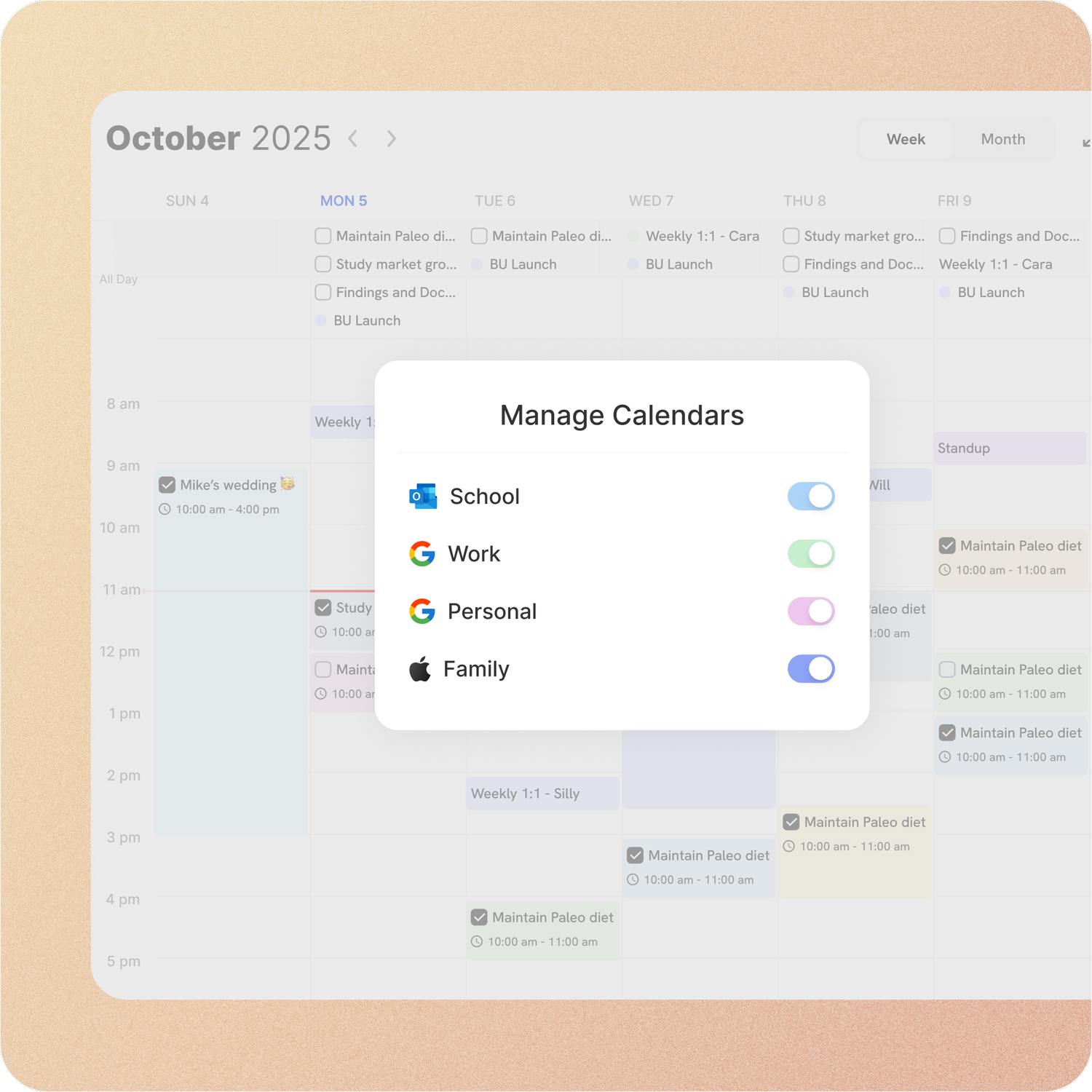
Two-way sync with Google and Apple
Blocks sync both ways with Google Calendar and Apple Calendar, so a change on either side shows on the other.
Outlook too
Your blocks are sent to Outlook, one way, from ByDesign to Outlook.
Good to know
- There’s no separate time-block type: any task, event or habit with a start time and a duration is a block.
- Unfinished tasks don’t roll over on their own. They show as Overdue, and Auto Schedule’s Overdue Tasks option or the assistant can reschedule them.
- Google Calendar syncs both ways for your primary calendar. Outlook is one-way: blocks go from ByDesign to Outlook, and moving an Outlook event in ByDesign doesn’t change it in Outlook.
- Auto Schedule is rule-based and doesn’t use AI credits. AI scheduling uses credits from the AI and AI Plus plans.
- In the iPhone and Android apps you drag tasks onto the calendar from the Activity Box. Resizing, Auto Schedule and the AI preview are on the web and in the desktop apps.
- AI scheduling uses work hours of Monday to Friday, 9 am to 6 pm, until you change them.
Which plan includes it?
Time blocking comes with every plan: Pro ($8 a month or $69 a year), AI ($15 a month or $119 a year) and AI Plus ($20 a month or $199 a year). Free for 7 days, no credit card, no commitment.
More ByDesign features
- AI scheduling
- AI goal planner
- Habit tracker
- Year planner
- Calendar sync
- Reminders
- Quick capture
- Task views
- Widgets
- Dark mode
- See every feature →
Use ByDesign with your AI assistantUse ByDesign with ChatGPTUse ByDesign with ClaudeUse ByDesign with Gemini
Time blocking questions
Can I time block in ByDesign?
Yes. Drag tasks onto your calendar to give them a start time and a duration, resize them to fit, and move them as your day changes. It comes with every plan.
How do I block time for a task?
Open Calendar, or AI Canvas in Week or Day view, click Workspace to see your unscheduled tasks, and drag one onto a time slot. It snaps to 15 minutes, and you can drag its edge to change the length.
What’s the difference between a schedule date and a deadline?
The schedule date is when you plan to work on a task; the deadline is when it’s due. You can set both, and AI scheduling never places a task after its deadline.
Do time blocks sync to Google Calendar?
Yes, both ways with your primary Google calendar, and both ways with Apple Calendar. Outlook gets your blocks one way, from ByDesign to Outlook.
Can ByDesign block my time for me?
Yes. Auto Schedule places tasks by your rules, with options like breaks and a maximum per day, and shows a preview first. AI scheduling plans your day or week around your hours and doesn’t change your calendar until you accept.
What happens to tasks I don’t finish?
They show as Overdue. Reschedule them by dragging, with Auto Schedule’s Overdue Tasks option, or by asking the assistant.
Which plan includes time blocking?
Time blocking comes with every plan: Pro ($8 a month or $69 a year), AI ($15 a month or $119 a year) and AI Plus ($20 a month or $199 a year). Free for 7 days, no credit card, no commitment.
Give every task a time
Tasks, calendar, habits and notes in one app, with AI planning built in. Free for 7 days, no credit card.
Try ByDesign free