

What you can bring in
- Markdown files (.md), each as a page.
- A .zip of Markdown files, like an export from Notion or an Obsidian vault, to bring in many pages at once, with their folders and images.
- Your Google, Apple and Outlook calendars, by connecting them. Google and Apple sync both ways; Outlook syncs one way.
- Any other calendar that has a subscription link.
Export from your old app
- Notion: on the page you want, open the ••• menu, choose Export, pick Markdown & CSV and include subpages. Notion gives you a .zip.
- Obsidian: your notes are already .md files in your vault folder. Zip the folder: on a Mac, right-click it and choose Compress; on Windows, right-click it and choose Compress to ZIP file, or Send to → Compressed (zipped) folder.
- Any other app: export your notes as Markdown. One note can go in as a .md file; for many notes, zip them together.
Import your files
Step 1: Open your Workspace
Go to the Workspace in ByDesign on the web or in the desktop app.
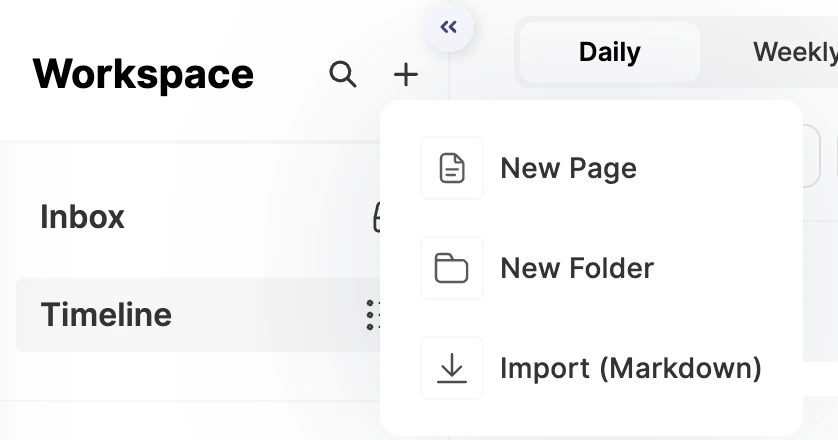
Step 2: Open the import
Open the create menu and choose Import (Markdown).
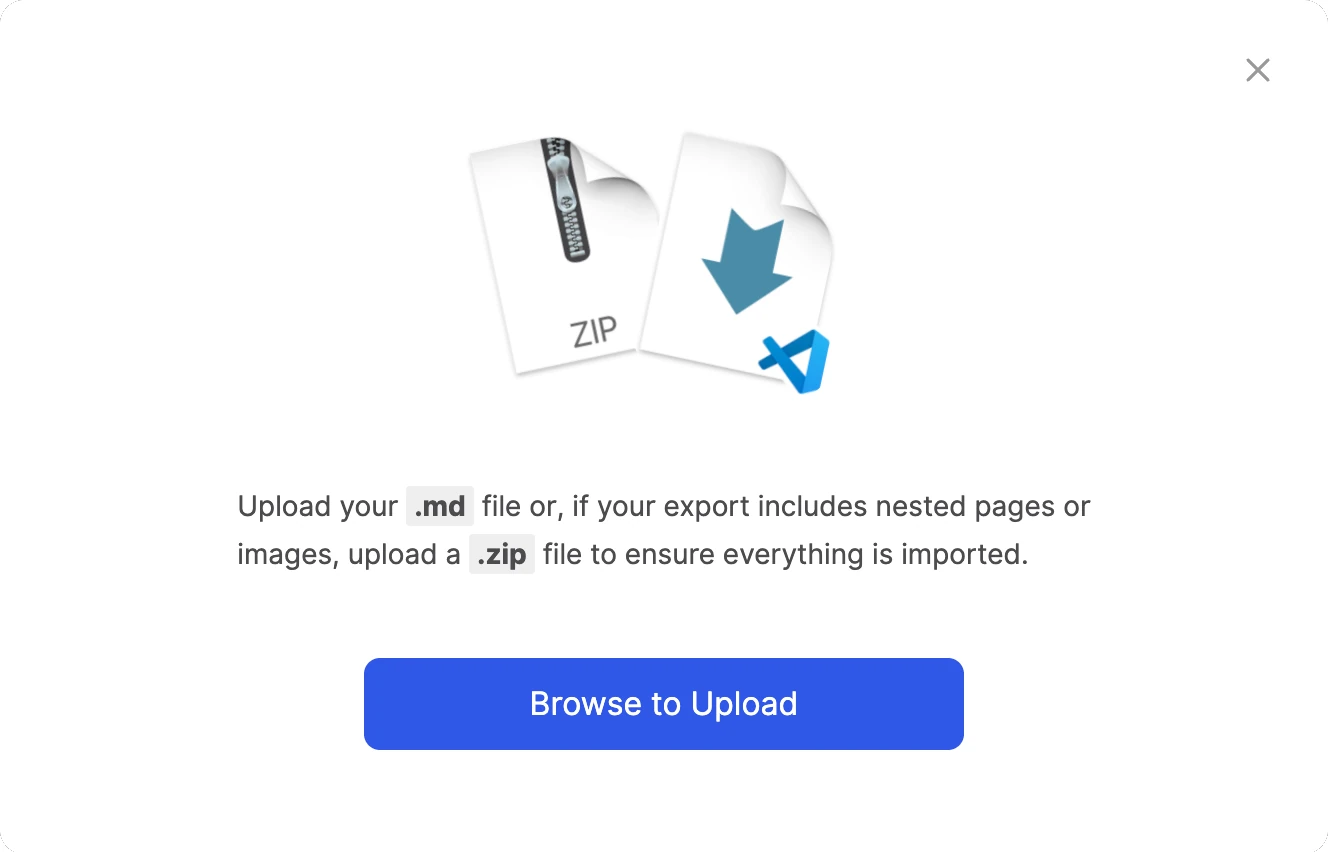
Step 3: Upload
Click Browse to Upload and choose your .md or .zip file.
Step 4: Find your pages
When the import finishes, your pages are in a folder called ⬇️ Imports in your Workspace, fully editable.
Tip
If your export has several files or nested pages, zip them: folders in the .zip become nested pages, so the structure stays intact.
What comes across
- Each .md file becomes a page, and folders in a .zip become nested pages.
- Checkbox lines (- [ ] and - [x]) become tasks, ticked or not, ready to schedule.
- Headings, text, bullet lists, numbered lists, tables, quotes and code are kept.
- Images in .jpg, .png, .gif or .webp are uploaded with your pages.
Note
Only Markdown files and those images are imported. Other files are left out, including CSV files, like Notion databases, and PDFs.
After you import
- Drag your pages out of ⬇️ Imports into your own folders, like Personal and Work.
- Give your new tasks a date, or drag them onto the calendar to block out time for them.
- Star the pages you use most, so they’re one click away.
Bring in your calendars
Step 1: Open your settings
In ByDesign, open Settings, then Calendar's Integrations.
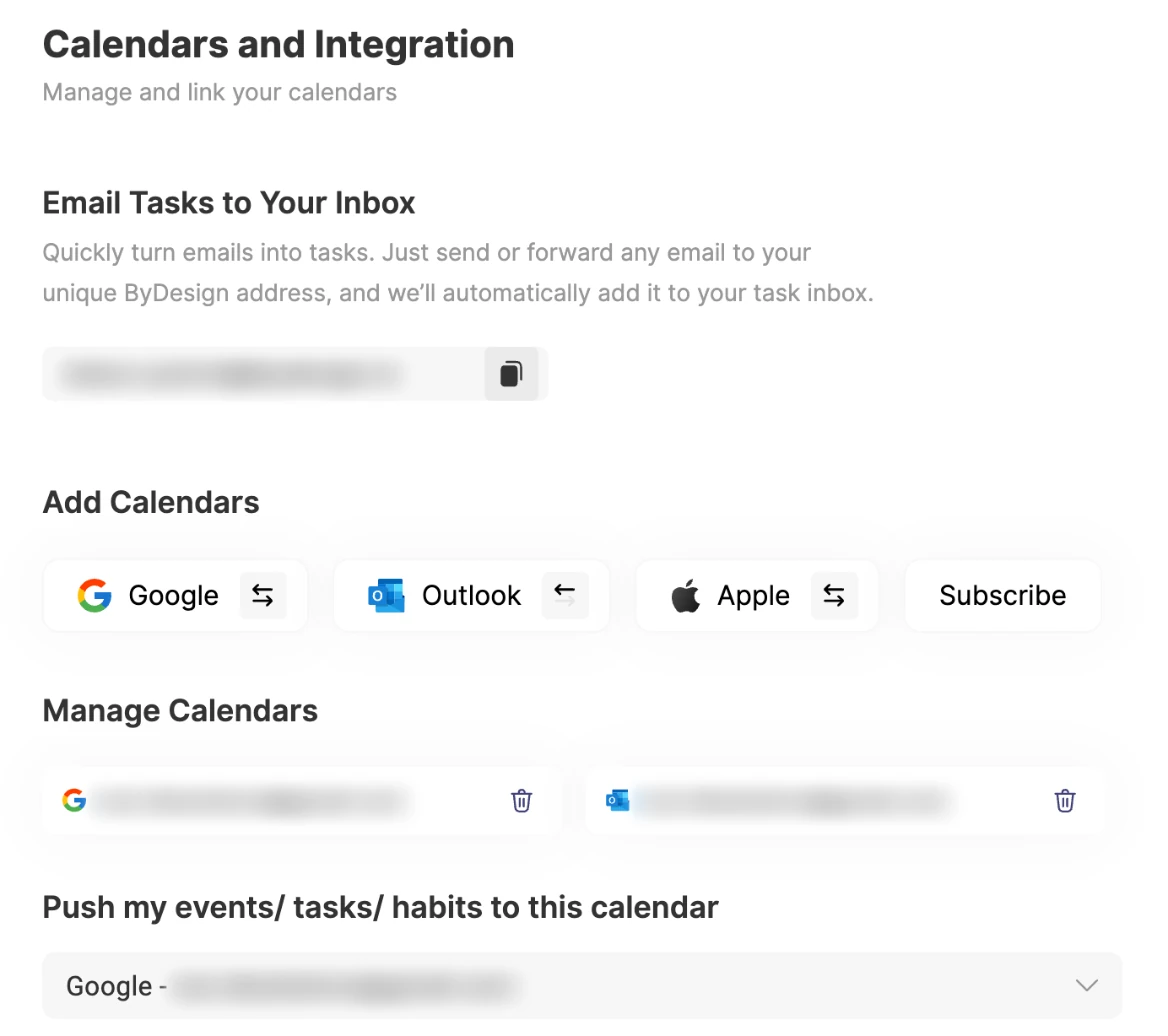
Step 2: Add a calendar
Under Add Calendars, choose Google, Outlook or Apple and connect your account.
Step 3: Choose where ByDesign pushes
Pick a calendar for Push my events/ tasks/ habits to this calendar, so your ByDesign items appear there too.
- Google: full two-way sync for your primary Google calendar. Add, edit or delete on either side and both stay up to date.
- Apple: two-way sync as well.
- Outlook: one way. You see your Outlook events in ByDesign and your ByDesign tasks and events in Outlook, but moving an Outlook event in ByDesign doesn’t change it in Outlook.
- Subscribe: add any other calendar from its subscription link to see its events in ByDesign.
Use Manage Calendars to show or hide each calendar. There’s no calendar file (.ics) to upload: connect or subscribe instead.
If something goes wrong
- An import fails: check that you chose a .md file or a .zip of .md files, and that no .md file is over 5,000 lines or 1,000,000 characters. Split very long notes into smaller files.
- Dragging a file onto the import window does nothing: drag and drop isn’t supported there, so use Browse to Upload.
- Calendar events are missing or out of date: remove the calendar in Calendar's Integrations, then connect it again. If that doesn’t help, message us from the chat in the app.
Good to know
- Each .md file can have up to 5,000 lines and 1,000,000 characters.
- All-day tasks, events and habits go to your external calendar only if you turn on Sync with external calendars in Settings → Customizations.
- Students can also connect Canvas, under Other Integrations in the same settings, to bring in the Canvas calendar and course materials.