

Create a page
Step 1: Open your Workspace
Click Workspace in the menu on the left.
Step 2: Add a page
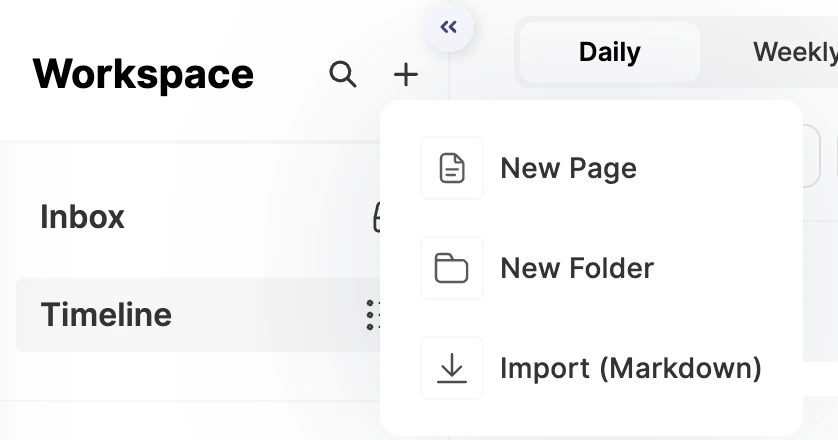
Click + next to Workspace and choose New Page. The same menu has New Folder and Import (Markdown).
Step 3: Name it and start writing
Give the page a title, then type your notes and tasks.
Tip
Hover over a folder or a page in the sidebar and click its + to add a new page right inside it.
Organize with folders and nested pages
Put pages into folders, like Work and Personal, and nest pages inside other pages to break a project into parts. For example:
- A Work folder with a page for each active project, like “Website Revamp” or “Q3 Goals”.
- A Personal folder with pages like “Life List”, “Books to Read” or “Daily Journal”.
- A home page for each area that links to its subpages, almost like a mini dashboard.
- Drag pages in the sidebar to reorder them, move them to another folder, or drop one inside another page.
- Folders hold pages, but a folder can’t go inside another folder.
- Pages other people share with you appear under 📥 Shared with me at the top of the sidebar.
Start from a template
Click Templates at the bottom of the Workspace sidebar to browse ready-made pages, like Goal Tracker, Journaling, Reading List, Course Planner or Job Applications. Open one and click Start with this Template: ByDesign adds a copy to your Workspace and opens it.
Build a page with blocks
Type / on a new line, or click Insert at the left of the toolbar, to add a block:
- Formatting: Text, Task, Bulleted list, Numbered list, Heading 1 to Heading 4, Table and Kanban Board.
- Basics: Link to page, Page (a new page inside this one), Code, Quote and Divider.
- Media: Web Bookmark (a link saved as a visual card), Image, Video (a YouTube link) and File (upload one, or embed it with a link).
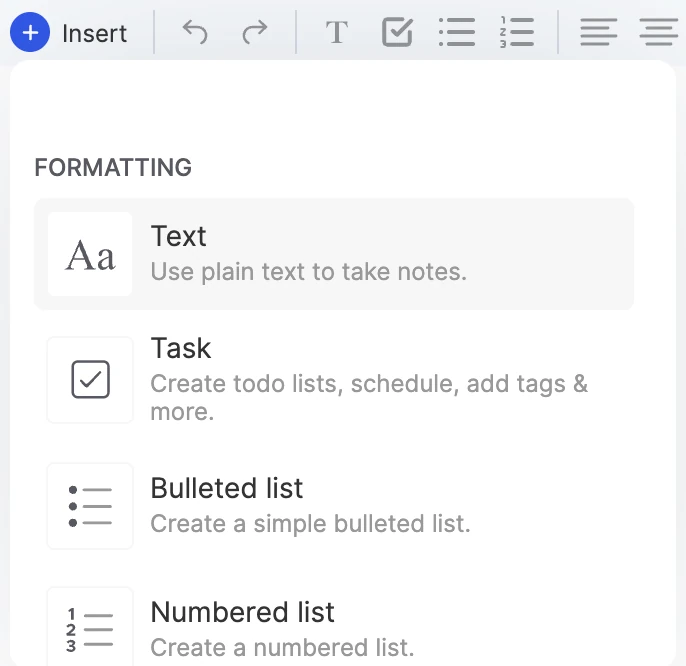
The toolbar at the top of the page switches a line between text and a task, makes lists, headings and links, and formats text with bold, italic, underline and highlight. Select some text and choose Turn to → Page to make it a new page inside this one.
Tip
Use headings to split a long page into sections, and Link to page to connect related pages, so your system stays easy to move around.
Tasks inside pages
ByDesign is built around tasks. A new page starts with a task line, and you can turn any line into a task with the task button in the toolbar, or by choosing Task in the block menu.
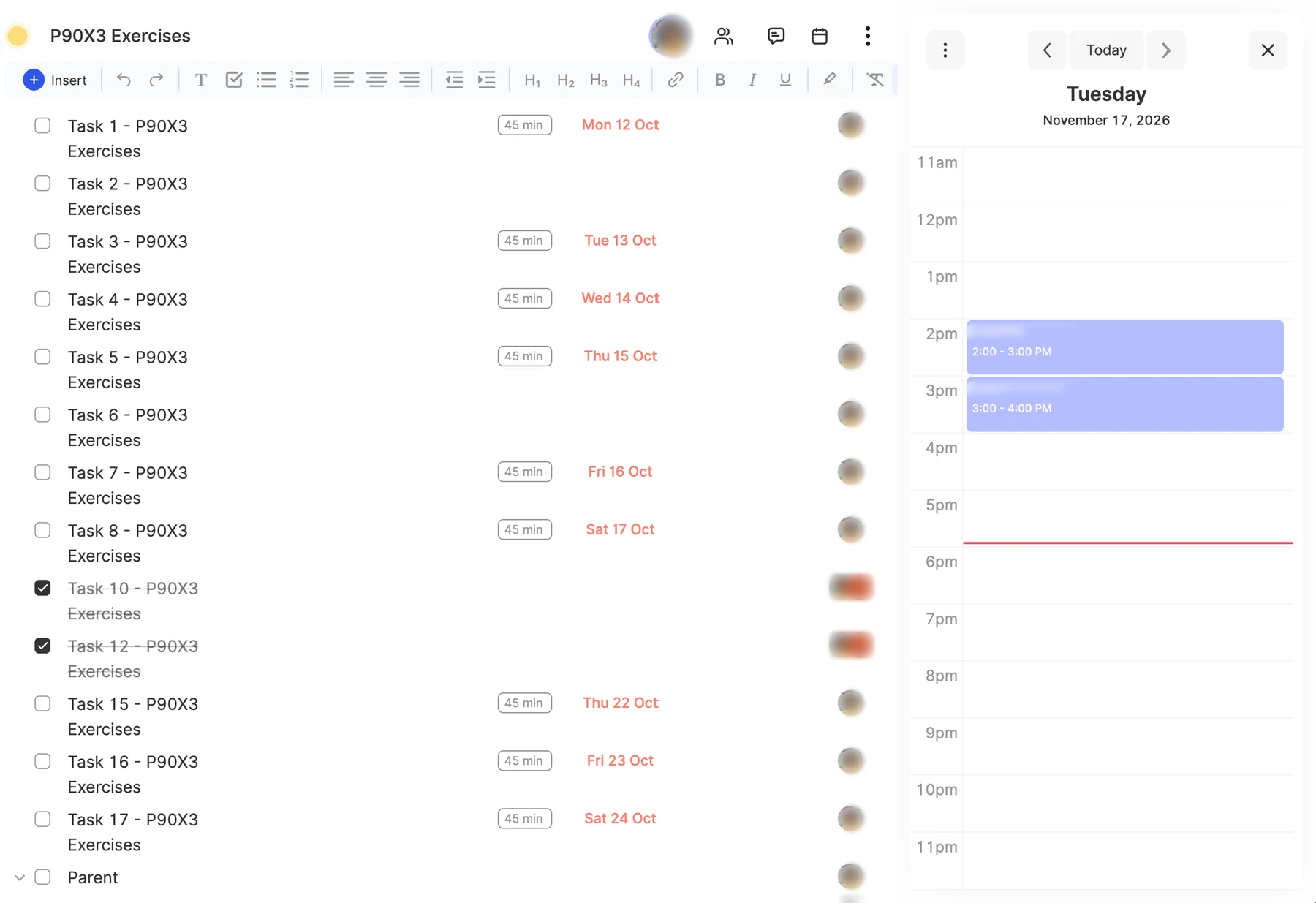
- Details in columns: a task’s notes, timer, priority, status, tags, duration, schedule and deadline sit in columns to its right, and an Assignees column joins them once the page is shared. Hover over a task to see where to add each one. Text, lists and headings don’t have columns.
- Choose your columns: click Change columns at the right end of the column headers to show, hide or reorder them, and click a header to sort by it.
- Subtasks: select a task and press Tab to put it under the task above; Shift+Tab moves it back out. Click the arrow next to a task to show or hide its subtasks.
- The full form: press Ctrl+Shift+E to open the selected task’s edit form, with every option in one place.
Select and edit several tasks
Click the handle at the left of a task, then Shift+click another task’s handle to select every task in between. Shift+↑ and Shift+↓ extend the selection from the keyboard.
Then change the tag, schedule, deadline, duration, priority, status or assignee of any selected task, and the change applies to all of them.
Tip
With two or more tasks selected, their total duration shows at the top of the Duration column, handy for checking how much work a page holds.
Move things around
- Drag a task by its handle onto another page in the sidebar, or onto Inbox, to move it there, subtasks and all.
- Tasks in your Inbox move the same way: drag them onto any page.
- Drop a task onto a link to another page on the current page to move it into that page.
Schedule from a page
Click the calendar icon at the top right of a page to open the side calendar, one day at a time, with Today and arrows to move between days. Drag a task by its handle onto a time to schedule it.
Note
On a shared page, scheduling a task this way also assigns it to you.
Find any page
- Browse your folders in the Workspace sidebar.
- Search: click the magnifier next to Workspace, or press Ctrl+D when no task is selected, to open the Search Console. It finds page titles and text inside your pages, on a paid plan or during the free trial.
- Star the pages you use most, so they’re one click away, and add the Starred Pages or Pin a Page widget to your Dashboard.
Note
With a task selected, Ctrl+D ticks the task off instead of opening search.
Keep reading
- Working with pagesCustomizing and managing a pageColor-code a page, use its menu to star, duplicate, export or tidy it, and restore deleted pages from Trash.
- Working with pagesCollaboration and publishingShare a page with people or a link, publish it as a public web page, discuss it with comments, and assign single tasks.
- Getting startedMigrate or import to ByDesignBring your notes in from Markdown, Notion or Obsidian, and connect your Google, Apple and Outlook calendars.