

What’s on your Dashboard
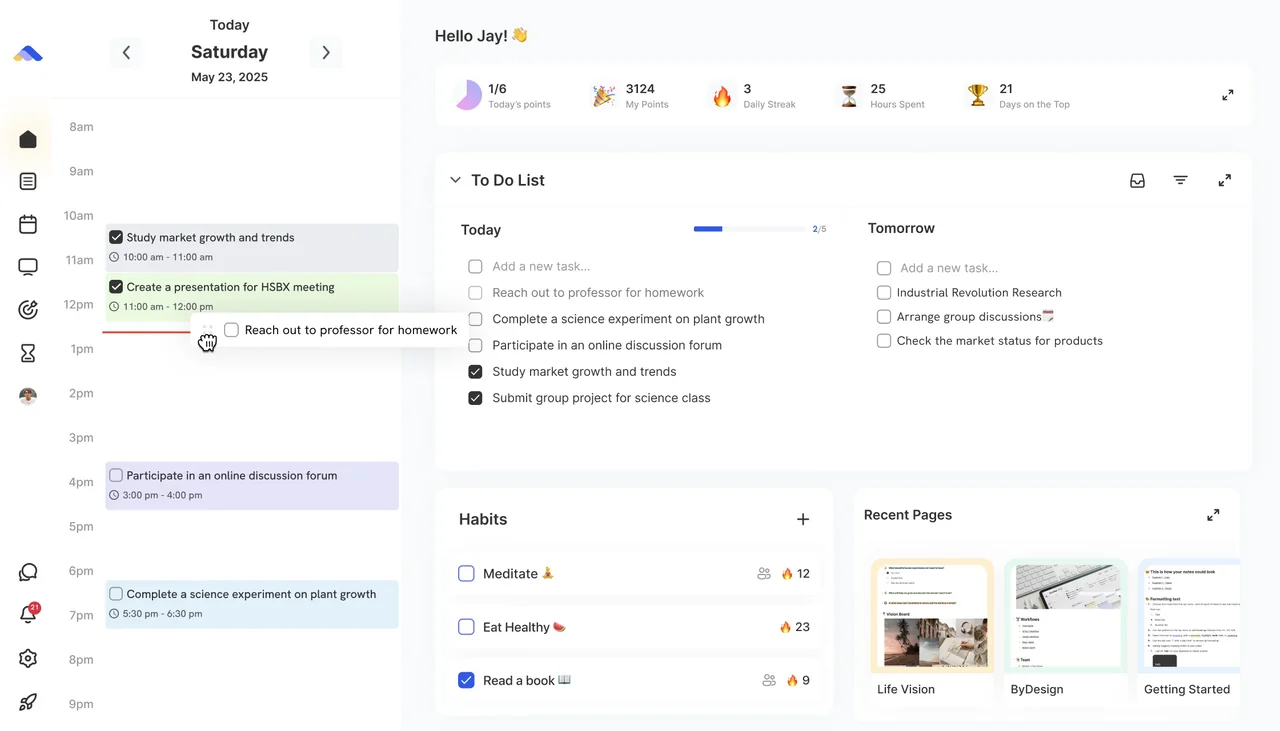
- On the left: a clean, interactive calendar of your day, with your events, scheduled tasks and habits.
- On the right: your task panel, with sections for Today, Overdue, Tomorrow and Someday, plus your Habits, pinned pages and widgets like your Inbox and the Scribble Pad.
What you can do
- Drag a task from the list onto the calendar to timebox it.
- Drag a task across days, for example from Today to Tomorrow: its date changes with it. Drop it in Someday to clear the date.
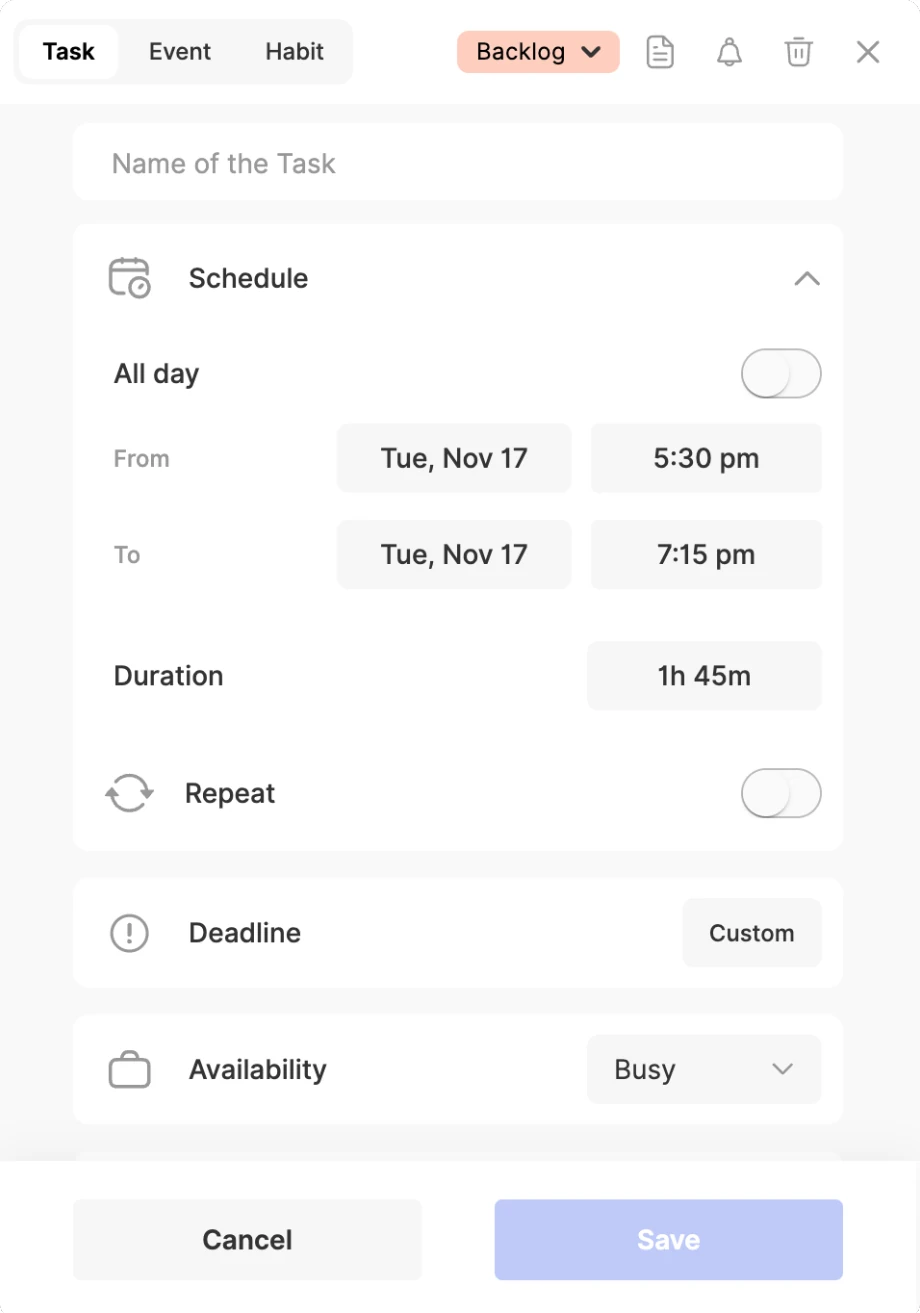
- Click and drag anywhere on the calendar to create a new block. The new-item form opens with that time filled in; pick Task, Event or Habit, name it and click Save.
- Type straight into Today or Tomorrow with “Add a new task…”, using command words like “at 3pm” if you want.
- Tick tasks and habits off as you finish them.
The widgets
- Score Board: your points for today and overall, your daily streak and the hours you’ve spent.
- Tasks List: your tasks for Today, Overdue, Tomorrow and Someday.
- Habits: today’s habits to tick off, with your 🔥 streak next to each. Press + to create a habit.
- Recent Pages: the pages you opened last, one click away.
- Inbox View: your Inbox, so you can capture and sort without leaving the Dashboard.
- Pin a Page: keep one page on your Dashboard, like a project dashboard, your life list or a weekly review.
- Scribble Pad: quick notes, rough thoughts, a grocery list: anything you don’t want to forget.
- Starred Pages: the pages you’ve starred.
- Kanban Board: your tasks as cards in Backlog, Next Up, In Progress and Completed.
Customize your Dashboard
Step 1: Open Customize
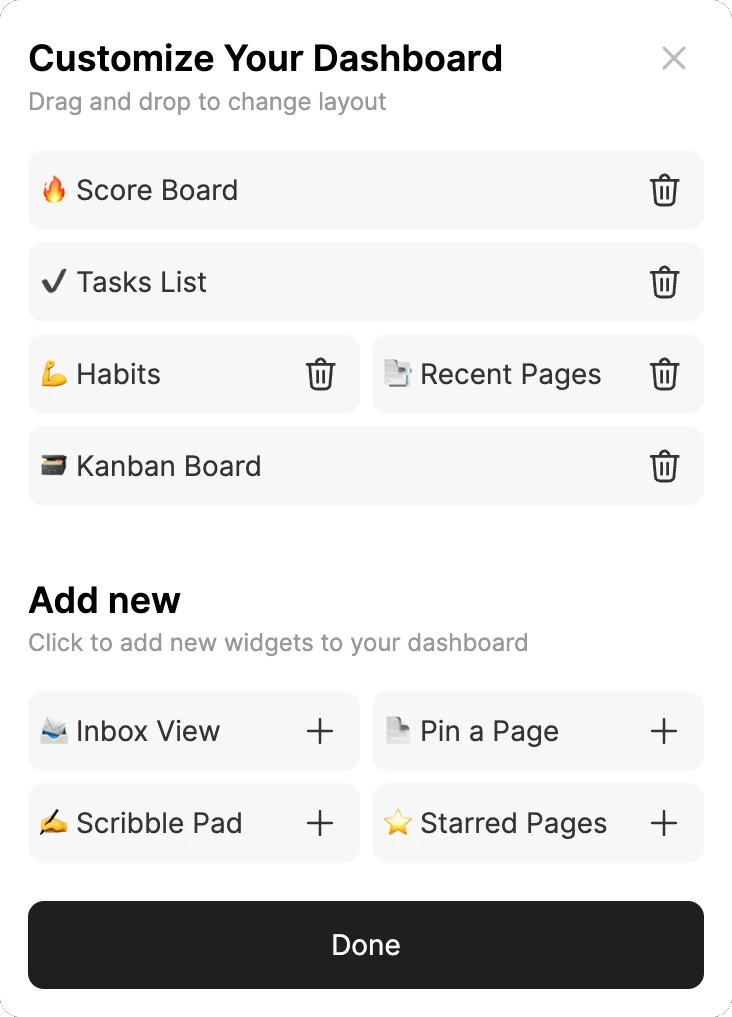
Click the Customize button, the wand at the top right of your Dashboard. Customize Your Dashboard opens.
Step 2: Arrange your widgets
Drag and drop them to change the layout.
Step 3: Remove or add widgets
Click the bin next to a widget to remove it. Under Add new, click + next to a widget to add it, like Pin a Page or Starred Pages.
Step 4: Save it
Click Done.
Note
Score Board, Tasks List and Kanban Board always take the full width.
Pro tips
- Add your Inbox as a widget, so your brain dumps are always one click away.
- Pin your most-used pages, like a project dashboard, your life list or a weekly review page.
- Use the Scribble Pad for quick notes, rough thoughts and grocery lists.
Points and the leaderboard
The Score Board tracks your points. You earn daily points for logging in to ByDesign every day, and you can see where you stand on the leaderboard. Prefer to keep it to yourself? In private mode, you won’t appear on the leaderboard and no one can see your score.
On your phone
In the iPhone and Android apps, start from the Home tab. For your day at a glance without opening the app, add the Today’s Tasks widget to your home screen.
Good to know
- Tasks with no date wait under Someday, and anything past its date shows under Overdue.
- Press Ctrl+H to jump back to the Dashboard from anywhere. On a Mac, use Control+H, since ⌘H hides the app.