

Open the Timeline
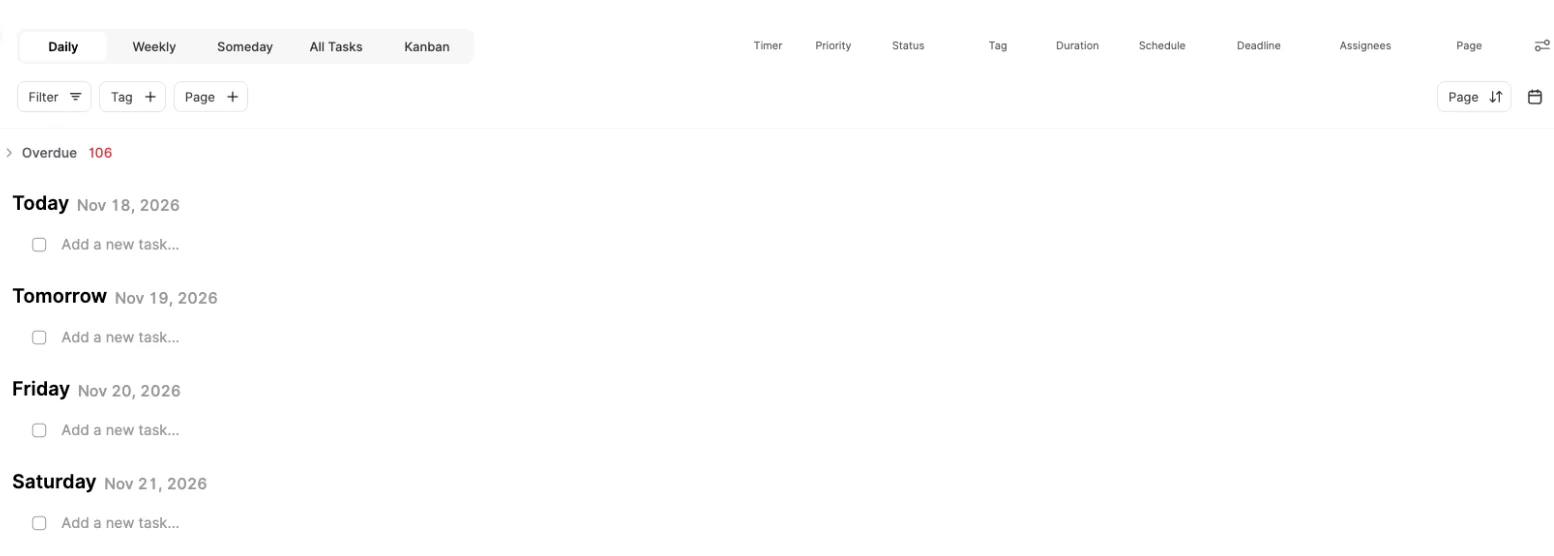
Click Workspace in the menu on the left, then Timeline at the top of the list. Pick a view with the tabs at the top.
The views
- Daily: your tasks day by day, starting with Today and Tomorrow. It shows two weeks and adds more days as you scroll down.
- Weekly: your tasks week by week, from the day your week starts. It shows ten weeks and adds more as you scroll.
- Someday: tasks with no date yet, for the things you’ll get to later.
- All Tasks: every task in one list, loading 100 at a time as you scroll.
- Kanban: your tasks as cards in columns, like Backlog, Next Up and In Progress.
In Daily, Weekly and All Tasks, unfinished tasks from earlier days wait in Overdue at the top, with a count beside it. Click it to open the list.
Add and move tasks
- Click Add a new task… under a day to add a task for that day.
- Drag a task to another day or week, and its date changes.
- To put a task off, set its Schedule to Someday: its date and repeat are cleared and it moves to Someday.
- Click the calendar icon at the top right to open a calendar beside your list.
Filter what you see
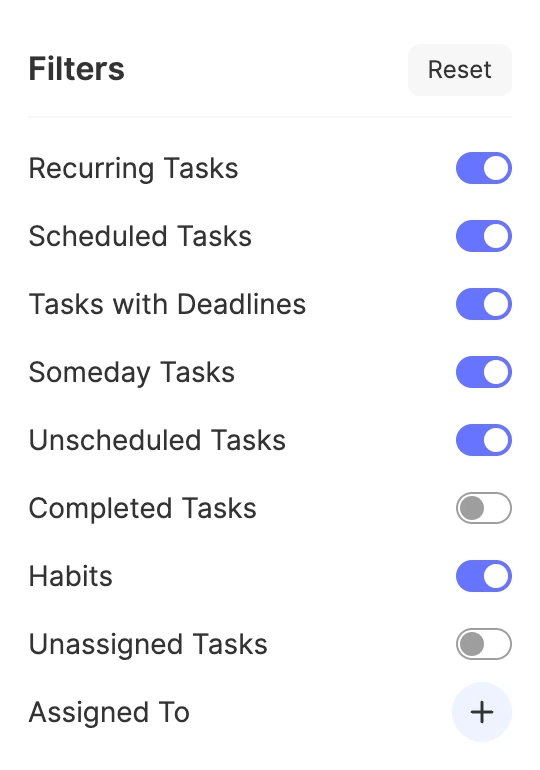
Click Filter and switch what shows on or off: Recurring Tasks, Scheduled Tasks, Tasks with Deadlines, Someday Tasks, Unscheduled Tasks, Completed Tasks, Habits and Unassigned Tasks. Assigned To shows the tasks of the people you pick, and Reset goes back to the defaults.
Next to it, Tag and Page narrow the list to the tags or pages you pick.
Tip
Completed tasks stay hidden until you switch on Completed Tasks.
Sort the list
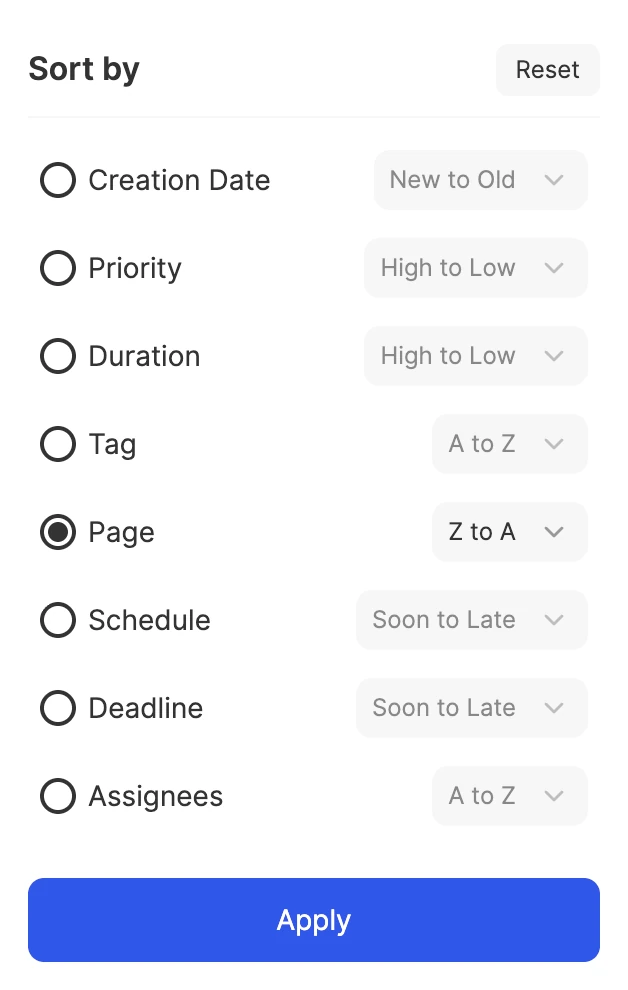
Click the sort button at the top right; it shows the current order, like Page. Pick Creation Date, Priority, Duration, Tag, Page, Schedule, Deadline or Assignees, choose the direction, like High to Low or Soon to Late, and click Apply.
Choose your columns
Tasks show columns like Timer, Priority, Status, Tag, Duration, Schedule, Deadline, Assignees and Page. Click the icon at the far right of the column names (Change columns) to pick which ones show.
Good to know
- Someday is for tasks with no date and no repeat. Unscheduled Tasks, with no date, deadline or repeat and not in Someday, have their own filter.
- Habits don’t show in Someday and All Tasks.
- The iPhone and Android apps have the Daily and Someday views; drag a task across the date headers to reschedule it.
- The Timeline and all its views are on every plan.