

Create an event
Step 1: Open the new-item form
Click, or click and drag, on the calendar at the time you want. The form opens with that time filled in.
Step 2: Choose Event
Click the Event tab at the top of the form and type the event’s name.
Step 3: Set the time
Under Schedule, check the start and end, or turn on All day. For a regular meeting, turn on Repeat.
Step 4: Add the details and save
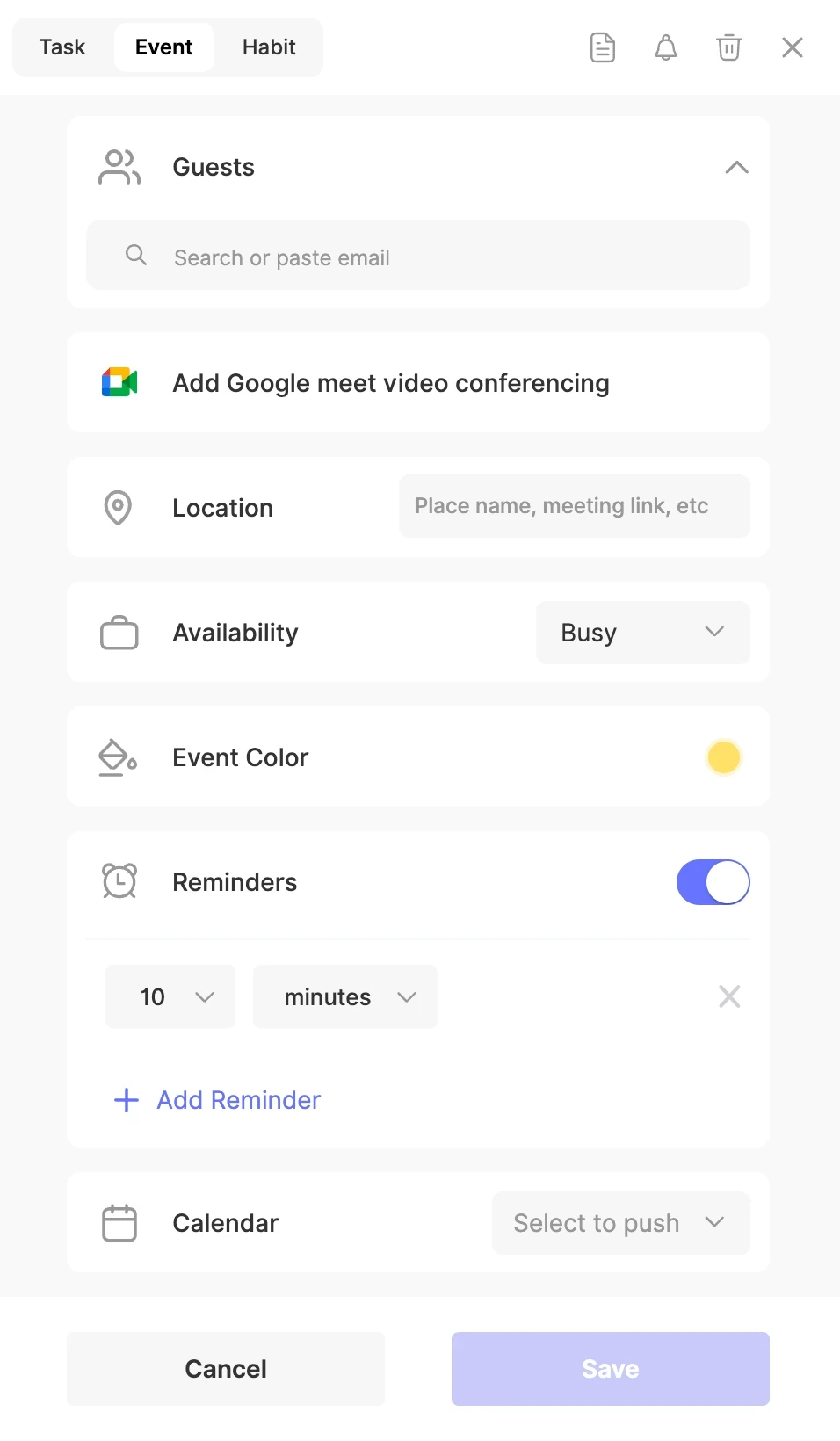
Add guests, a video call, a location and reminders, as described below, then click Save.
Invite guests
Under Guests, type a name or paste an email address. If you’ve connected your Google or Outlook contacts under Sync Contacts, ByDesign finds people as you type their name.
When the event is on one of your Google calendars, Google emails the invitation, and any later changes, to your guests. Choose the calendar in the event’s Calendar row, as described below.
Add a Google Meet link
Step 1: Add the call
Click Add Google meet video conferencing. The form then shows Google Meet link will be added when you confirm.
Step 2: Use a Google calendar
A Google Meet link needs the event to be on a Google calendar. If it isn’t, ByDesign asks you to pick one of your Google calendars, or to connect Google Calendar first.
Step 3: Save and join
Click Save to create the link. The event then shows Join with Google Meet, and you can copy the link to share it.
Location, availability and color
- Location: a place name, an address or a meeting link.
- Availability: whether the event shows you as Busy or Free. New items start as Busy; change that under Default calendar availability in Settings → Customizations.
- Event Color: a color to spot the event on your calendar.
Reminders
Turn on Reminders and choose how long before the event starts you’d like to be reminded. Click Add Reminder for another one. Reminders come as push notifications on your phone, in your browser or in the desktop app.
Send it to your calendar
In the Calendar row, click Select to push and pick one of your Google, Outlook or Apple calendars, so the event shows there too. Only calendars you can add events to are listed. No Calendar keeps the event in ByDesign only.
Tip
To use the same calendar every time, set it once under Push my events/ tasks/ habits to this calendar in Settings → Calendar's Integrations.
Answer an invitation
When someone invites you to an event in ByDesign, open the event and choose your answer under My status: accept, maybe or decline.
Move or change an event
- Drag an event to another time or day, or drag its edge to make it longer or shorter.
- Click an event to open it, and edit it from there.
- Events from Google Calendar move when you’re the organiser or there are no guests, and Apple events move too. Outlook events can’t be moved from ByDesign: you’ll see You cannot reschedule this event.
Good to know
- To give new events a reminder automatically, turn on Add reminders by default in Settings → Customizations.
- You can also ask the assistant to find time for a meeting, or create events from Claude or ChatGPT by connecting ByDesign with MCP.
Keep reading
- Integrations and syncConnecting your calendars to ByDesignConnect Google, Apple and Outlook, subscribe to any calendar link, and choose where ByDesign sends your tasks, events and habits.
- Integrations and syncUsing the calendar in ByDesignSee your tasks, events, habits and synced calendars together, switch between week and month, and drag tasks in to block time.
- More about this featureCalendar sync