

Find your way around
On the web and in the Mac and Windows apps, the menu on the left takes you to the Dashboard, Workspace, Calendar, AI Canvas, My Goals and the Pomodoro Timer. Chat, Alerts, Settings and Get Started sit at the bottom of the menu.
In the iPhone and Android apps, the tabs along the bottom take you to Home, Workspace, Pomodoro, Calendar and your profile.
Dashboard
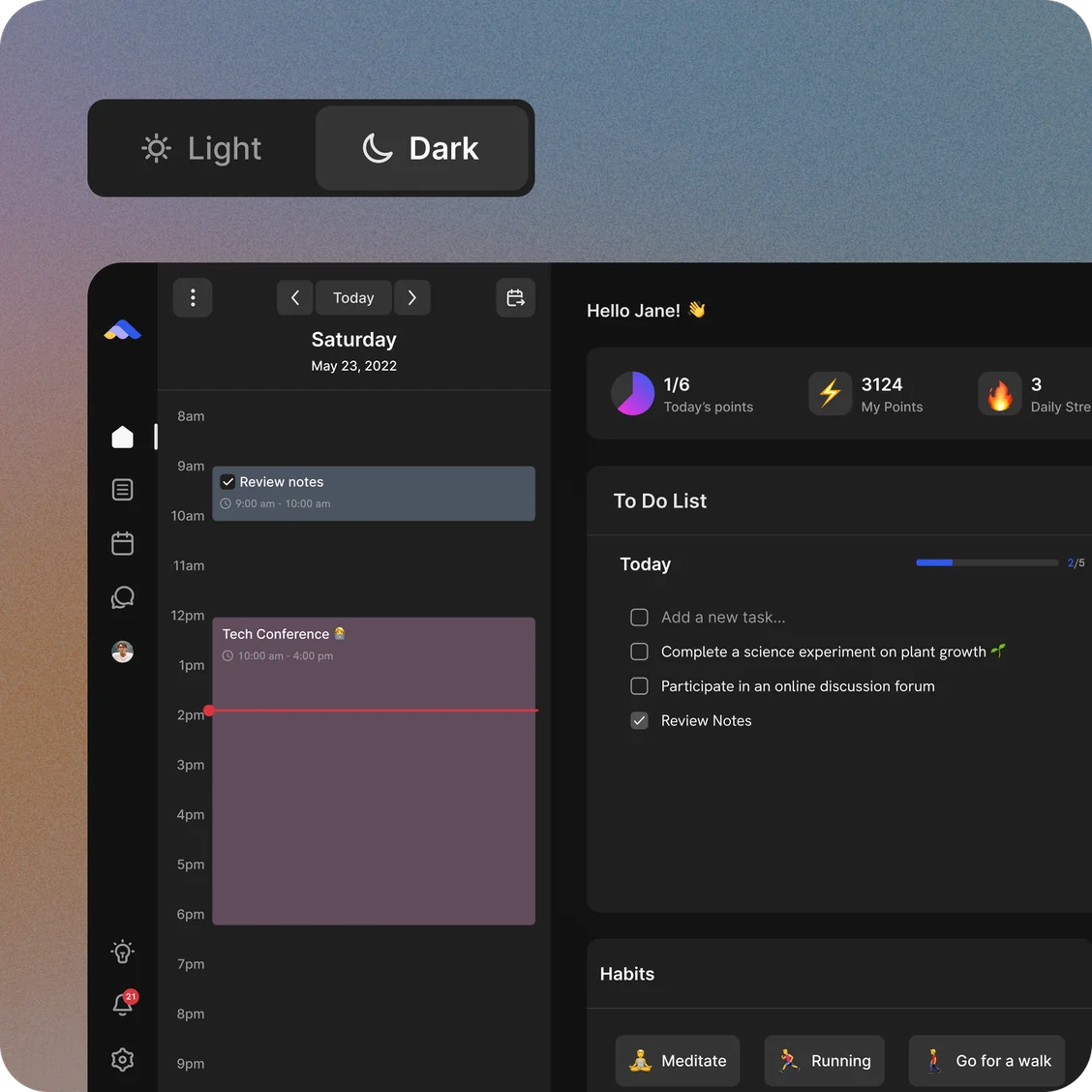
Your home base for the day: today’s calendar on one side and your widgets on the other. The Tasks widget splits your tasks into Today, Overdue, Tomorrow and Someday, so you always see what’s next.
Click Customize to choose your widgets: Tasks List, Habits, Recent Pages, Inbox View, Pin a Page, Starred Pages, Kanban Board, Scribble Pad and Score Board. Drag them around to change the layout.
Workspace
Your Workspace holds everything you write down. In its sidebar you’ll find:
- Inbox: note tasks and ideas the moment they come to you, then drag them into the right page later.
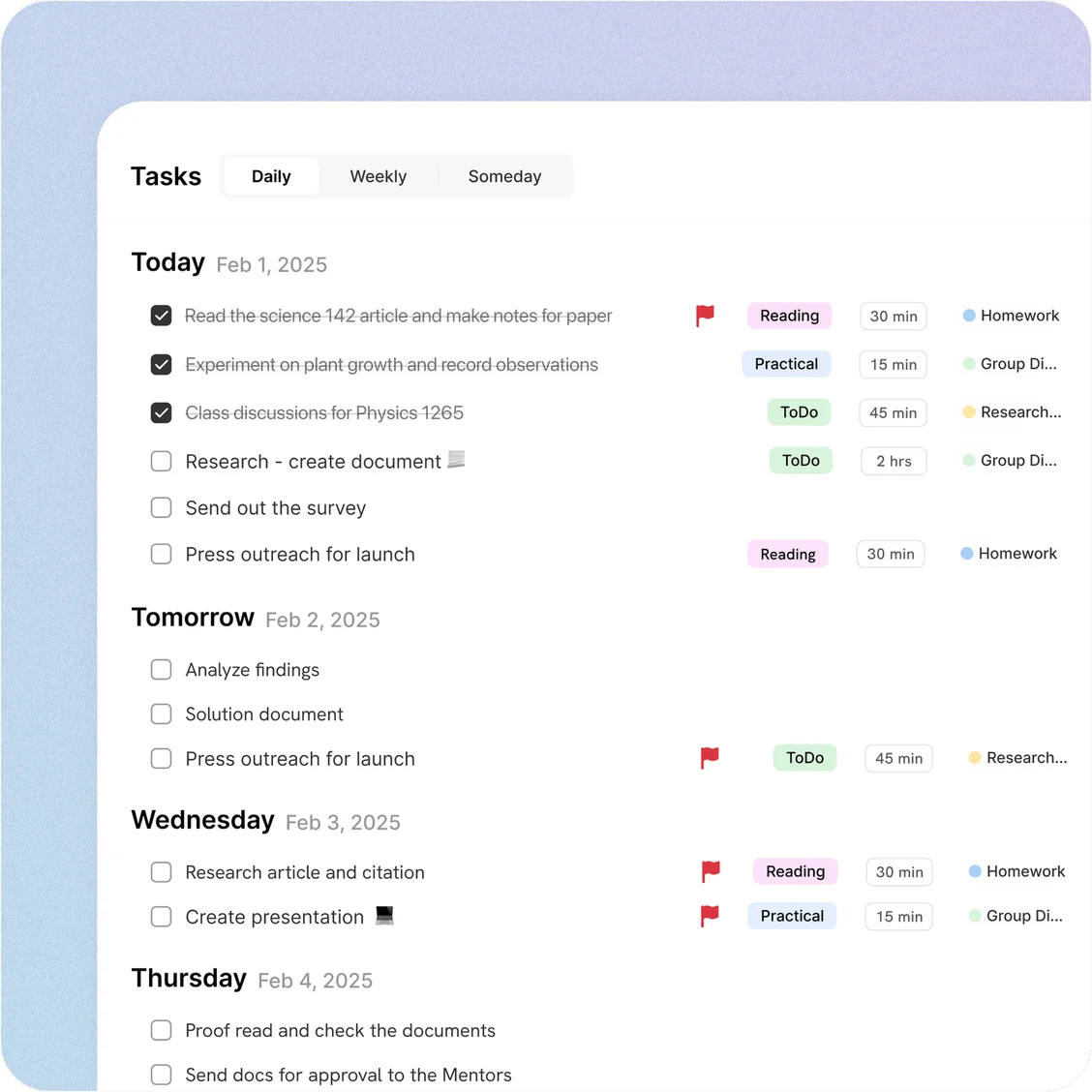
- Timeline: your tasks in five views. Daily shows the next 14 days, Weekly the next 10 weeks, Someday the tasks with no date yet, All Tasks everything in one list, and Kanban your tasks as cards on a board.
- ⭐️ Starred: the pages you star, one click away.
- 📥 Shared with me: pages other people have shared with you.
- Your folders and pages. Add them with New Folder and New Page, and drag them around the sidebar to keep them in order.
Pages
Pages are blank slates for anything: daily plans, meeting notes, project trackers or docs. Notes and tasks live together, and any task you write on a page can be scheduled. A page can hold:
- Plain text, headings in four sizes, bulleted and numbered lists, quotes, code and dividers.
- Tasks, with dates, tags and more.
- Tables, Kanban boards, images, YouTube videos, files and web bookmarks.
- Links to other pages, and pages inside the page, so you can break big topics down.
Give a page a colour to tell its tasks apart on the calendar, and use Share to invite people, share a link or publish it to the web.
Tasks
Write tasks on a page or add them from anywhere with Quick Add. Open a task to give it as much detail as you need:
- A Schedule date and time for when you’ll do it, and a separate Deadline for when it’s due.
- A duration, so it takes the right amount of space on your calendar.
- A repeat, like every day or every Monday.
- Reminders before the schedule, the deadline, or both.
- A low, medium or high priority, and tags.
- Subtasks: press Tab to add one.
- Notes, a colour, and assignees on shared pages.
Quick Add
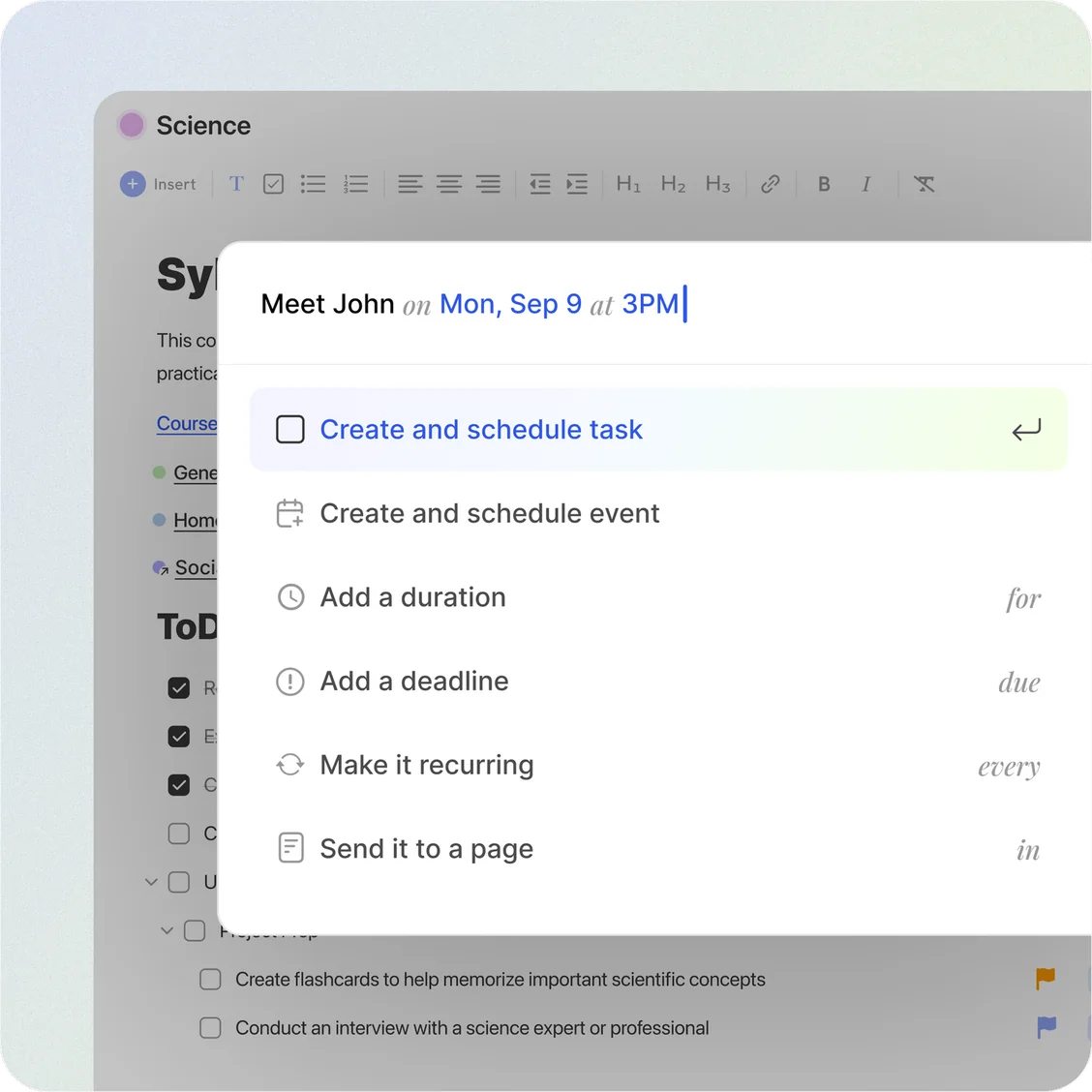
Press Ctrl+G, or ⌘G on a Mac, anywhere in ByDesign on the web or in the desktop app, and type a task in one line. Command words fill in the details: on for the date, at for the time, for the duration, due for the deadline, every for a repeat and in for the page. A picker opens as you type each one; press Enter to choose. “Meet John on Friday at 3pm for 1h” becomes an hour-long task on Friday at 3 PM, and anything with no date and no page goes to your Inbox.
Calendar
Plan today on the Dashboard, and your week or month in the Calendar. Click Workspace beside the calendar to see your unscheduled tasks, then drag one onto a time slot to block that time; it snaps to 15 minutes, and you can drag its edge to make it longer or shorter. Drop it on the all-day row to keep it for the day without a time.
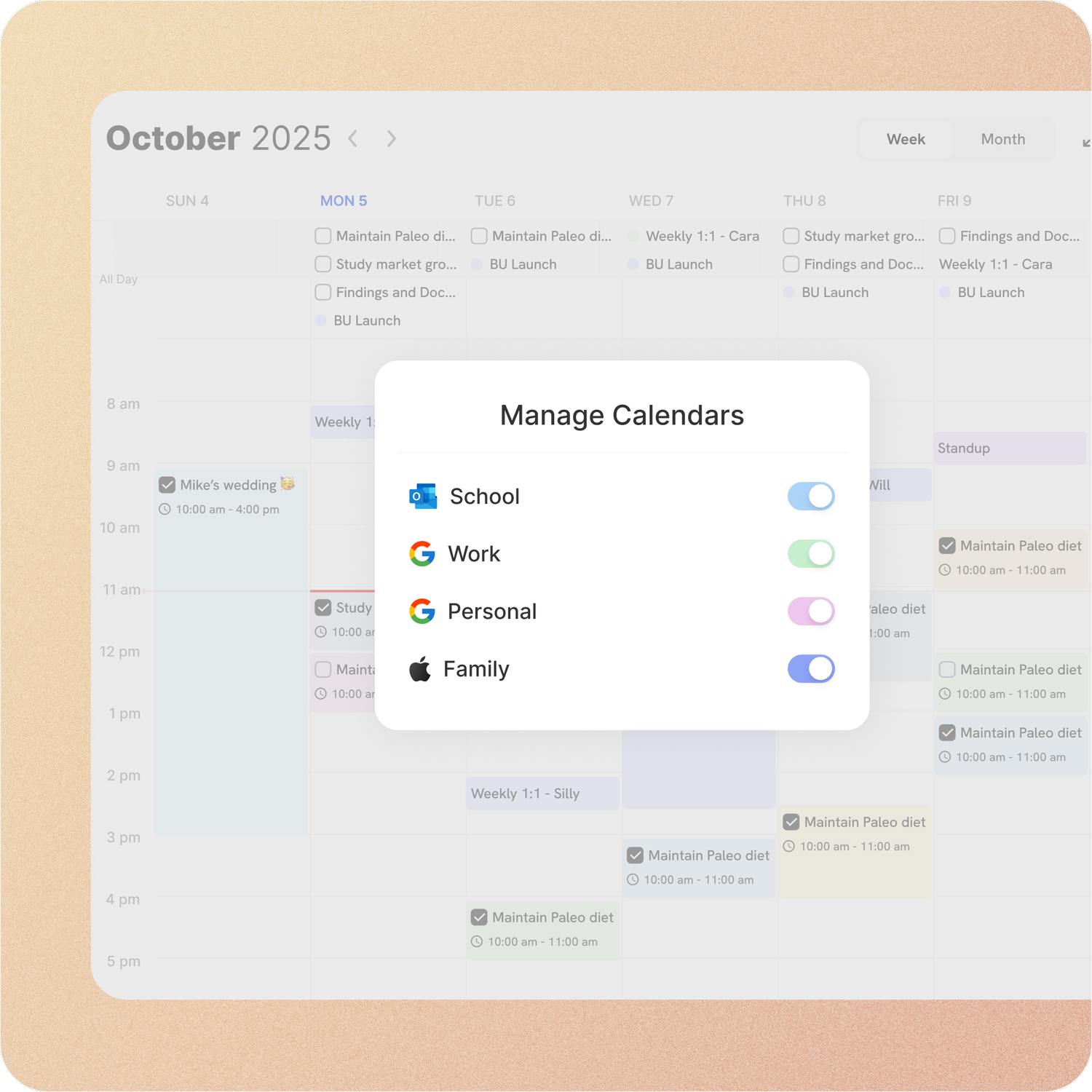
Connect Google, Apple and Outlook calendars in Settings → Calendar's Integrations so your events sit next to your tasks. Google and Apple sync both ways; Outlook syncs one way. Use Manage Calendars to show or hide each one.
Habits
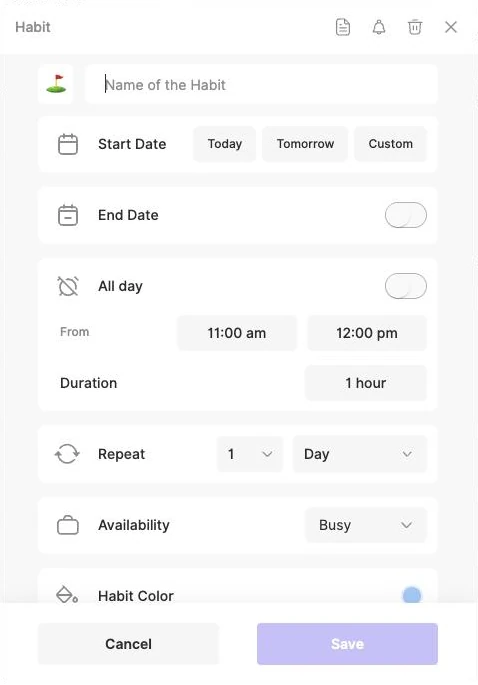
Habits are routines you repeat on a schedule, like a morning run or reading before bed. A habit can repeat every day, every few days, on the weekdays you pick, or monthly on a date or a pattern like the first Monday.
Tick a habit off on your Dashboard, on the calendar or from the phone widget. The 🔥 number is your current streak. Skip a day on purpose and your streak keeps going; Habit progress shows your best streak and your weekly, monthly and yearly totals.
Pomodoro Timer
The Pomodoro Timer breaks your work into focused intervals, called Pomodoros, with a short break after each one and a longer break after four. Turn on Automate Pomodoro cycles to keep them going, and Enable sounds for a sound when each interval ends. It’s in the menu on the web and desktop, and in the Pomodoro tab on your phone.
AI Canvas and My Goals
On the AI and AI Plus plans, AI Canvas shows your plans from the whole year down to a single day, with an assistant that can move things and plan your week, by typing or by voice. My Goals is where you turn a goal into a plan of dated tasks with AI. Both are on the web and in the Mac and Windows apps.
Drag and drop
- Drag a task onto the calendar to give it a time, and drag calendar items to move them.
- Drag tasks out of your Inbox, or from one page to another, to sort them.
- Drag a task to another day or week in Timeline to change its date, or into Someday to clear it.
- Drag pages around the sidebar, and widgets around your Dashboard.
Good to know
- Quick Add is on the web and in the Mac and Windows apps. On iPhone and Android, the + button opens a task form that understands the same command words, except in.
- The iPhone and Android apps have the Daily and Someday views of Timeline; all five are on the web and desktop.