

Open the calendar
- Click the calendar icon in the menu on the left, or press Ctrl+K (⌘+K on a Mac) anywhere in ByDesign.
- On the Dashboard, today’s calendar sits on the left, next to your task list. Click Expand Calendar there to open the full calendar.
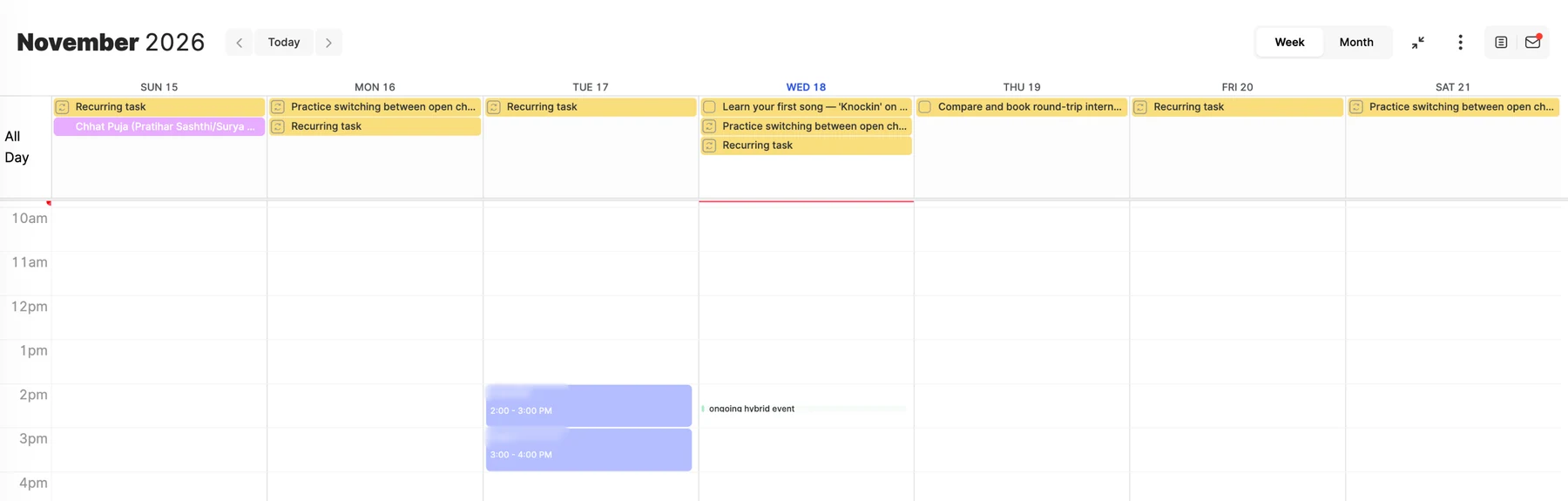
Switch views
Use Week and Month at the top right, and Today and the arrows to move through time. The calendar opens in your Default calendar view, set in Settings → Customizations. Or use the keyboard:
- W: the weekly view.
- M: the monthly view.
- T: jump to today.
Note
These keys work on the Calendar screen when no window is open and App Shortcuts is on in Settings → Keyboard Shortcuts.
What you’ll see
- Your ByDesign tasks, events and habits.
- Events from the calendars you’ve connected, like Google, Apple or Outlook.
- Colors to help you scan: tasks take the color of their page, and each calendar has its own color.
Block time for your tasks
- Open your tasks beside the calendar with the Workspace or Inbox icon at the top right, then drag a task by its handle onto a time slot to block that time. It snaps to 15 minutes.
- Drag the edge of an item to make it longer or shorter, and drag the item itself to move it.
- Drop a task on the all-day row to keep it for the day without a set time.
- On the Dashboard, drag a task from your list straight onto the calendar.
Create something new
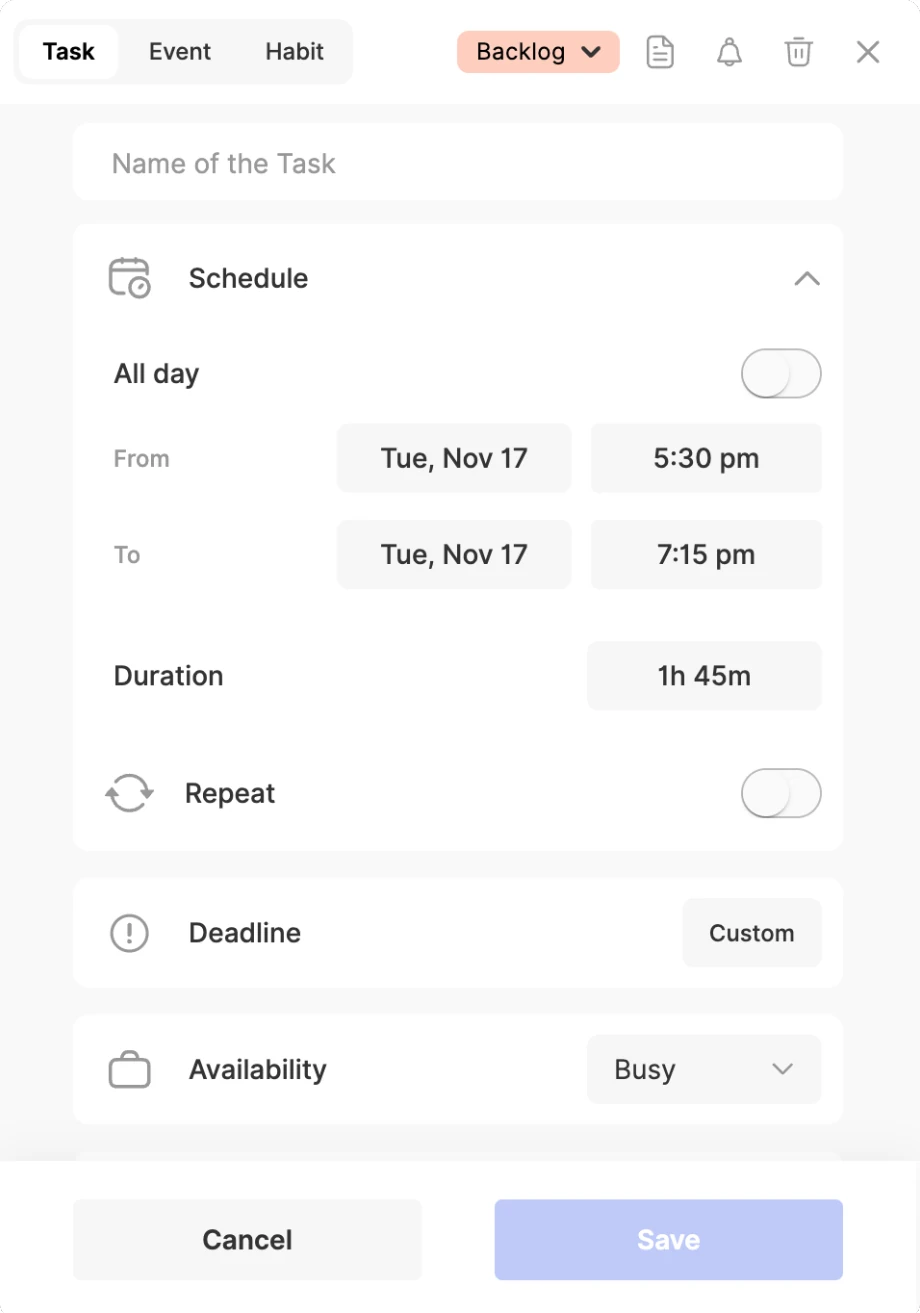
Click, or click and drag, anywhere on the calendar. The new-item form opens with that time filled in: choose Task, Event or Habit, give it a name and click Save.
Keep reading
- Integrations and syncCalendar customizationFilter what your calendar shows, color each calendar, and set default colors, views, week start and reminders.
- Integrations and syncConnecting your calendars to ByDesignConnect Google, Apple and Outlook, subscribe to any calendar link, and choose where ByDesign sends your tasks, events and habits.
- More about this featureTime blocking