

Connect a calendar
Step 1: Open your settings
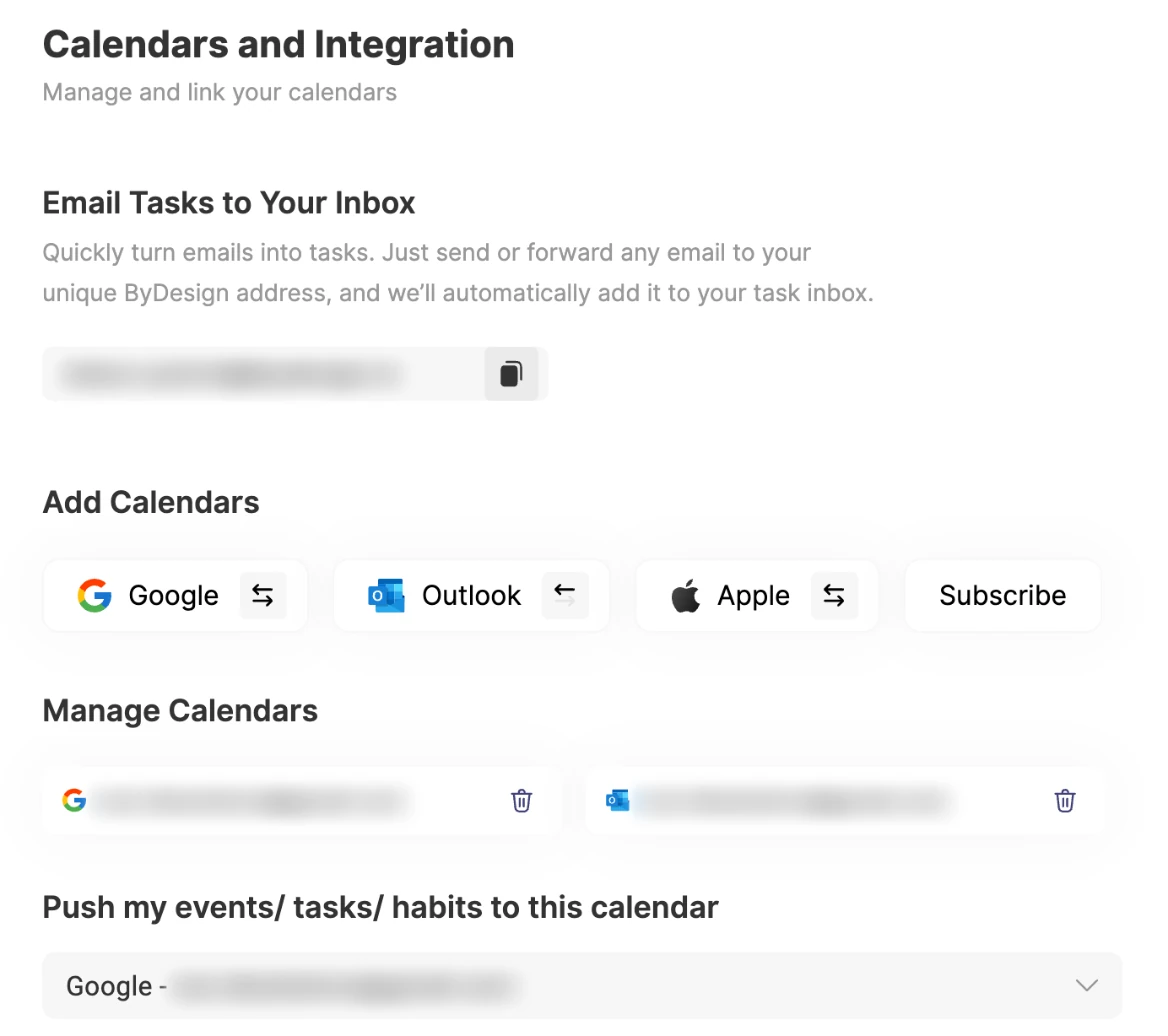
In ByDesign, open Settings, then Calendar's Integrations.
Step 2: Add a calendar
Under Add Calendars, choose Google or Outlook and sign in. For Apple, enter your Apple ID and an app-specific password; the window links to Apple’s page for making one.
Step 3: See your events
Your events now show next to your tasks and habits, on the Dashboard and in the Calendar.
Tip
Haven’t connected one yet? The Calendar shows a Connect your calendar card with the same Google, Outlook and Apple buttons.
How each calendar syncs
- Google: full two-way sync. Add, edit or delete an event on either side and everything stays updated. Changes from your primary Google calendar come back automatically; other Google calendars catch up when ByDesign loads them.
- Apple: two-way too. Changes made in Apple Calendar show up when ByDesign loads that calendar.
- Outlook: one way. You see your Outlook events in ByDesign, and ByDesign can send your tasks and events to Outlook. Changes made in Outlook don’t come back, and you can’t reschedule Outlook events from ByDesign.
- Subscribe: any calendar with a link, like a team, school or holiday calendar. It’s read-only, and it refreshes when you reload ByDesign.
Note
You can drag a Google event to a new time in ByDesign when you’re its organiser or it has no guests, and you can move Apple events too.
Subscribe to a calendar
Step 1: Copy the calendar’s link
Copy the subscription link from the app or website that shares the calendar.
Step 2: Subscribe
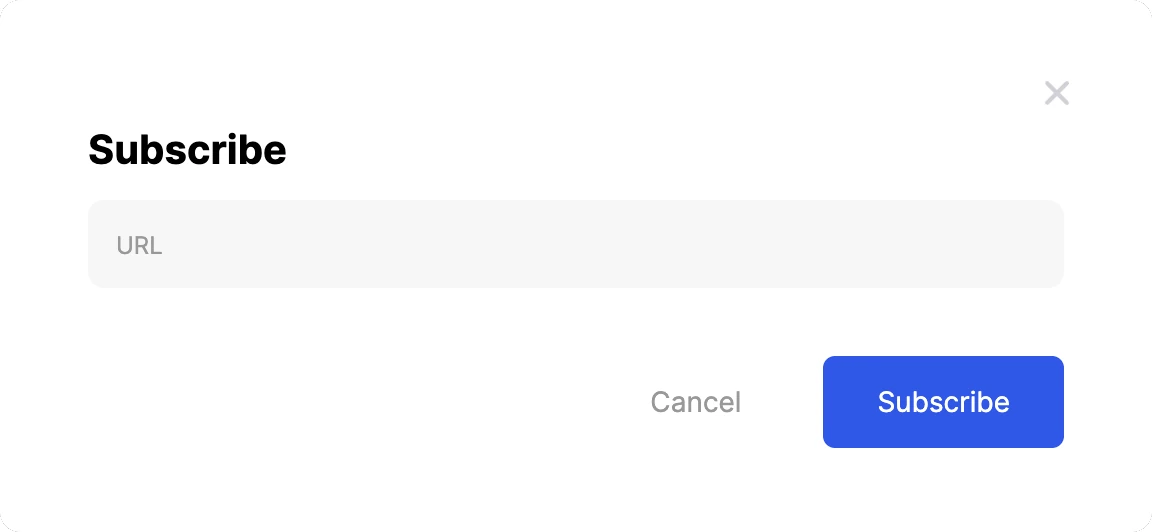
In Calendar's Integrations, click Subscribe, paste the link into URL and click Subscribe. If the link starts with webcal://, paste it with https:// instead.
Choose where ByDesign sends your items
- Pick your default calendar under Push my events/ tasks/ habits to this calendar. It starts as No Calendar, so nothing is sent until you choose one. Any Google, Outlook or Apple calendar you can add events to is listed; subscribed calendars aren’t.
- New items use it: new tasks, events and habits, and tasks you drag onto the calendar, go to that calendar. Items you already have don’t change.
- Change it for one item: every task, event and habit form has a Calendar row, showing Select to push until you pick one. Choose another calendar, or No Calendar.
- All-day items only go out when you switch them on: in Settings → Customizations, under Sync with external calendars, for all-day tasks, events and habits. They’re off to begin with.
Show or hide a calendar
Open the Calendar, click ⋮ at the top right and use Manage Calendars to switch each calendar on or off in your view. Switching one off hides it in ByDesign; it doesn’t disconnect it.
Sync your contacts
Under Sync Contacts, connect your Google or Outlook contacts. Then, when you add guests to an event, just type a name and ByDesign finds the person.
Good to know
- Connect calendars in ByDesign’s settings on the web or in the desktop app; your synced events then show on the web, iPhone, iPad and Android, and in the Mac and Windows apps.
- AI scheduling plans around your synced events. Protect external calendar events, in Settings → ByDesign AI, keeps them where they are.
Keep reading
- Integrations and syncUsing the calendar in ByDesignSee your tasks, events, habits and synced calendars together, switch between week and month, and drag tasks in to block time.
- Integrations and syncTroubleshooting and re-syncingEvents missing or out of date? Check your filters and reload, then remove and reconnect the calendar.
- More about this featureCalendar sync