

What it can do
- Plan a goal. Say what you want to achieve, and ByDesign works out the steps, finds resources like videos and courses, and puts dated tasks on your calendar between your start date and your deadline.
- Run your week. Ask it to plan your week, reschedule, find time for something or clear a day. It sees your calendar, goals, habits and notes, so it plans around your commitments rather than on top of them, and it shows you a preview before anything changes.
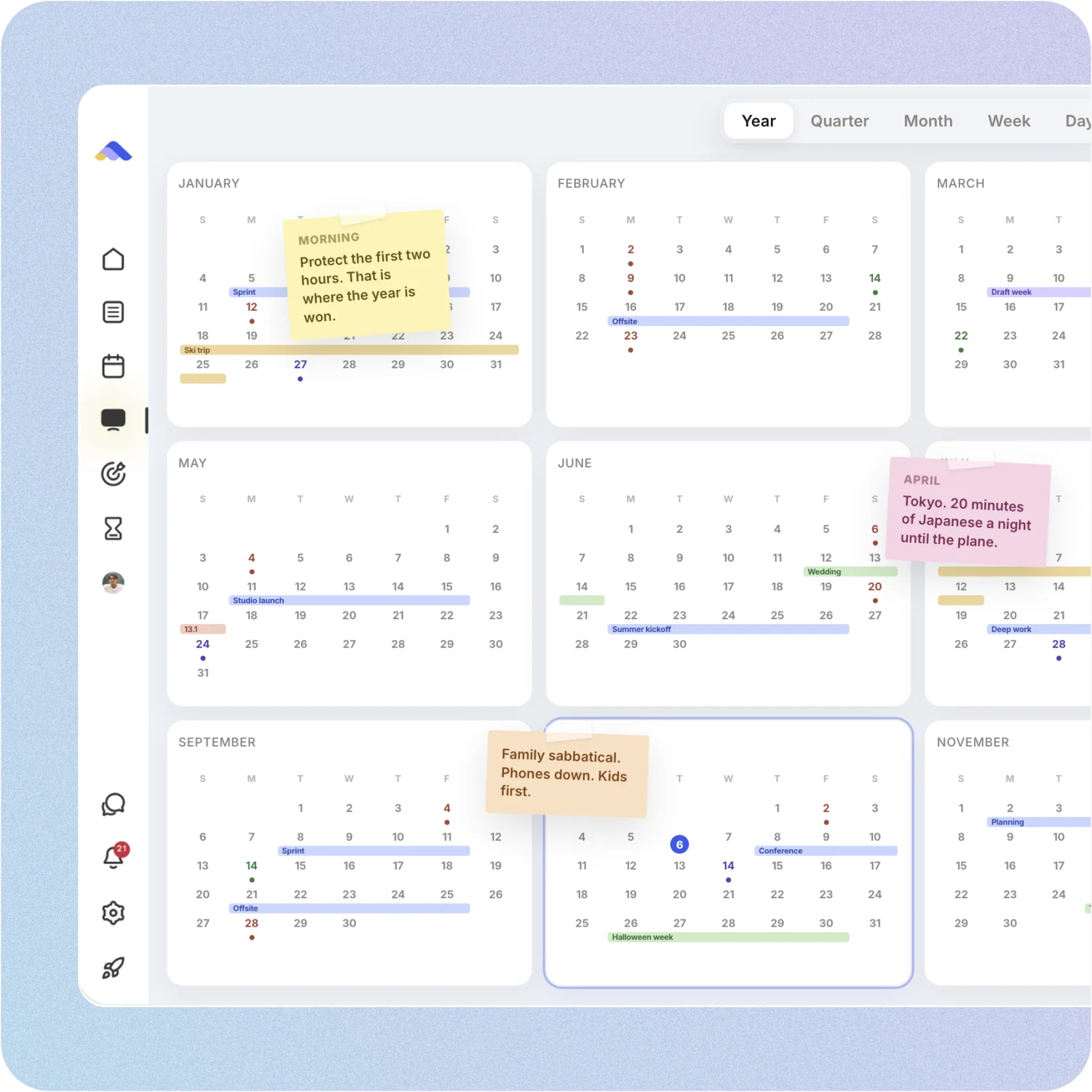
- Show you your time. The AI Canvas holds your whole year, a quarter, a month, a week, a day, or whatever range makes sense right now, like the next 10 days.
How to talk to it
- Type or talk. Write what you need in plain words, or tap the mic and say it.
- On the web and in the Mac and Windows apps, the assistant is on the AI Canvas and the Goals pages, and it helps on the schedule preview too.
- In the iPhone and Android apps, open the assistant to type or talk. On iPhone, the Ask AI and Ask AI by voice Siri shortcuts open it straight away.
Getting the most out of it
Set up your AI profile first. It takes a few minutes, and it’s the difference between the AI guessing and the AI actually knowing how you work.
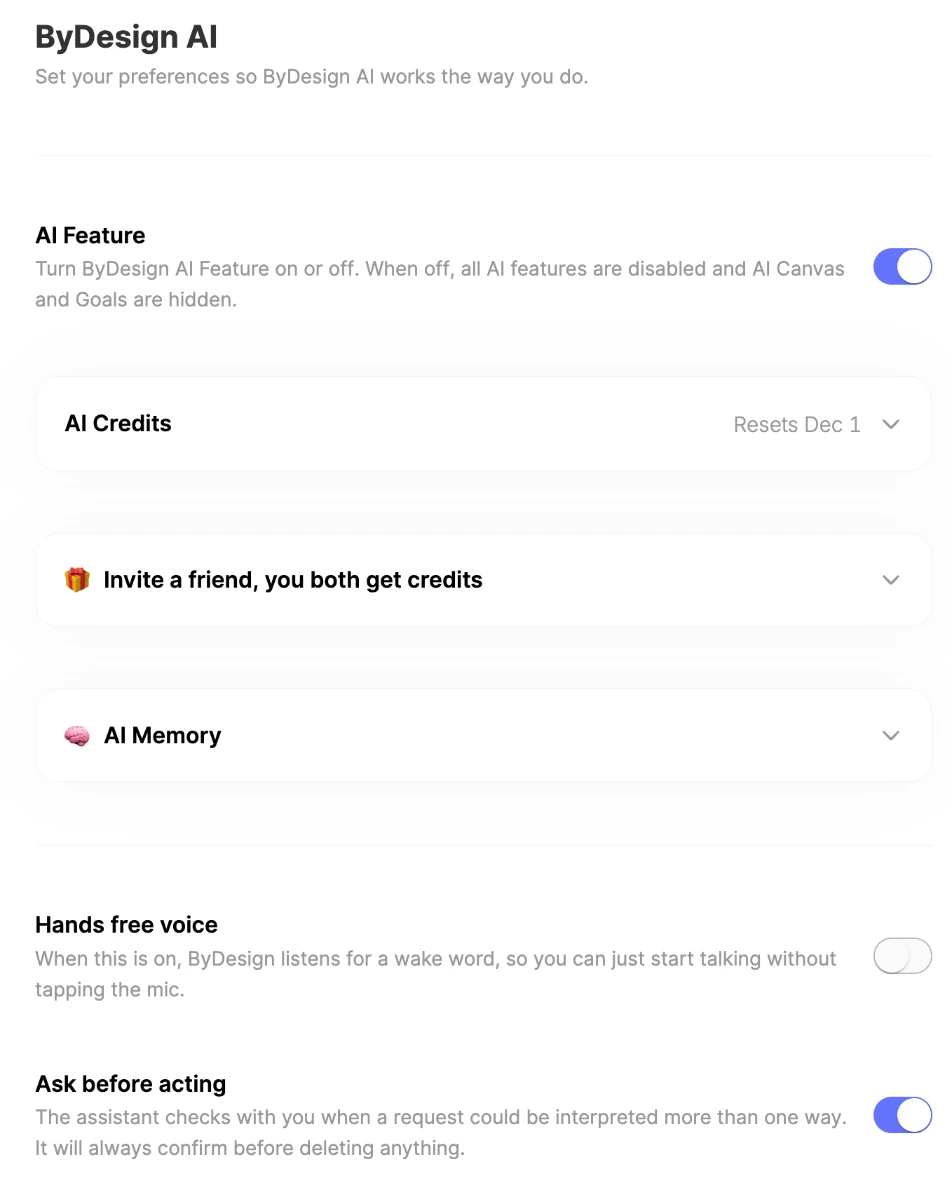
Go to Settings → ByDesign AI and fill in your work hours, your AI Blocks and how you like things scheduled. The guide to setting up your AI profile walks through every option.
AI credits
AI actions use credits, charged by how much work the AI does. A quick chat costs very little, scheduling a bit more, and planning a full goal the most, about 45 credits, because it’s doing the most work.
- Monthly allowance: 500 credits on the AI plan and 1,500 on AI Plus. They reset every month.
- Your balance: see it under AI Credits in Settings → ByDesign AI, with the date it resets.
- Need more? Use Top up credits to buy more, or turn on usage credits to keep going if you hit your limit.
- Earn some: invite a friend, and when they subscribe, you both get 100 AI credits.
Note
Dragging things yourself, undoing and cancelling a preview don’t use credits.
Turn AI on or off
Prefer to plan without AI? Turn off AI Feature in Settings → ByDesign AI. All AI features are switched off, and AI Canvas and Goals are hidden until you turn it back on.
Good to know
- ByDesign AI comes with the AI and AI Plus plans.
- The 7-day free trial doesn’t include AI goal plans.
- AI goal plans, the AI Canvas and the schedule preview are on the web and in the Mac and Windows apps. In the iPhone and Android apps, the assistant can schedule tasks, send calendar invites and move things for you.
Keep reading
- ByDesign AITalking to your assistantOpen the assistant, ask in plain words or by voice, and see every change before it happens.
- ByDesign AISetting up your AI profileTeach ByDesign how you work: your memory, hours, AI Blocks, scheduling style, protection and voice settings.
- More about this featureAI scheduling