

Add a reminder
Step 1: Open the item
Open a task, event or habit, or create a new one.
Step 2: Switch on Reminders
Turn on Reminders. ByDesign adds one for 10 minutes before.
Step 3: Set when it fires
Pick a number and minutes, hours, days or weeks. For a task, choose before Schedule (its time) or before Deadline; habits remind you before their set time, and events before they start.
Step 4: Add more
Click + Add Reminder for another one, or × to remove one, then save.
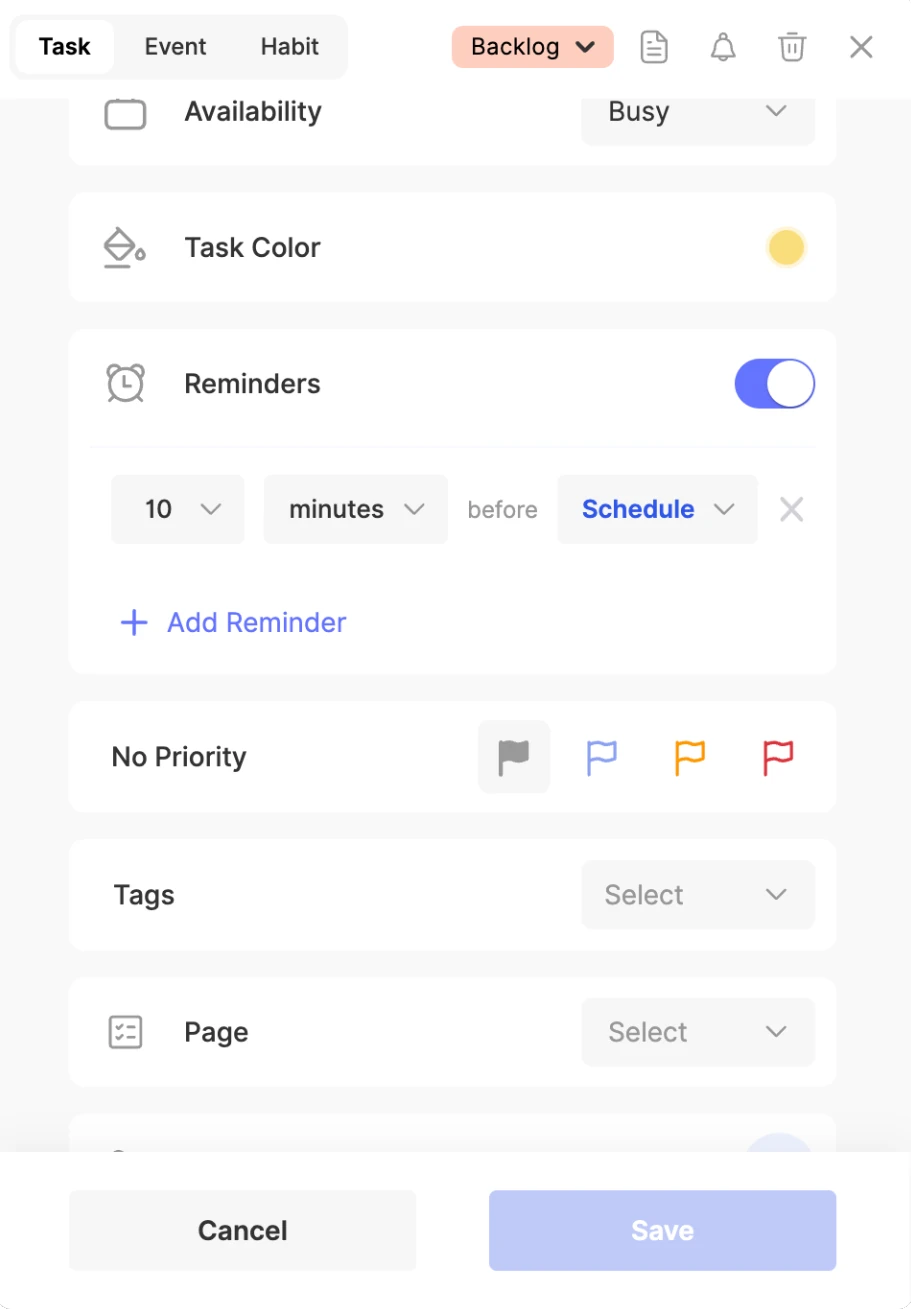
- Reminders are yours: on a shared page, each person sets their own.
- All-day items remind you on the day at your default reminder time, so you choose days or weeks rather than minutes.
- All-day habits don’t take reminders on the web.
Default reminders
In Settings → Customizations:
- Add reminders by default to tasks, events or habits, then click + to pick the reminders new ones get, like 10 min or 1 hour.
- Default reminder time for all-day tasks, events and habits, like 9:00 am.
- Time zone: sets when all-day reminders fire. Tick Set time zone automatically to follow your device.
How reminders reach you
- Reminders arrive as push notifications on your phone, in your browser and in the desktop app. While ByDesign is open, they pop up inside the app.
- Your browser asks for permission when you open ByDesign; allow it to get reminders on that computer.
- A reminder isn’t sent for a task that’s already done, or for a task on a shared page that isn’t assigned to you.
Choose your notifications
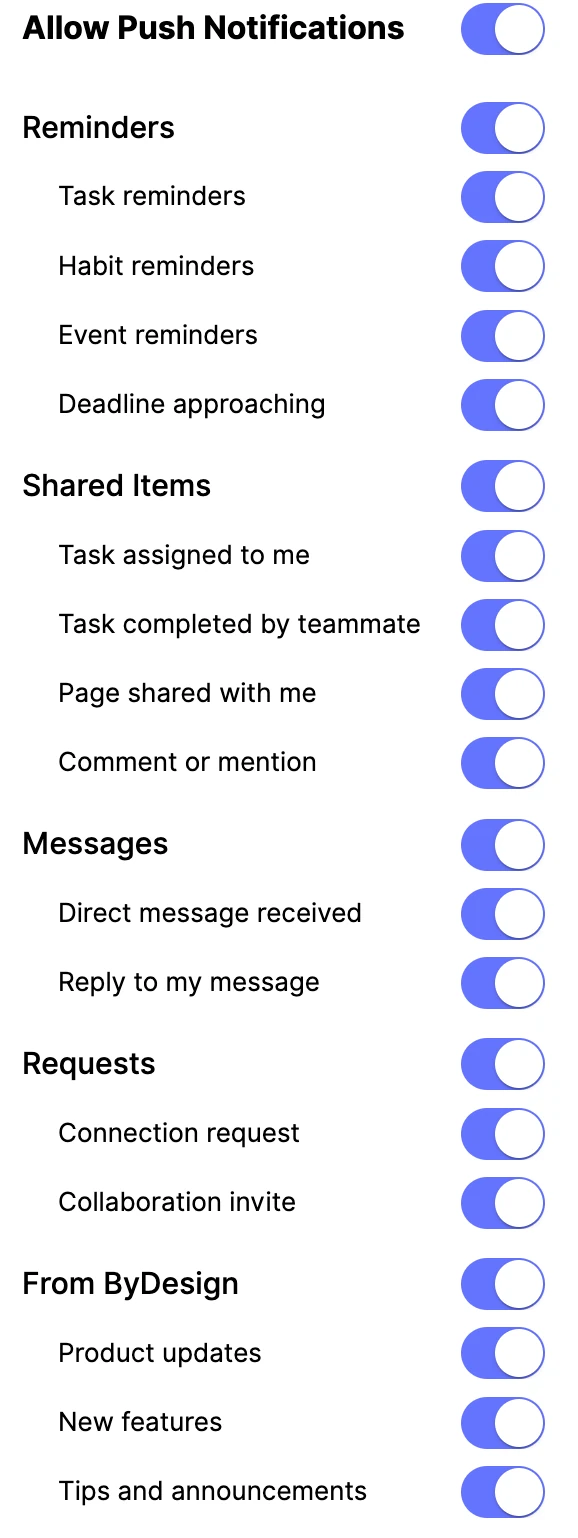
Open Settings → Notifications. Allow Email Notifications and Allow Push Notifications switch a whole channel on or off, and each group has its own switches. Everything starts switched on.
- Reminders (push only): Task reminders, Habit reminders, Event reminders, and Deadline approaching for reminders before a deadline.
- Shared Items: Task assigned to me, Task completed by teammate, Page shared with me and Comment or mention.
- Messages: Direct message received and Reply to my message.
- Requests: Connection request and Collaboration invite.
- From ByDesign: Product updates, New features and Tips and announcements.
Note
These push switches cover your browser and the desktop app. The phone apps have their own notification settings.
Your alerts
- Click the bell (Alerts) in the menu on the left to see shares, comments, mentions and requests, newest first. A badge shows how many are new.
- Click an alert to open what it’s about. Mark all as read clears the badge, and Go to settings opens your notification settings.
- Use an alert’s ⋯ menu to mark it read or unread, delete it, or Turn Off email notifications like it.
Keep reading
- Planning basicsUsing the DashboardPlan your day from one screen: today’s calendar, your tasks, habits, pinned pages and the widgets you choose.
- Integrations and syncCalendar customizationFilter what your calendar shows, color each calendar, and set default colors, views, week start and reminders.
- More about this featureReminders