

Give a page a color
Step 1: Open the color picker
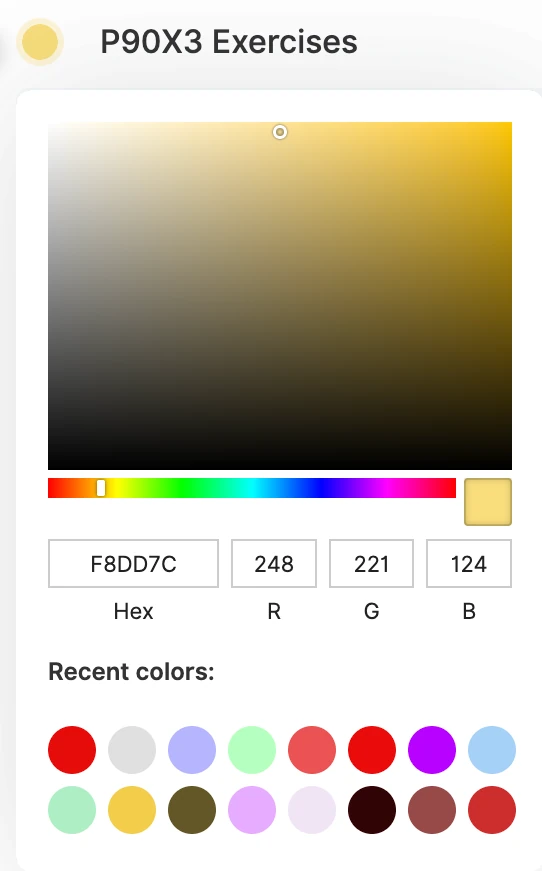
Click the colored circle next to the page’s title (Change color).
Step 2: Pick a color
Choose one in the color field and hue slider, type a Hex or RGB value, or click one of your Recent colors.
Step 3: See it everywhere
The page’s dot in the Workspace sidebar takes the new color, and so do the page’s tasks on your calendar.
Tip
Give each area of your life its own color, like blue for work, pink for personal and green for health. Your calendar then shows at a glance where your time goes.
Note
The color is your own: on a shared page, each person who can edit it picks their own color, without changing anyone else’s.
The page menu
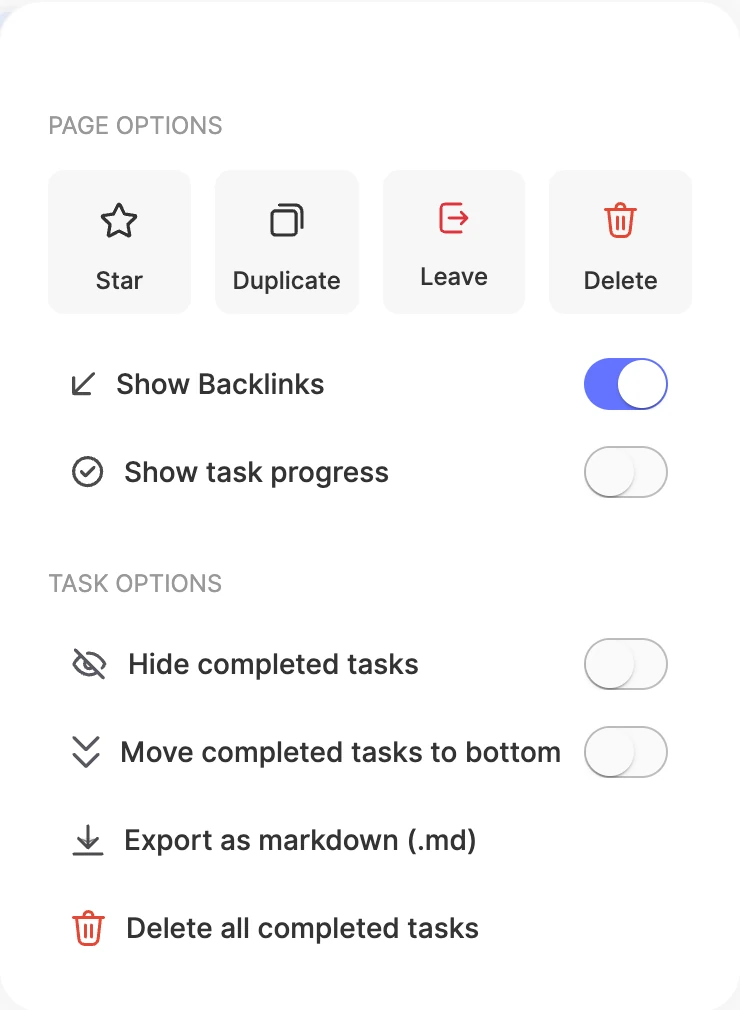
Click ⋮ at the top right of a page. Under Page options:
- Star: keeps the page one click away, under ⭐️ Starred in your sidebar and in the Dashboard’s Starred Pages widget. Click Unstar to take it off.
- Duplicate: makes a copy, named “(Copy)”, in the same folder, perfect for something you reuse, like a weekly review.
- Leave: on a shared page, removes you from it. If you’re the owner, ByDesign first asks you to pass the ownership on to someone else.
- Delete: moves the page, and any pages inside it, to Trash. Only the page’s owner can delete it.
- Show Backlinks: shows a Backlink button at the top of the page that lists the pages linking to it. It’s on by default.
- Show task progress: shows how many of the page’s tasks are done, like 👏 3 / 10 Tasks Completed.
Under Task options:
- Hide completed tasks: keeps the page focused on what’s left.
- Move completed tasks to bottom: keeps ticked-off tasks below the rest, while they aren’t hidden.
- Export as markdown (.md): downloads a .zip with the page, and each page inside it, as Markdown files. Tasks come out as checkboxes.
- Delete all completed tasks: clears every ticked-off task on the page in one go, after you confirm.
Note
What you see depends on your access: people who can only view or comment get Star and Duplicate. Show Backlinks and Show task progress are your own view settings, so switching them doesn’t change the page for anyone else.
The sidebar menu
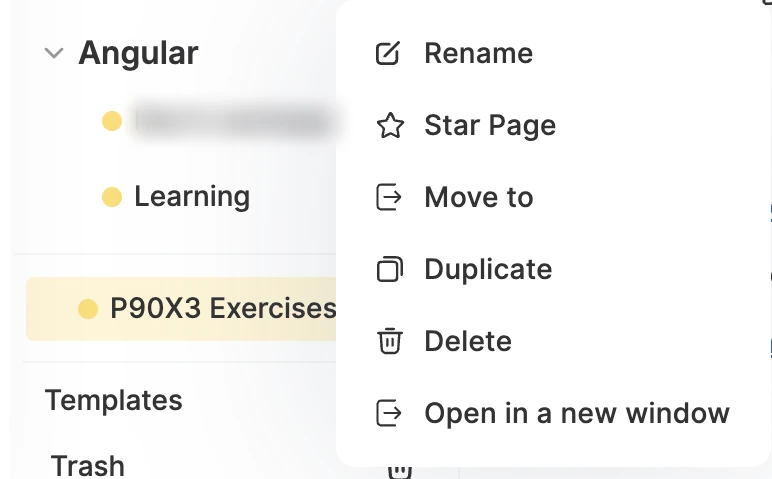
Hover over a page in the Workspace sidebar and click ⋮, or right-click the page:
- Rename the page.
- Star Page, or Unstar Page.
- Move to: pick another page to move this one inside it.
- Duplicate it.
- Delete it, if you own the page or a page it sits in.
- Leave page, on a shared page.
- Open in a new window, to keep it open next to something else.
Folders have a menu too, with Rename, Duplicate and Delete. Deleting a folder deletes the pages in it as well, after you confirm.
Deleted pages and Trash
Deleting a page moves it, with any pages inside it, to Trash, at the bottom of the Workspace sidebar. It stays there for 30 days. The first time you delete a page, ByDesign reminds you of this and opens Trash for you.
- Each page in Trash shows how many days it has left.
- Search by page title to find a page.
- Restore puts a page back in your Workspace.
- Delete Permanently removes one page, after you confirm.
- Empty Trash removes them all, after you confirm.
- Open a page in Trash to read it, then click Restore Page or Delete Permanently.
Note
Trash shows the pages you deleted yourself. After 30 days, or once you delete it permanently, a page can’t be restored.
Why use these options
- Keep pages clean: hide or clear finished tasks so you only see what’s left.
- See your time clearly: page colors make your calendar a picture of where your hours go.
- Stay organized as projects change: rename, move and star pages as your priorities shift.
- Reuse instead of starting over: duplicate a page you like, or export it as Markdown.
Keep reading
- Working with pagesOrganizing your work and lifeCreate pages and folders, fill them with notes, tasks, tables and media, and move work between pages and your calendar.
- Working with pagesCollaboration and publishingShare a page with people or a link, publish it as a public web page, discuss it with comments, and assign single tasks.