

How it works
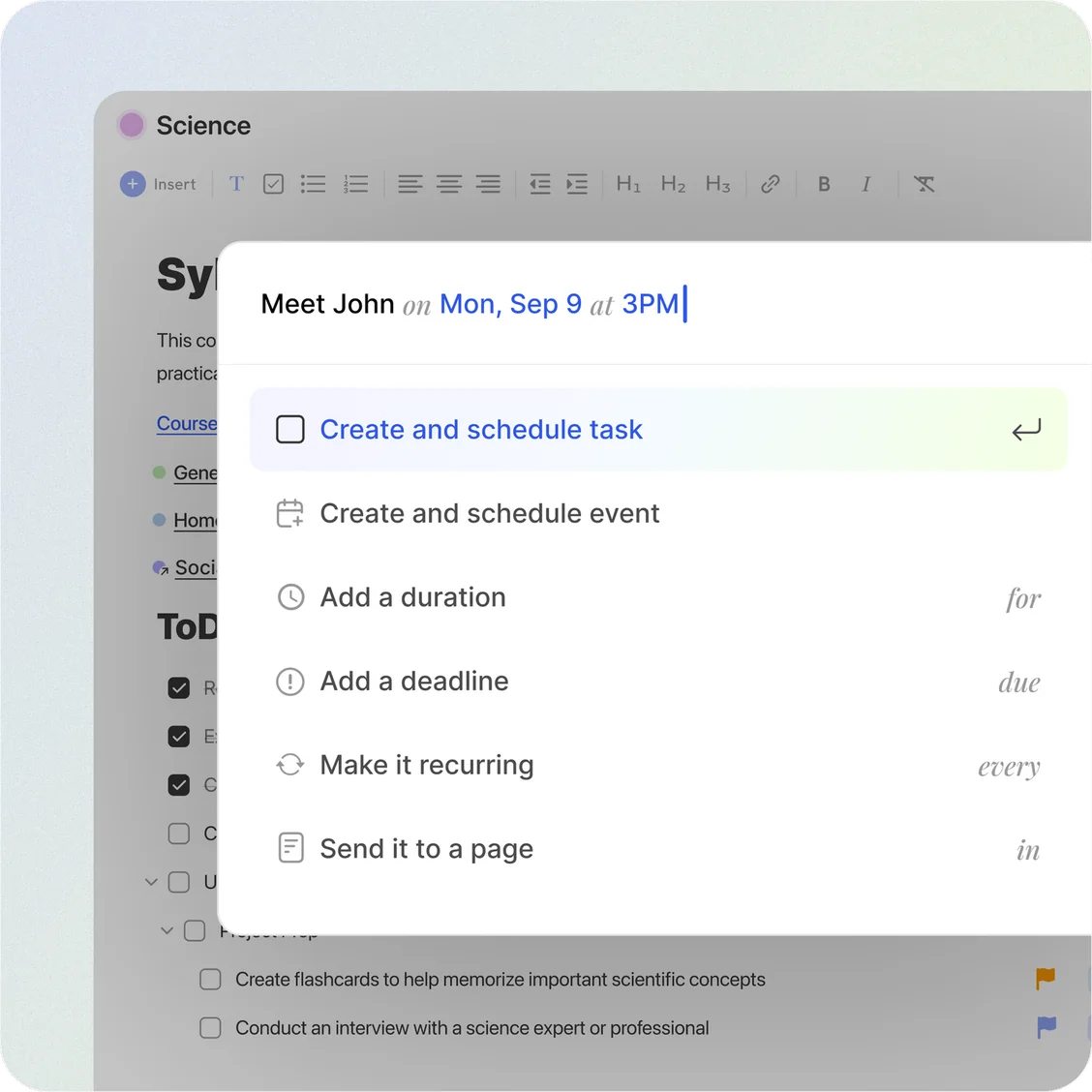
Start typing something like “Drink water at 8am every day”. ByDesign reads:
- at 8am as the time.
- every day as the repeat.
- The rest, “Drink water”, as the name. It’s a task unless you choose an event.
As you type, you’ll see real-time suggestions: create the task (straight to your Inbox if it has no date), schedule it, create an event instead, or add a date, a time, a duration or a deadline.
The command words
Type what you need to do, then add these to fill in the details:
- on sets the date: “on Monday”, “on 12 March”, “on tomorrow”.
- at sets the time: “at 9am”, “at 3pm”.
- for sets how long it takes: “for 45 min”, “for 1h”, “for 1h 30”.
- due sets the deadline, apart from when you’ll do it: “due Thursday”.
- every makes it repeat: “every day”, “every week”, “every Monday”, “every month”.
- in puts it in a page: “in Daily Tasks”.
Tip
Try “Workout at 7am for 1h every Monday”: a one-hour task at 7 AM, every Monday.
Where it works
- Anywhere, with Ctrl+G (⌘G on a Mac): Quick Add.
- Wherever you type a task: on your Dashboard, in a page, in your Inbox and in Timeline, and in the Pomodoro Timer’s task list.
- On your phone: the task form behind the + button in the iPhone and Android apps understands every command word except in.
Pick from the options as you type
Step 1: Type the task
Start with what it is, like “Write blog post”.
Step 2: Add a command word
Type a command word and a space, like on. A list of options opens, such as today, tomorrow and the days after.
Step 3: Narrow it down
Keep typing, like “on sat”, to filter the list. Move with ↑ and ↓ and press Enter to pick the highlighted option.
Step 4: Add more details
Add other command words the same way, like “for 2h”, then press Enter to create the task.
Examples to try
- “Call Mom on Sunday at 6pm”: a task on Sunday at 6 PM.
- “Drink water at 8am every day”: a task at 8 AM that repeats daily.
- “Team sync every Monday at 10am for 30 min”: a half-hour task every Monday at 10 AM.
- “Write report on Friday for 2h due Monday”: two hours on Friday, due on Monday.
- “Plan budget on Friday in Finance”: a task on Friday, inside your Finance page.
Dates, times and repeats in detail
- Dates: a weekday, a date like 12 March, or today or tomorrow, up to a year ahead. Add the year, like “on 10 Sep 2027”, for a date further out.
- Times: with no date, at means today, or tomorrow if that time has already passed.
- Durations: hours, minutes or both, like 45 min, 2h or 1h 30.
- Repeats: every offers Day, Week on one weekday, or Month on a date like the 15th or a pattern like the second Tuesday.
Note
To repeat on several weekdays, like Monday, Wednesday and Friday, create the task first, then open it and set Repeat.
Tip
Dates need on in front of them: type “on Friday”, not just “Friday”.
Keep a word as plain text
Sometimes a command word is just part of the name, like “Turn on the heating” or “Check in with Sam”. Press Esc right after typing the word and ByDesign leaves it as plain text.
Good to know
- in isn’t a command word while you’re typing inside a page, because the task is going there already.
- Command words set the date, time, duration, deadline, repeat and page. Add a priority and tags in the task afterwards.