

Find your way around
The tabs along the bottom take you to Home, Workspace, Pomodoro, Calendar and your profile.
- Calendar: your tasks, events and habits by Day, 3-Day, 5-Day, Week or Month, with the events from your connected calendars.
- Timeline: the Daily and Someday views, for what’s on each day and what can wait.
- Pomodoro: the same focus timer and modes as on the web.
Ask ByDesign
Tap the round AI button at the bottom right of the Home, Workspace, Calendar and Inbox screens to open the Ask ByDesign bar. Tap the bar to type, or the mic to talk. Ask it to schedule tasks, send calendar invites or move things for you.
Note
The assistant uses AI credits from your plan.
Add tasks on the go
- Open the Ask ByDesign bar and tap + to add a task. The task form understands the same command words as Quick Add, except in.
- On iPhone, add tasks by voice with the Quick Task and Inbox Task Siri shortcuts.
- Share from another app: on iPhone, share to a ByDesign page; on Android, share text to ByDesign.
Add a widget
Step 1: Open the widget gallery
Touch and hold an empty part of your home screen, then open the widget gallery.
Step 2: Find ByDesign
Search for ByDesign and pick a widget.
Step 3: Choose a size
Pick small, medium or large where the widget offers it, then add it. On Android you can resize widgets.
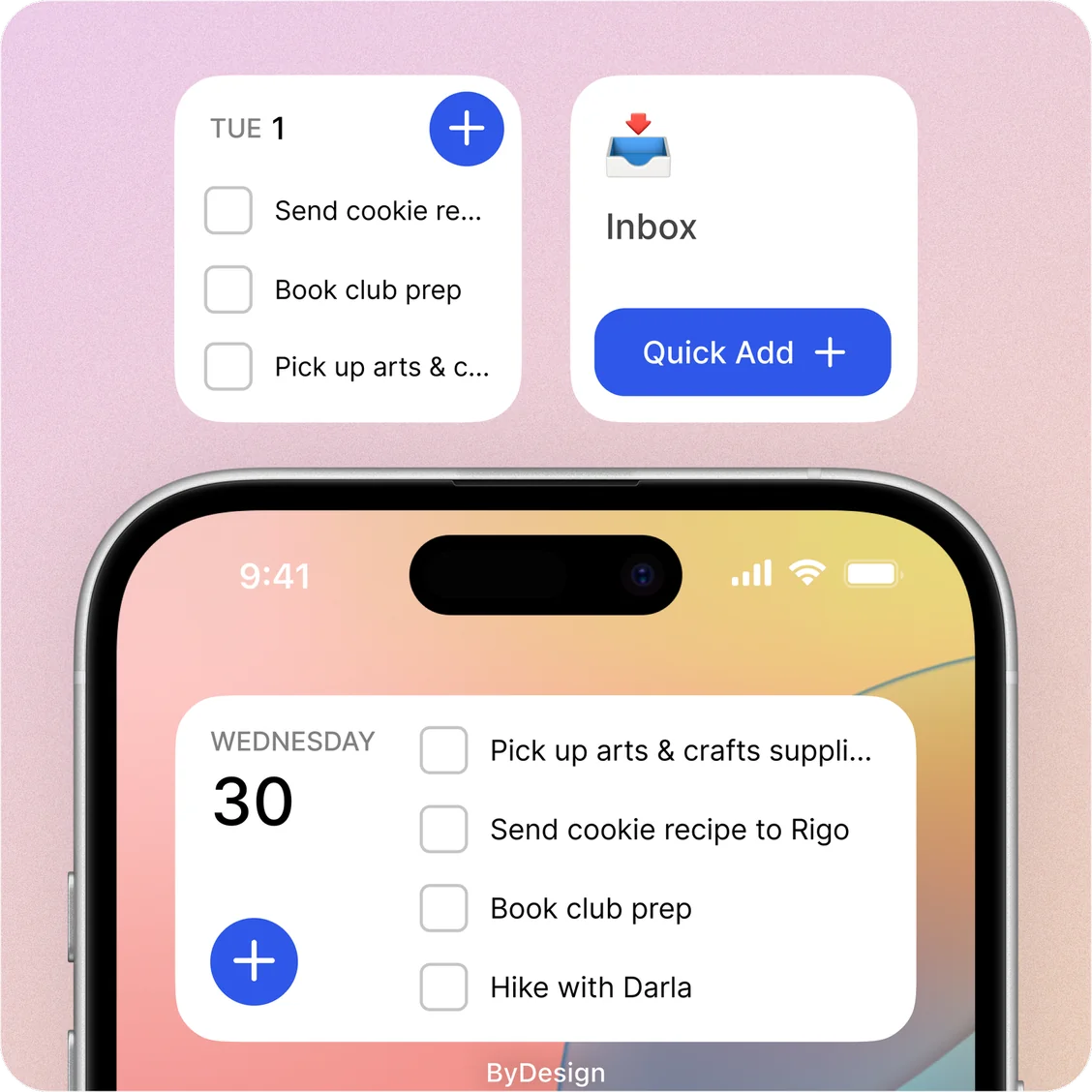
The widgets
- Today’s Tasks: today’s tasks with your habits first. Tick them off right on the widget.
- Calendar Events: this month at a glance, plus today’s events on the medium size.
- Calendar - Tasks & Events: today’s tasks and events together. Complete tasks right on the widget.
- Inbox: your Inbox, with Quick Add for new tasks. Complete or expand tasks on the widget.
- Pin a Page: any page’s tasks. Complete or expand them, and on iPhone add new ones.
On Android, the calendar widgets are called What’s next with month view, and the Inbox widget is Inbox View. Widgets refresh when you add, finish or change something, and regularly in the background.
Notifications and appearance
- The phone apps have their own notification settings, separate from the web and desktop apps.
- Choose Light, Dark or System under Display Mode in the app’s settings.
Good to know
- Some features are on the web and in the Mac and Windows apps only: the AI Canvas, Auto Schedule, Goals, Kanban boards and Quick Add.
- Connect your Google, Outlook or Apple calendars on the web or in the desktop app. Their events then show in the phone apps too.
- On iPhone, Today’s Tasks works on any iPhone that runs ByDesign, while the calendar, Inbox and Pin a Page widgets need iOS 26.2 or later. There are no Lock Screen widgets.
Keep reading
- Getting startedGet the apps and sign upGet ByDesign on the web, iPhone, iPad, Android, Mac and Windows, create your account, and sign in anywhere.
- Getting startedSiri and ShortcutsAdd tasks with Siri, from the Shortcuts app or your Home Screen, and open the AI assistant by voice.
- More about this featureWidgets