

Before you start
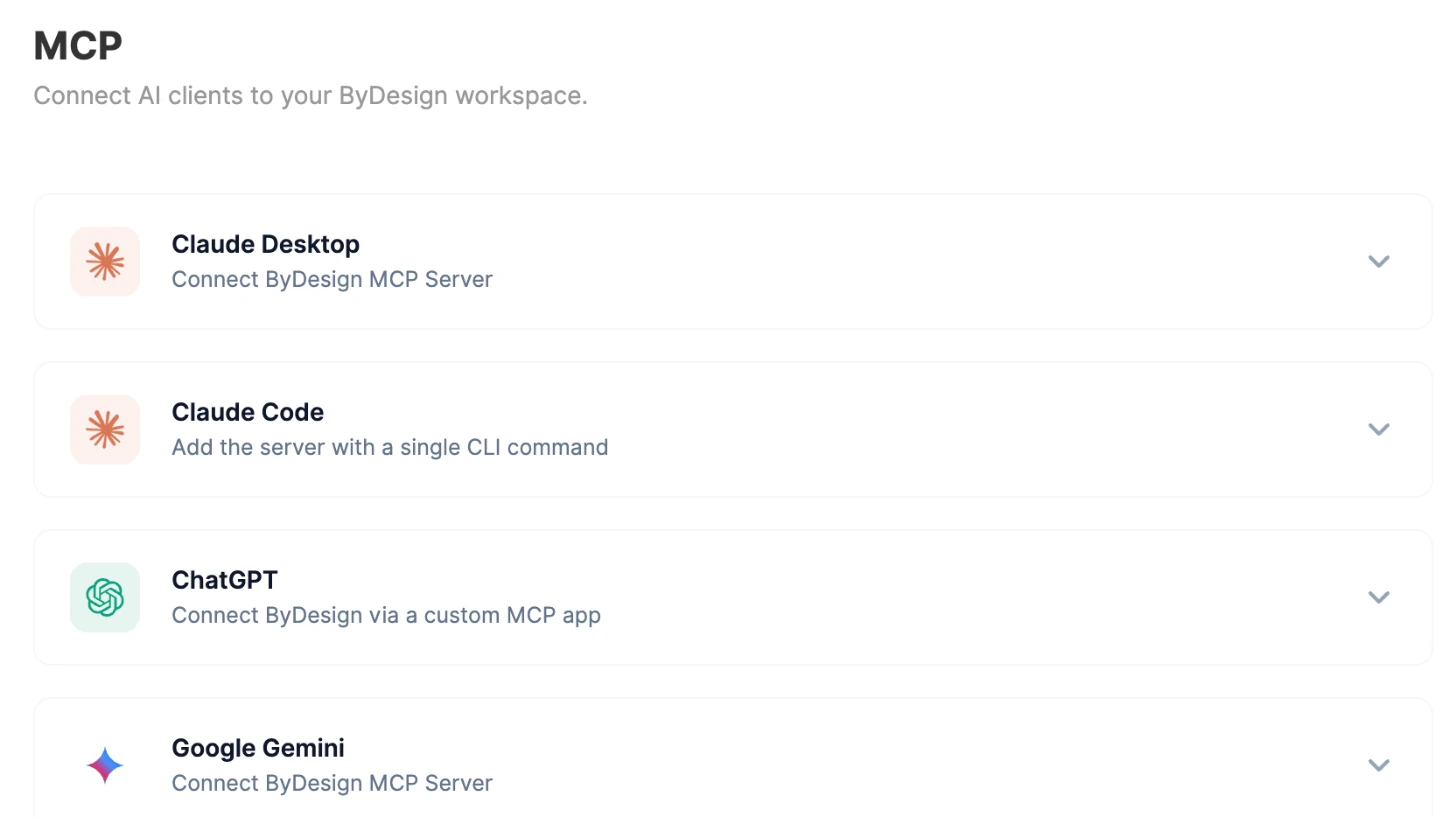
- ByDesign’s server URL is https://mcp.bydesign.io/mcp. You’ll also find it, with setup steps, in Settings → MCP in ByDesign.
- MCP comes with every ByDesign plan: Pro, AI and AI Plus. Its requests are counted separately from AI credits, and every plan starts with a 7-day free trial.
Connect ChatGPT
Step 1: Open Plugins
Sign in at chatgpt.com and click Plugins in the sidebar.
Step 2: Add a custom MCP server
Click Add at the top right, then choose Add custom MCP server.
Step 3: Enter the ByDesign details
Name it ByDesign, paste the server URL, leave Authentication on OAuth, tick I understand and want to continue and click Create as a plugin.
Step 4: Connect and authorize
Click Connect ByDesign. On ByDesign’s page, sign in if you’re asked and click Authorize.
Step 5: Use it
Start a new chat, click + in the message box and choose ByDesign.
Connect Claude
ByDesign is in Claude’s connector directory, on claude.ai and in the Claude desktop app:
Step 1: Find ByDesign
Click Customize in Claude’s sidebar, open the Connectors tab and search for ByDesign.
Step 2: Connect and authorize
Click Connect to Claude. On ByDesign’s page, sign in if you’re asked and click Authorize.
Step 3: Use it
In a new chat, click +, open Connectors and check ByDesign is switched on.
Connect Gemini
Step 1: Open Customize
On your computer, go to gemini.google.com with your personal Google Account. In the sidebar, click More, then Customize.
Step 2: Add a custom app
Open the Connectors tab, click + Custom, paste the server URL and click Next.
Step 3: Accept and connect
Tick I understand and accept the security and privacy risks of connecting this custom app, click Connect, then Agree and continue to link your accounts.
Step 4: Authorize and save
On ByDesign’s page, click Authorize. Back in Gemini, set the name to ByDesign and click Connect. Type @ByDesign in a prompt to use it.
Connect Claude Code
In your terminal, run claude mcp add --transport http ByDesign https://mcp.bydesign.io/mcp, then claude mcp login ByDesign. Your browser opens: sign in to ByDesign and click Authorize. Then start Claude Code in a new terminal window.
What you can do once it’s connected
When you click Authorize, ByDesign lists what the assistant may do: read your tasks, projects and schedule, create and update items for you, search your workspace, summarize activity, and answer questions using your account data. Then talk about your workspace in plain language. Your assistant can reach:
- Your schedule: today, tomorrow or any date or range, what’s overdue, and the full details of any task, event or habit. Try “What’s on my plate today?”
- Tasks: create one or several, add them to your Inbox, add subtasks, reschedule, complete, move between pages, search your workspace and merge duplicates.
- Events: create them with guests, repeats and reminders, reschedule, RSVP, or delete and cancel them for guests.
- Habits: create them, log them as done, skipped or undone, update their schedule and see which are on track.
- Pages and notes: read any page, create pages, add content or tasks, organize pages into folders and share a page with someone in your workspace.
- Reminders and calendars: add or remove reminders, see your connected calendars and push items to them.
- Your workspace: a health check across everything, with your scheduling preferences and time zone.
Tip
Connect your other tools to the same assistant to move work between them, like “Read the thread in #product and add anything I agreed to as tasks for this week.”
Good things to know
- It reads and writes: your assistant makes real changes, and deleting a page or an event is permanent, so be clear about what you ask for.
- It uses your real settings: your work hours, calendar blocks and scheduling preferences apply here too.
- Your connected calendars are included when it works out your availability.
- Disconnecting is easy: remove ByDesign from your assistant’s connectors any time.
Troubleshooting
- It doesn’t see ByDesign: in the Claude desktop app, quit fully and open it again; in ChatGPT, start a new chat with ByDesign selected.
- Authorization didn’t open: check pop-ups aren’t blocked in your browser, then add the connector again.
- It can’t find something: be specific, like “my Portugal trip page” rather than “that trip thing”.
Keep reading
- ByDesign AIGetting started with ByDesign AIWhat ByDesign’s AI can do, how to talk to it, how to set it up, and how AI credits work.
- Integrations and syncConnecting your calendars to ByDesignConnect Google, Apple and Outlook, subscribe to any calendar link, and choose where ByDesign sends your tasks, events and habits.