

AI Memory
AI Memory is what ByDesign has learned about you from how you use the app. It’s plain text and you can edit it directly: if something’s wrong, change it; if there’s something the AI should know that it hasn’t picked up yet, add it. Click Save when you’re done.
You can also update it by voice: click Voice and say what to add.
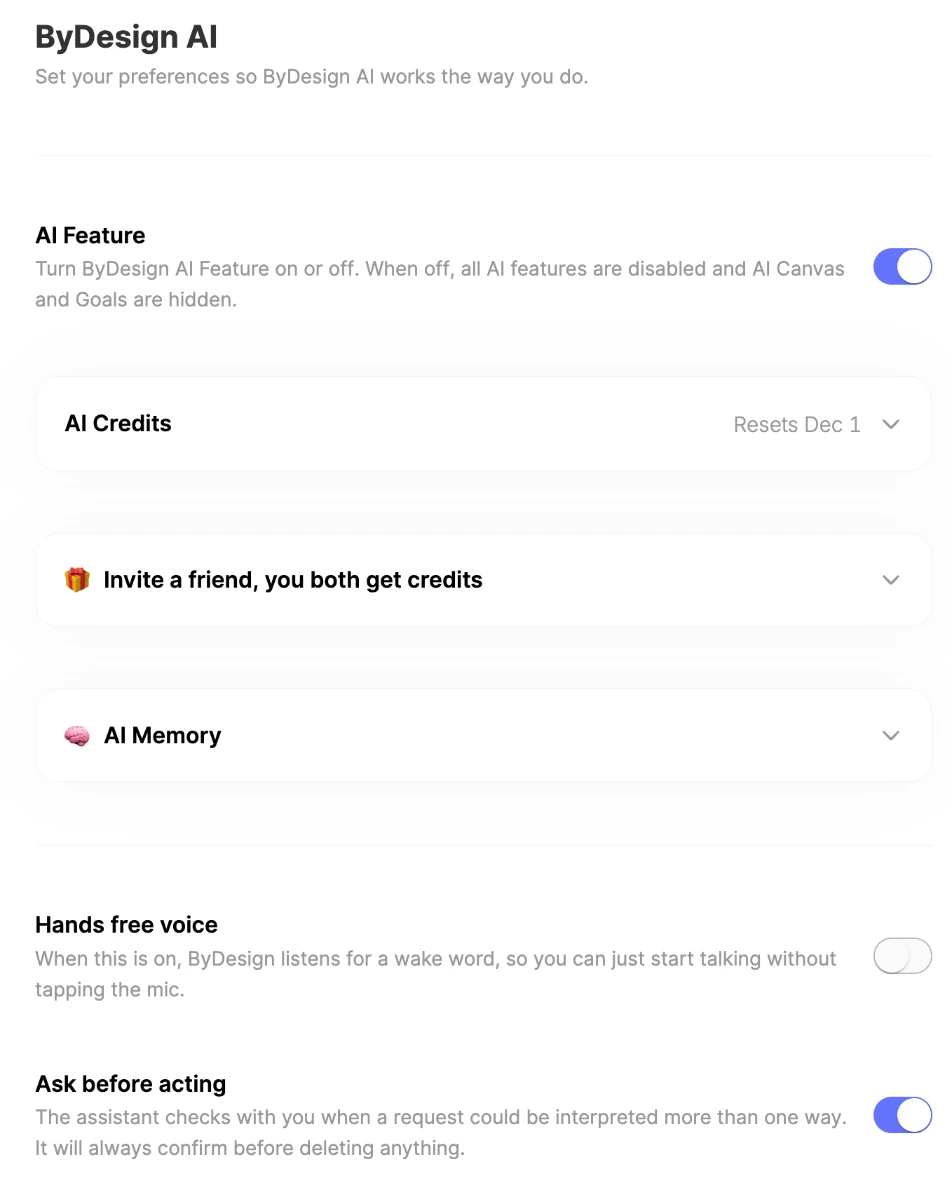
Your schedule
- Work hours & days: when you’re available for work tasks.
- Personal hours & days: when you’re free for everything else.
This is the single most useful thing you can set: it stops the AI putting a work call at 9 PM or a gym session in the middle of your workday. Planning keeps to these hours; turn Your Schedule off to plan any day of the week, 6 AM to midnight.
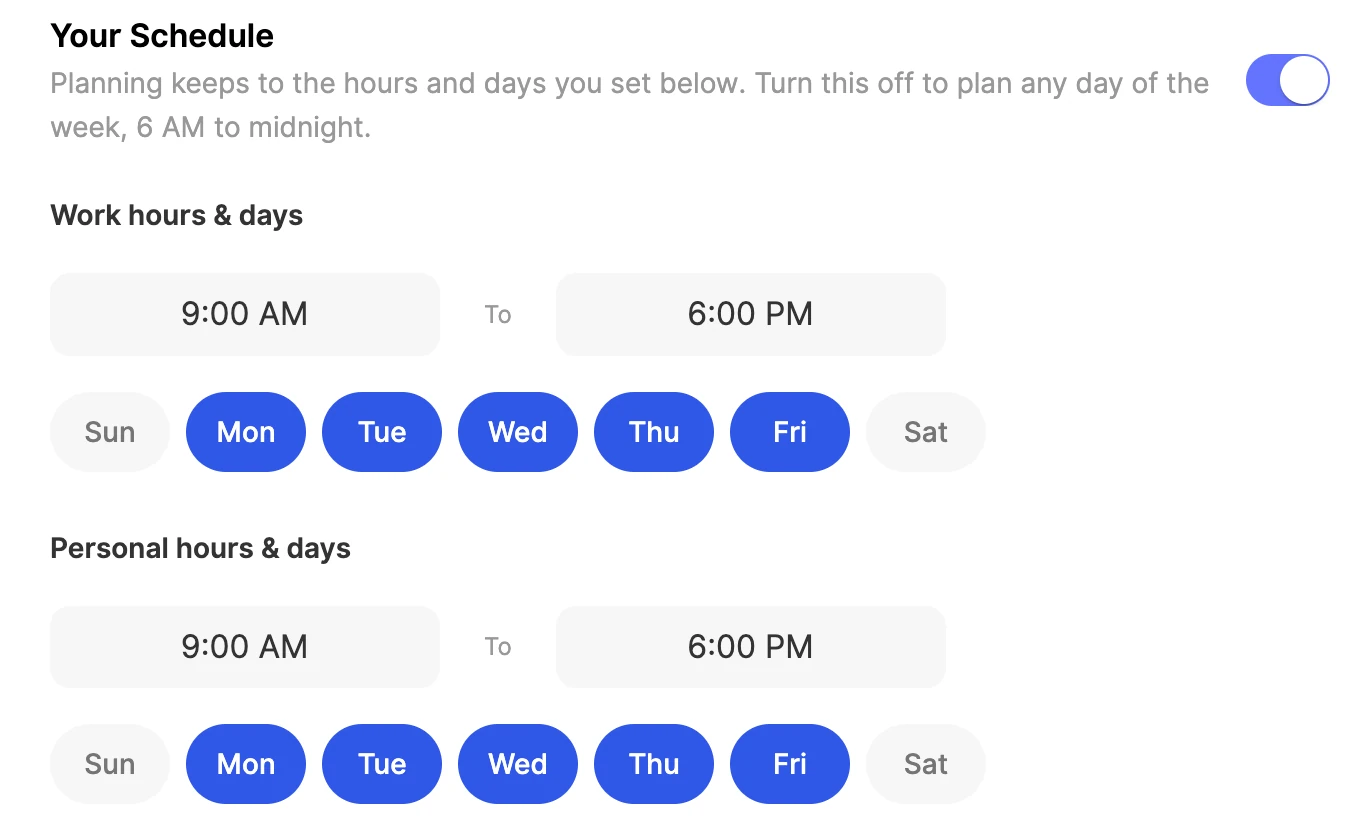
AI Blocks
AI Blocks are chunks of time you set aside for a particular kind of work. Click New block, give it a name, a time range and the days it applies to, then choose the tags of the tasks that belong in it. When the AI plans, a task with a matching tag goes inside that block.
- Deep work: Monday, Wednesday and Friday, 9 to 11 AM, for tasks tagged Focus.
- Learning: Tuesday and Thursday, 7 to 8 AM, for tasks tagged Learning.
- Admin: Friday, 3 to 5 PM, for tasks tagged Admin.
Note
You can also link pages or folders to a block, but for now it’s the tags that decide which tasks go in it.
Scheduling preferences
- Scheduling style: how full the AI fills your calendar. Relaxed spreads things out with breathing room, Balanced mixes focus and flexibility, and Packed uses every available slot.
- Default Duration: how long the AI assumes a task takes when you haven’t said.
- Split Tasks: splits long tasks into smaller chunks.
- Buffer between tasks: adds breathing room, so you’re not going straight from one thing to the next.
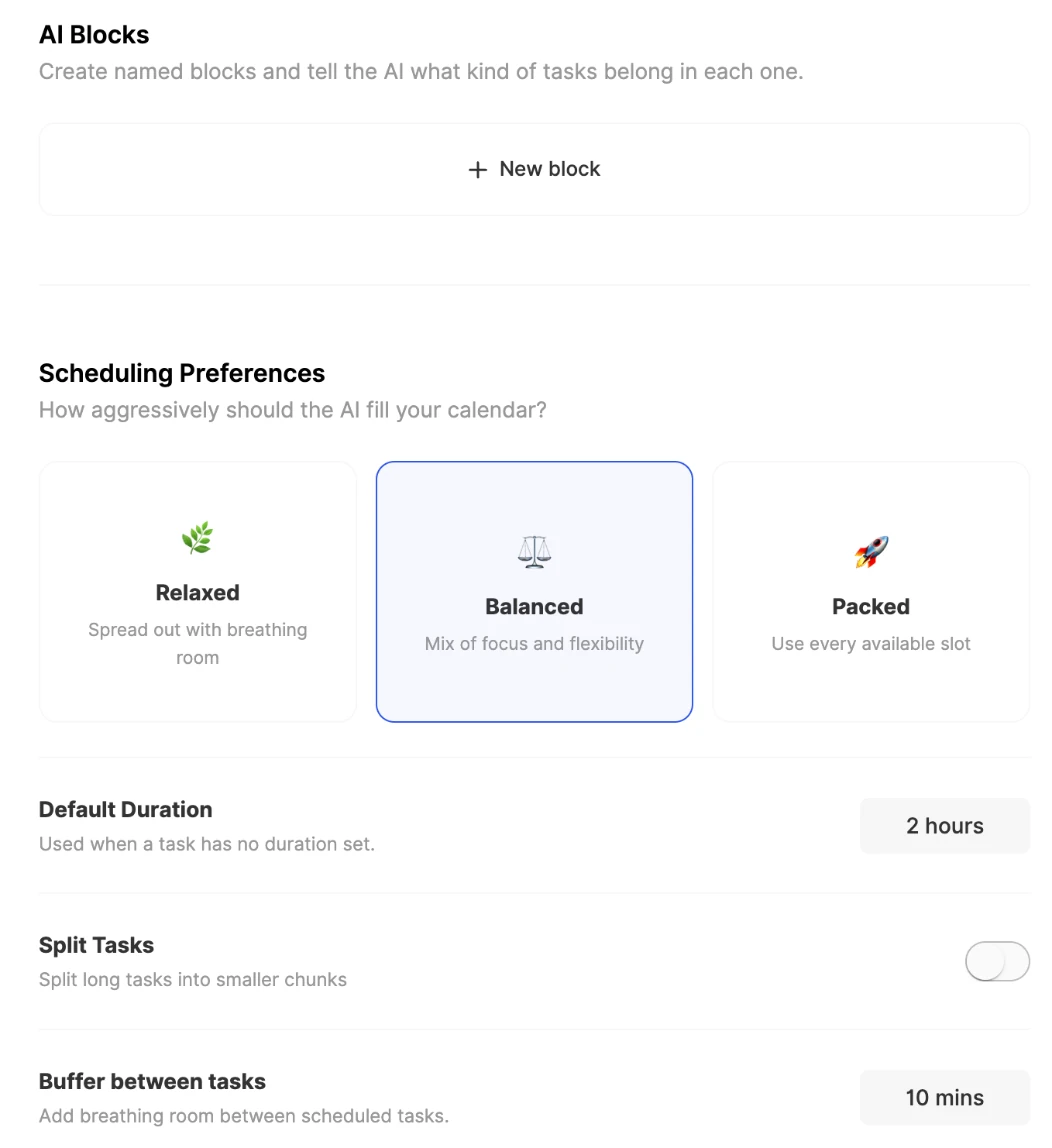
Protection and voice
- Protect external calendar events: on by default. Events from Google, Apple or Outlook stay where they are, and the AI plans around them. Turn it off to let the assistant reschedule them; you’ll still approve any change first.
- Ask before acting: the assistant checks with you when a request could mean more than one thing, and it always confirms before deleting anything.
- Hands free voice: ByDesign listens for a wake word, so you can talk to it without tapping the mic. Use Chrome, Edge or Safari.
AI credits and the AI Feature switch
- AI Credits: your balance and the date it resets, with Top up credits to buy more and a switch for usage credits, so you can keep going if you hit your limit.
- AI Feature: turns all AI features on or off. When it’s off, AI Canvas and Goals are hidden.
Earn credits
Invite a friend: when they subscribe, you both get 100 AI credits. Your invite link is on the same page, under Invite a friend, you both get credits.
Good to know
- AI Memory is plain text: read it, correct it or add to it any time.
- AI Blocks place tasks by their tags, so tag your tasks to have the AI put them in the right block.