

What goes into your Inbox
- Tasks you add with Quick Add (Ctrl+G), unless you give them a date or a page.
- Anything you forward by email to your ByDesign address.
- Tasks you jot into the Inbox View widget on your Dashboard, or straight into your Inbox.
- Tasks you add with the Inbox Task shortcut on iPhone, or the Inbox widget on your phone.
It’s a safe, neutral place where nothing falls through the cracks.
Open your Inbox
- In the Workspace, Inbox is at the top of the sidebar.
- Press Ctrl+I from anywhere.
- Add the Inbox View widget to your Dashboard to see it next to your day.
Turn emails into tasks
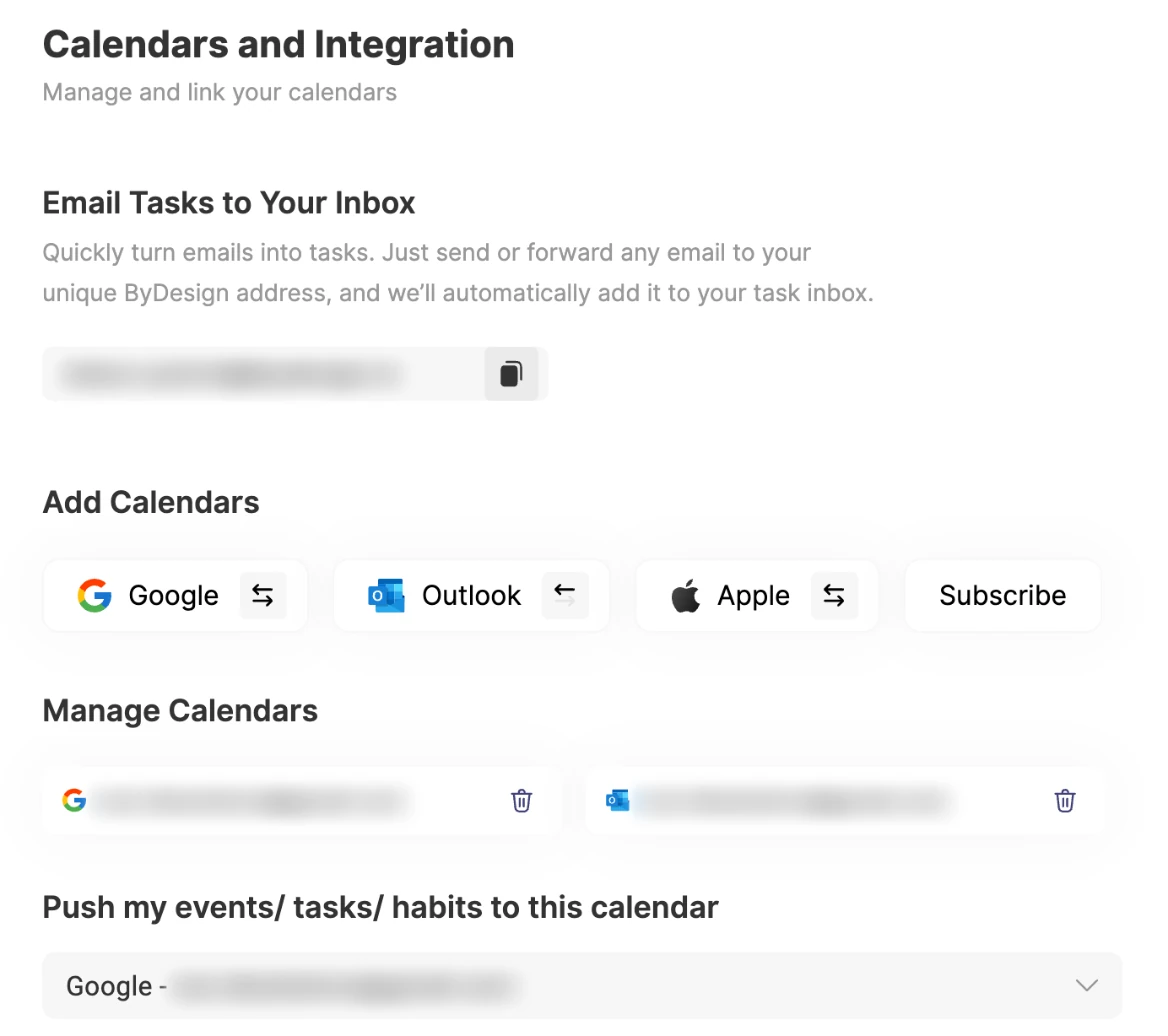
Step 1: Find your address
Open Settings → Calendar's Integrations. Under Email Tasks to Your Inbox, click your unique address to copy it.
Step 2: Forward an email
Send or forward any email to that address, from any email app or your phone.
Step 3: It becomes a task
The email’s subject becomes the task’s name, and the body is added as its note.
Tip
It’s perfect for sending tasks from Gmail, forwarding newsletters to read later, or handing an email to your future self. Save the address as a contact, so it’s always quick to find.
How to process your Inbox
Think of your Inbox as a triage zone. You don’t need to act on everything right away, but you do need to decide what happens to each item eventually. For every item, inspired by Inbox Zero:
- Takes less than 2 minutes? Do it now and mark it done.
- Know when to do it? Give it a date or a time, or drag it onto your calendar.
- Not sure yet? Move it to the page it belongs to, and revisit it later.
Repeat this weekly, or even daily, and you’ll stay on top of things without feeling overwhelmed.
Keyboard shortcuts for your Inbox
Select a task first, then:
- Ctrl+D: mark it as done.
- Ctrl+Shift+E: open its edit form, to set a date, a page and more.
- Delete, with the task’s handle selected: delete it.
- Move it to a page or the calendar: drag and drop it, or use the edit form.
Pro tips
- Add the Inbox View widget to your Dashboard for quick access.
- Schedule a weekly review to clear your Inbox and plan your week.
- Batch-capture ideas: you don’t need to organise anything when you add it.
- Forward emails from your phone on the go, to prepare for your next deep-work session.
Your Inbox isn’t where ideas go to rest; it’s where they wait their turn. And you choose when that turn comes.
Good to know
- Emailed tasks arrive with no date, so they stay in your Inbox until you plan them.
Keep reading
- Planning basicsQuick AddCapture a task or event in one line from anywhere in ByDesign, with its date, time, deadline, repeat and page.
- Planning basicsKanban boardsSee your tasks move from Backlog to Next Up, In Progress and Completed, on one main board or a board on any page.
- More about this featureQuick capture