

Three ways to add a habit
- From the Dashboard: add the Habits widget if it isn’t there yet, then click + to create a habit. It’s the easiest way to get started and track habits day to day.
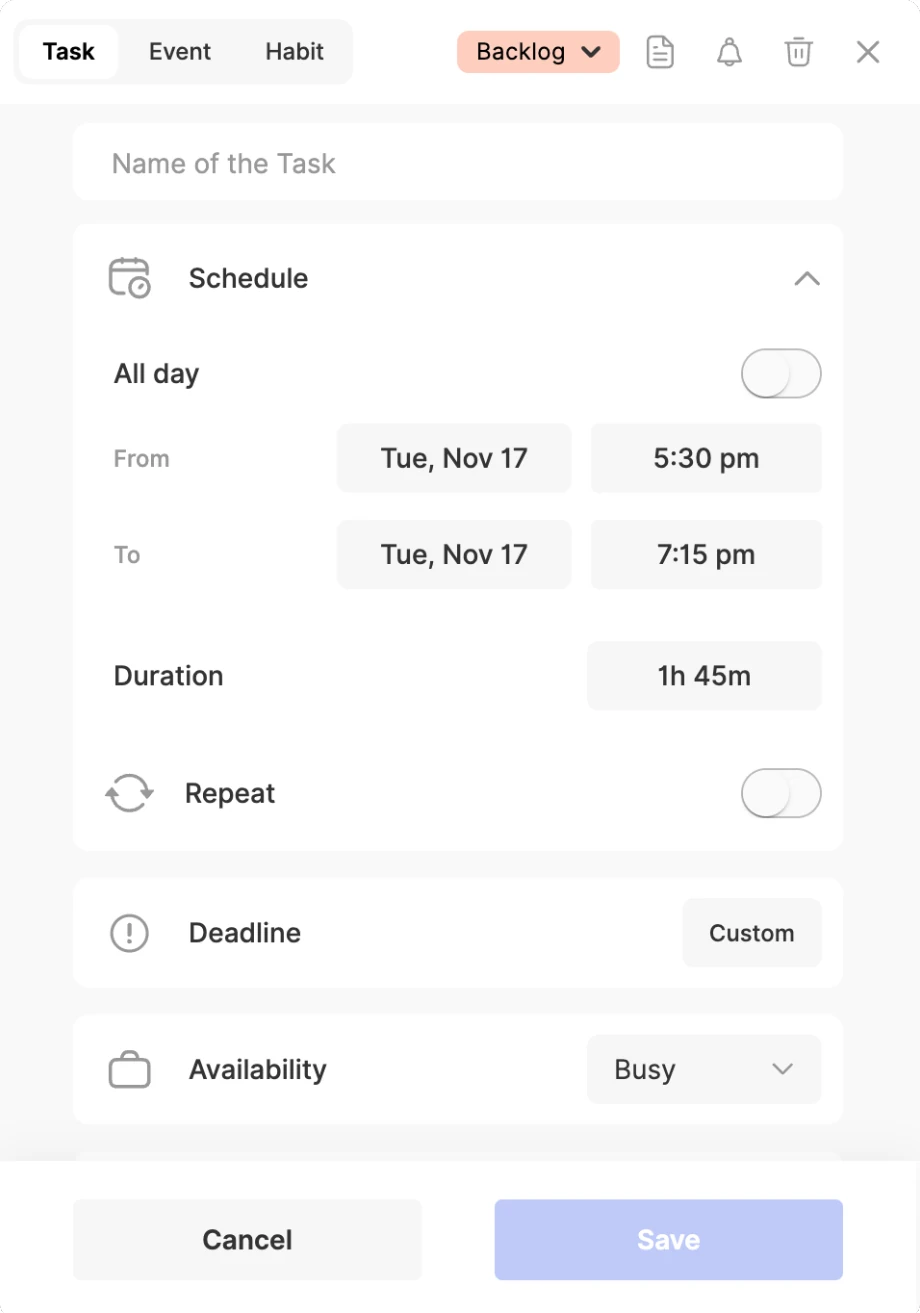
- From the Calendar: click, or click and drag, anywhere on the calendar. In the form that opens, choose Habit in the top bar, then fill in the details just like you would for a task or an event.
- With the keyboard: press Ctrl+Shift+H anywhere in ByDesign.
Customize your habit
When you create a habit, you can tailor every detail:
- Name and emoji: give your habit an identity, like 🏃 “Morning run”.
- Start and end date: set the Start Date to Today, Tomorrow or Custom, and turn on End Date if it should stop on a set day.
- All day or a set time: all-day habits are tracked across the day; with All day off, set the From time and the Duration, and the habit sits at that time on your calendar.
- Repeat: choose how often it happens (see below).
- Reminders: get notified before its time.
- Calendar: push it to your Google, Outlook or Apple calendar, so you see it there too.
Choose how often it repeats
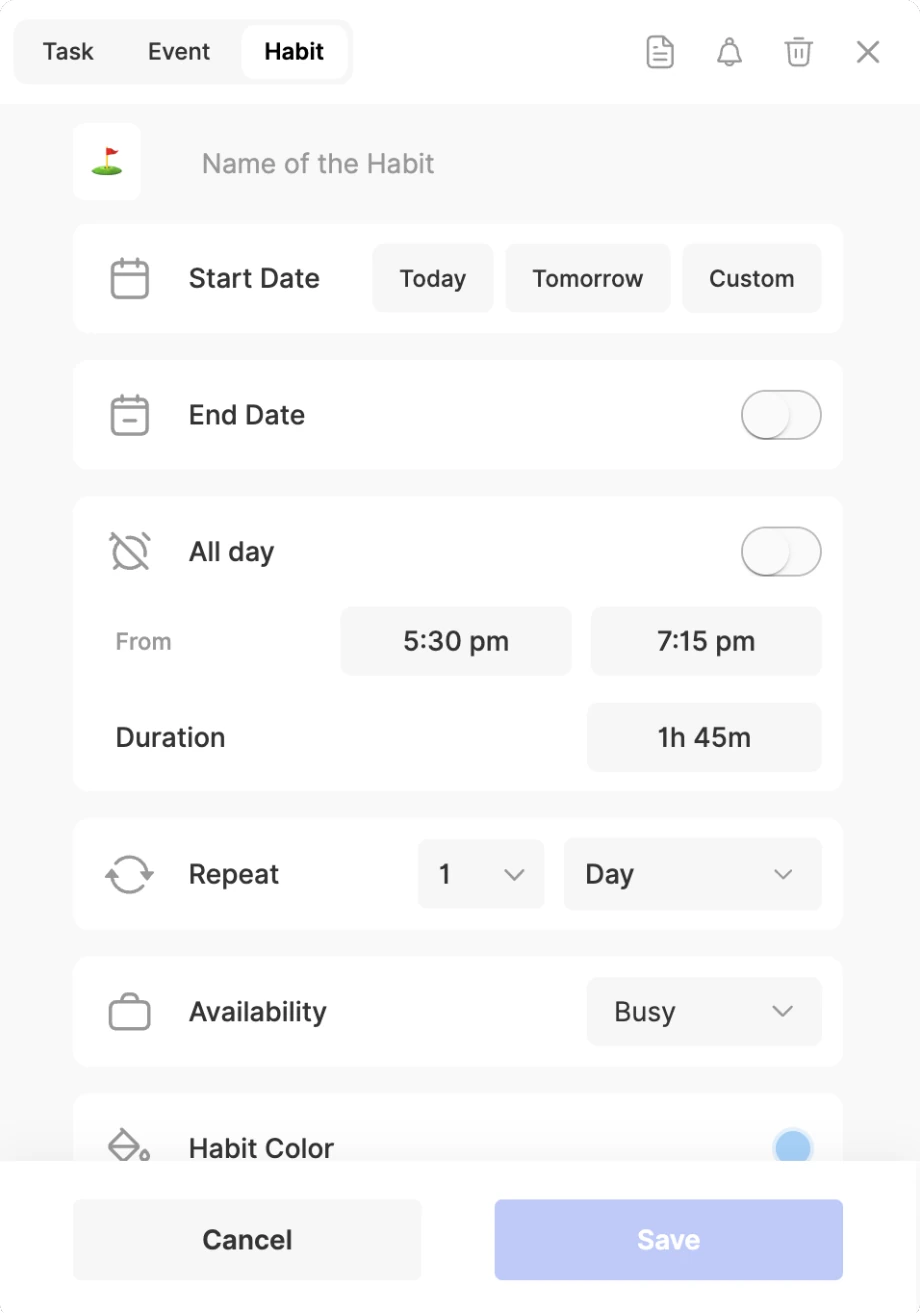
- Daily: every day, or every few days.
- Weekly: on the days you pick, like Monday, Wednesday and Friday, or just Sundays.
- Monthly: on a date from the 1st to the 31st, like the 15th, or on a pattern like the second Monday or the last Friday.
- Yearly: once a year.
Tip
There’s no “3 times a week on any days” option. Pick the weekdays instead.
Check off a habit
Tick a habit on your Dashboard’s Habits widget, on its badge in the calendar, or from the Today’s Tasks widget on your iPhone or Android phone. The 🔥 number next to a habit is your current streak.
Skip a day without losing your streak
Right-click the habit on your Dashboard and choose Skip Habit, or open its Habit progress and pick the day. A skipped day keeps your streak going; a day you simply miss resets it. Changed your mind? Use Undo Skip Habit.
See your progress
Open Habit progress to see your Current streak, BEST STREAK, how many days you’ve completed and SKIPPED (the days you missed), a month calendar where you can tick or skip days, and WEEKLY, MONTHLY and YEARLY TOTALS.
Drag and drop to reschedule
Habits are flexible. Even if you’ve set a time, you can drag a habit to another time on your calendar. Only that day moves; the repeat stays as it is. It’s perfect for doing a habit at a different hour on one particular day.
Get reminded
For a habit with a set time, open its Reminders section and add as many reminders as you like, from minutes to weeks before the set time. To add them automatically, turn on Add reminders by default to habits in Settings → Customizations.
Note
On the web, all-day habits don’t have reminders. The iPhone and Android apps allow them.
Show habits in your calendar
In a habit’s Calendar section, choose a connected Google, Outlook or Apple calendar to push it to. Skipping a day updates it there as well. All-day habits are pushed only when All-day habits created in ByDesign is turned on in Settings.
Build habits with friends
Doing it together makes it more fun, whether it’s a daily walk, a no-sugar streak or a journaling challenge. Use Build with others to invite friends:
- Each friend gets their own copy of the habit, with their own checkboxes and progress.
- Everyone’s progress shows on a friendly streak board.
- You can comment to cheer each other on, share tips or give a kind reminder.
Good to know
- Start with one or two small habits, so you can stay consistent.
- Each day is done or not done: habits don’t count amounts, like glasses of water.
- You can’t pause a habit. Set an End Date, or delete it from the habit’s menu.
- On the AI and AI Plus plans, ByDesign’s assistant can create habits, check them off, skip a day or delete one for you.
Keep reading
- Planning basicsUsing the DashboardPlan your day from one screen: today’s calendar, your tasks, habits, pinned pages and the widgets you choose.
- Getting startedThe ByDesign workflowA simple daily flow: capture, start from your Dashboard, set up your calendar, organise your Workspace and plan ahead.
- More about this featureHabit tracker