

Open the Pomodoro Timer
- On the web and in the Mac and Windows apps, click the hourglass (Pomodoro Timer) in the menu on the left.
- In the iPhone and Android apps, open the Pomodoro tab.
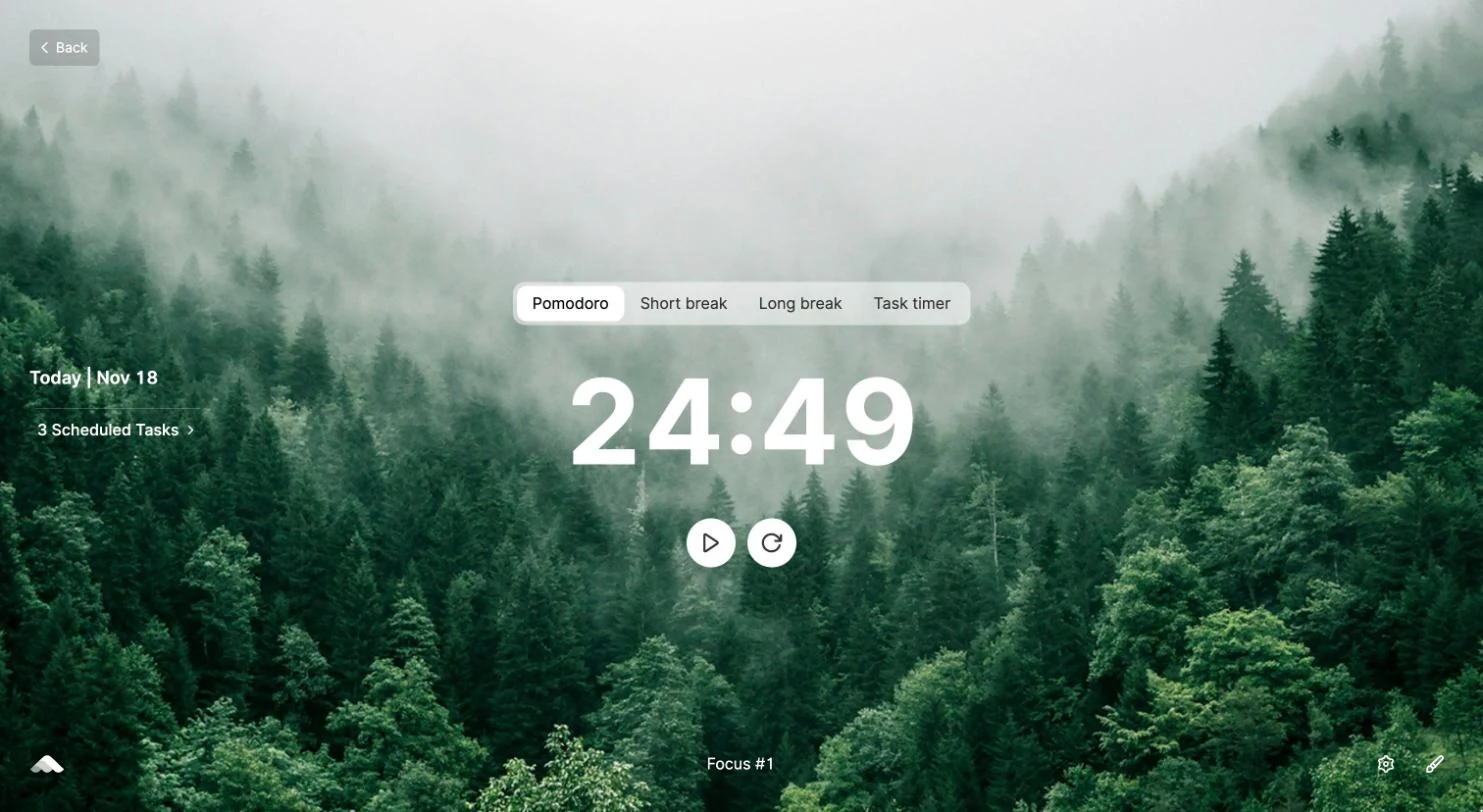
Work in Pomodoros
- Pomodoro: 25 minutes of focus. Press Start Timer; the footer counts your rounds, like Focus #1.
- Short break: 5 minutes after each Pomodoro.
- Long break: 15 minutes after every four Pomodoros.
On the left, Today shows the tasks you’ve scheduled for the day, and you can add one there too. Leave the page while the timer runs and it keeps going in a small floating timer you can move around.
Tip
Use the brush at the bottom right to change the background: Mountain, Desert, Forest or Beach.
Timer settings
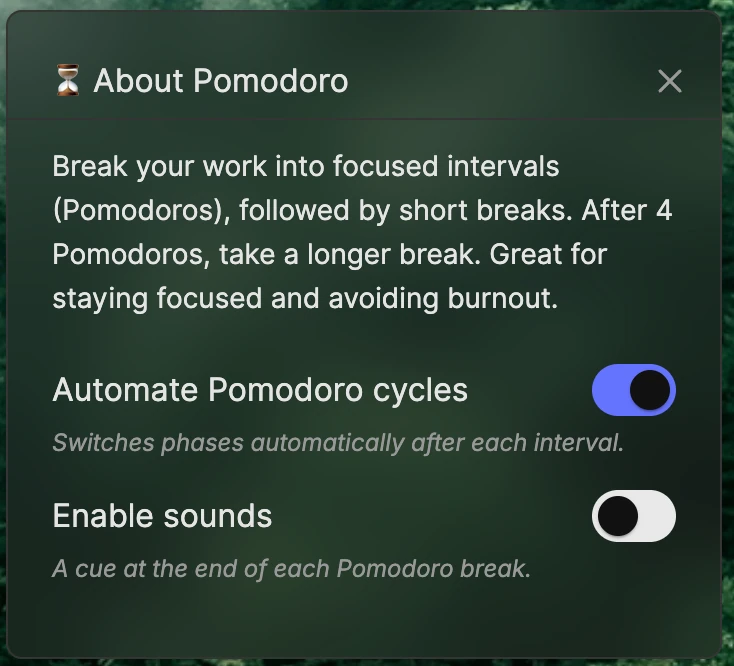
Click the settings icon at the bottom right to open About Pomodoro:
- Automate Pomodoro cycles: moves from focus to break and back automatically. It’s on to begin with.
- Enable sounds: plays a sound when each interval ends, while ByDesign is open. It’s off to begin with.
Track time on a task
Step 1: Start the timer
Click the hourglass in a task’s Timer column (Start Timer). A floating timer opens and the cell shows the time as it runs.
Step 2: Stop it
Click stop beside the task’s name in the timer. Ticking the task off stops it too.
Step 3: See your total
When it’s not running, the Timer column shows the total time you’ve tracked on the task.
- One at a time: starting a new task timer asks to stop the one that’s running.
- With Pomodoros: while a Pomodoro runs, only focus time counts, not breaks.
- Fix a time: right-click a task’s Timer cell to set the tracked time yourself.
- Add it up: select tasks and the Timer column header shows their total.
- Tracked time is yours, and a repeating task keeps it for each occurrence.